
Modern affiliate marketing is no longer a solo job. As operations scale and the number of profiles grows, task distribution becomes essential, and there are 🔑 several key areas that need to be covered:
- Define roles and access levels for team members;
- Manage team profiles and resources;
- Transfer accounts and data between team members quickly;
- Prevent data loss when team members leave or switch roles;
- Ensure data security.
That’s why it’s important for team leads to have an antidetect browser that is not only a tool for account management but also a solution for team collaboration.
In this article, we’ll cover the features that help organize teamwork in 🚀 Dolphin Anty.
User Roles Within a Team
In Dolphin Anty roles can be assigned during user creation. This can be done in the “Users” section by clicking the “+” button. There are three available roles: administrator, team lead and user.
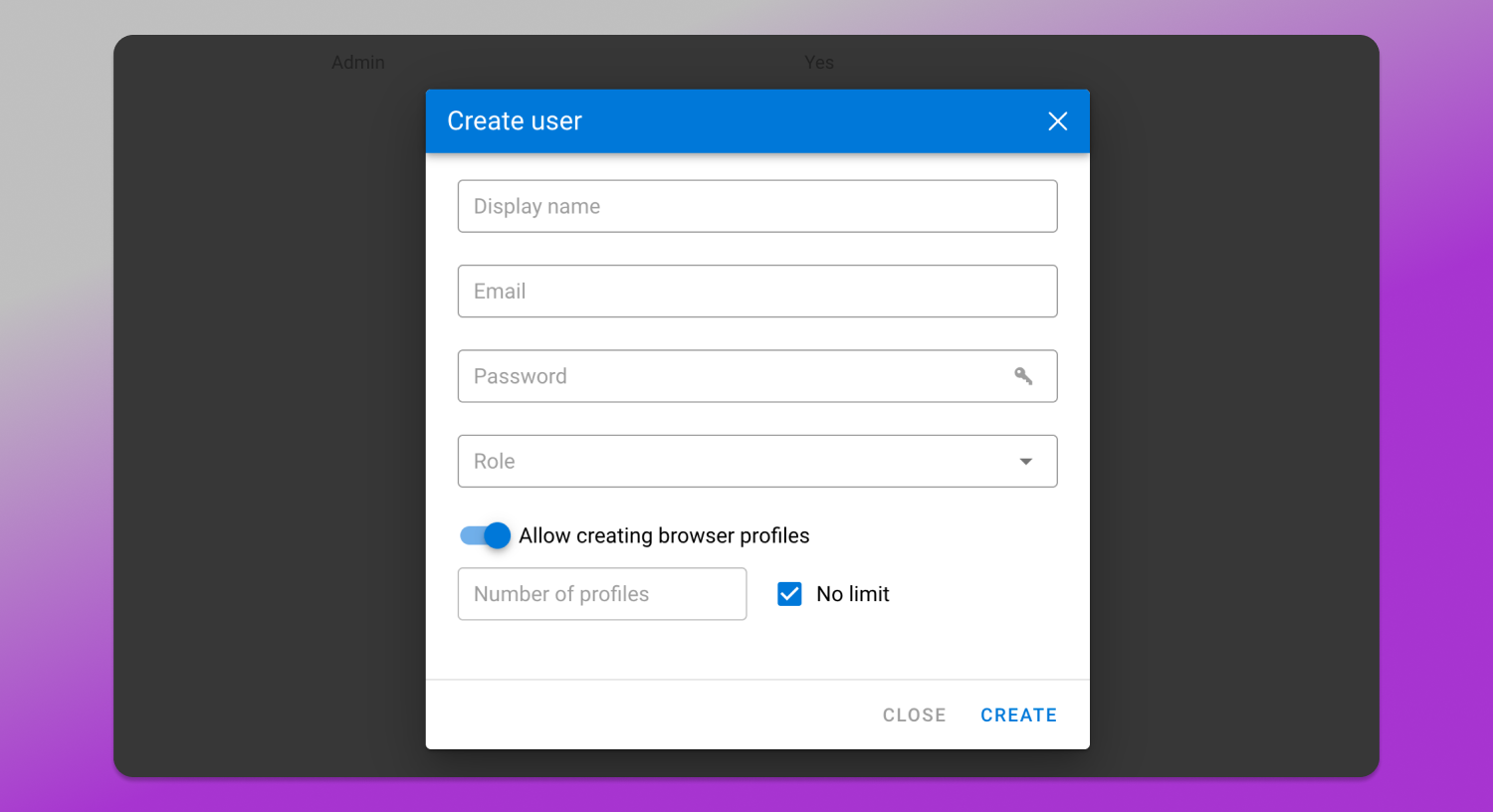
1. An administrator has full access to the team and all data within the workspace. They can create and remove users, change roles and access levels, edit credentials and use all profiles.
2. A team lead manages only the users assigned to them by an administrator. They can view, launch and edit their team members’ profiles. However, team leads cannot create or remove users or change their passwords and roles.
3. A user can create, configure and delete profiles, manage proxies and use them in their work. Users can also share profiles with other team members. If a profile is available for collaboration, the set of available actions depends on the permissions granted by the administrator or team lead.
During user creation profile limits can also be configured. For example, a team member can be assigned a specific profile limit or prohibited from creating new profiles altogether. This helps prevent situations where a single user consumes all available team resources.
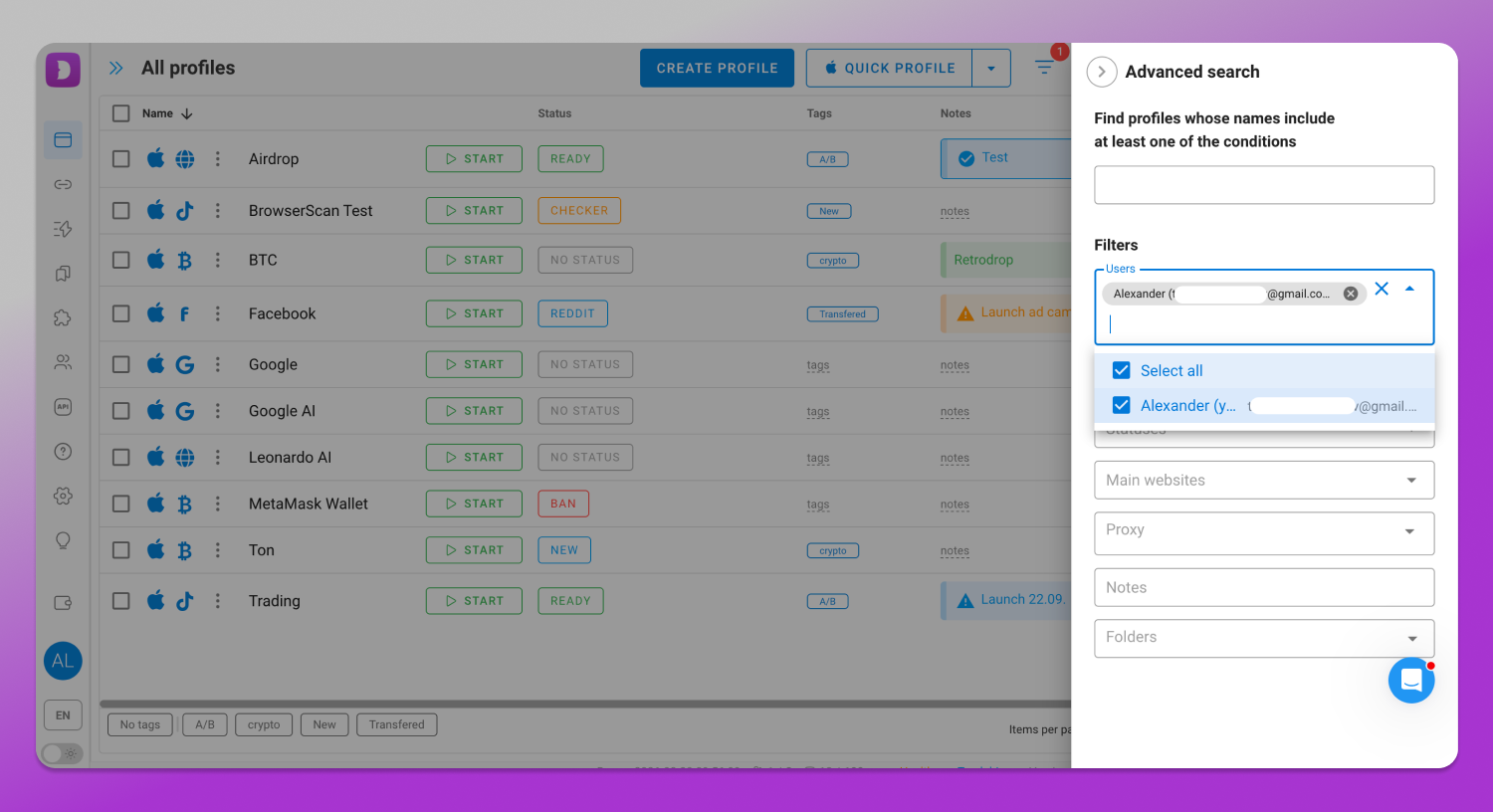
For better oversight #️⃣ user-based filtering is available. A team lead or administrator can quickly find a specific team member and view all of their profiles in one place. This feature is especially useful for large teams.
Removing a User
Team members may switch projects, move to other teams or stop working altogether. In such situations it’s important to retain access to their data.
When a user is removed in Dolphin Anty, their profiles can be automatically transferred to the administrator account. All data is preserved along with the profiles, including tags, proxies, statuses, notes, settings and start pages.
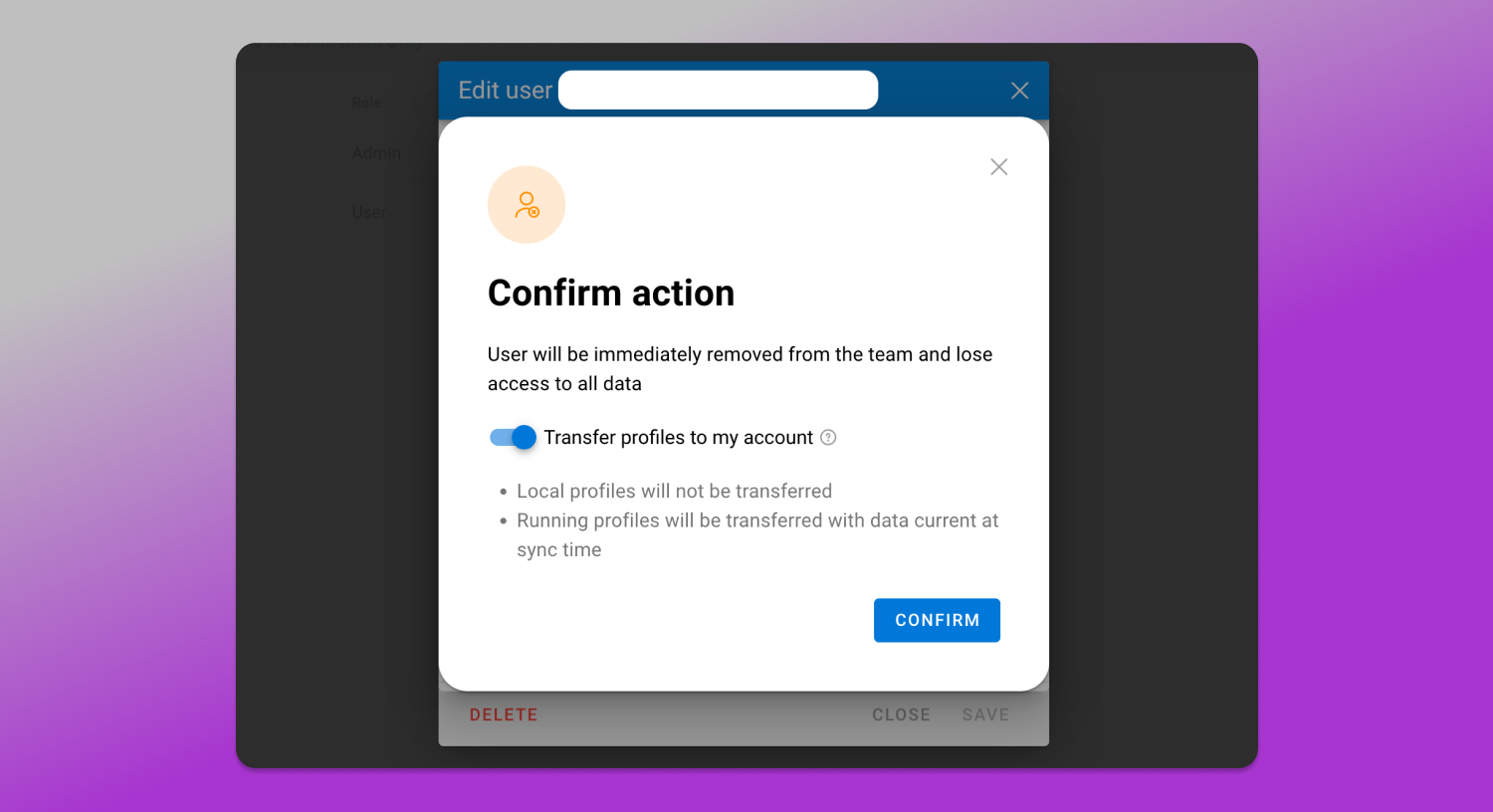
Even if some profiles are running at the time the user is removed, they will still remain accessible to the administrator.
This transfer works only for profiles with cloud sync enabled. Local profiles are deleted together with the user.
Working with Profiles Within a Team
Profiles regularly move from one specialist to another. For such cases, Dolphin Anty offers tools for ➡️ profile transfers and access management.
Profile Transfer
Profile transfer allows you to fully hand over a profile to another user. To do this, select one or more profiles and click the “Transfer” button in the bulk actions panel. If needed, you can also share the proxy linked to the profile.
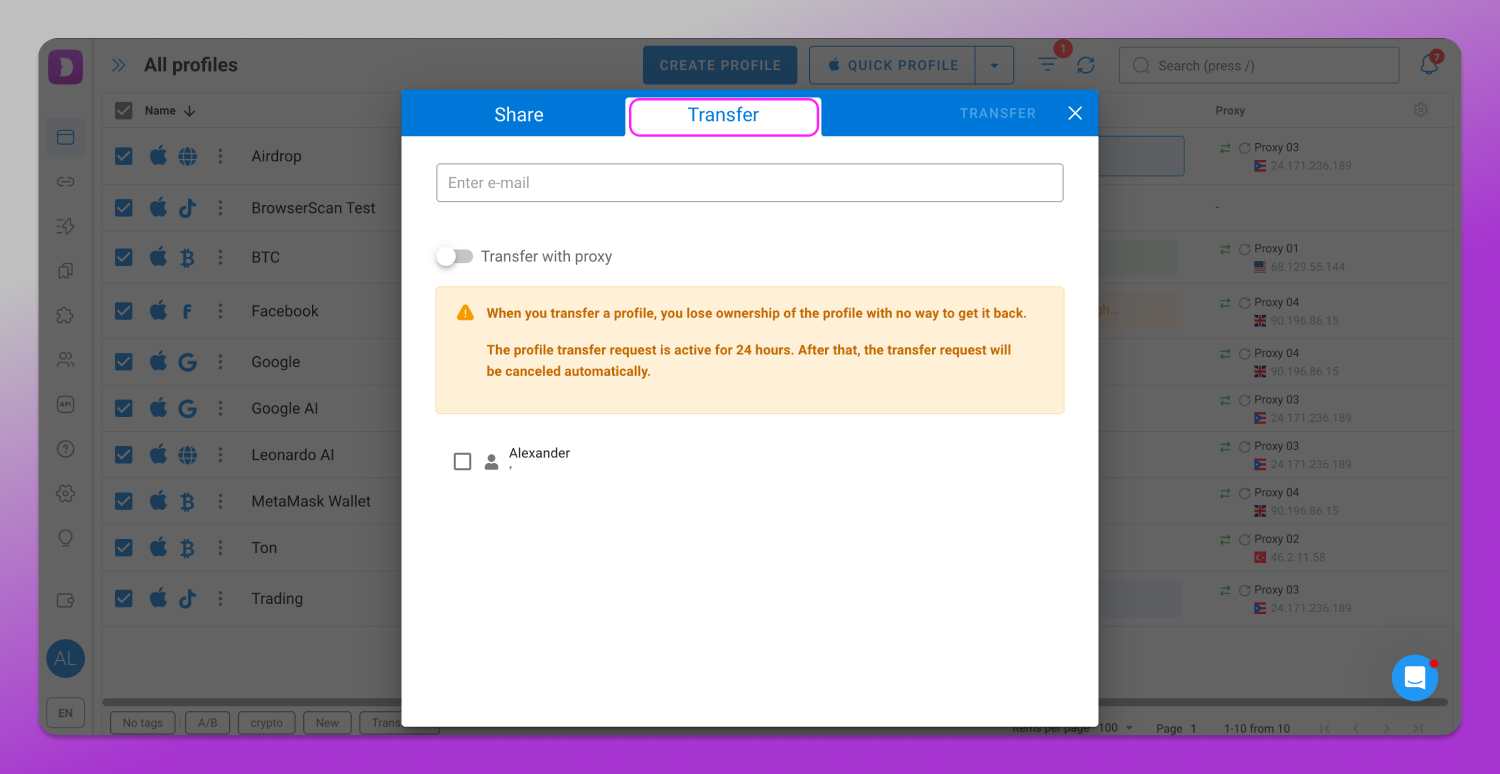
After the transfer the profile disappears from the sender’s account. The recipient receives a notification and can accept or decline the profile. For ongoing collaboration you can configure trusted users so that profiles from them are accepted automatically. There is also a blacklist for automatic rejection.
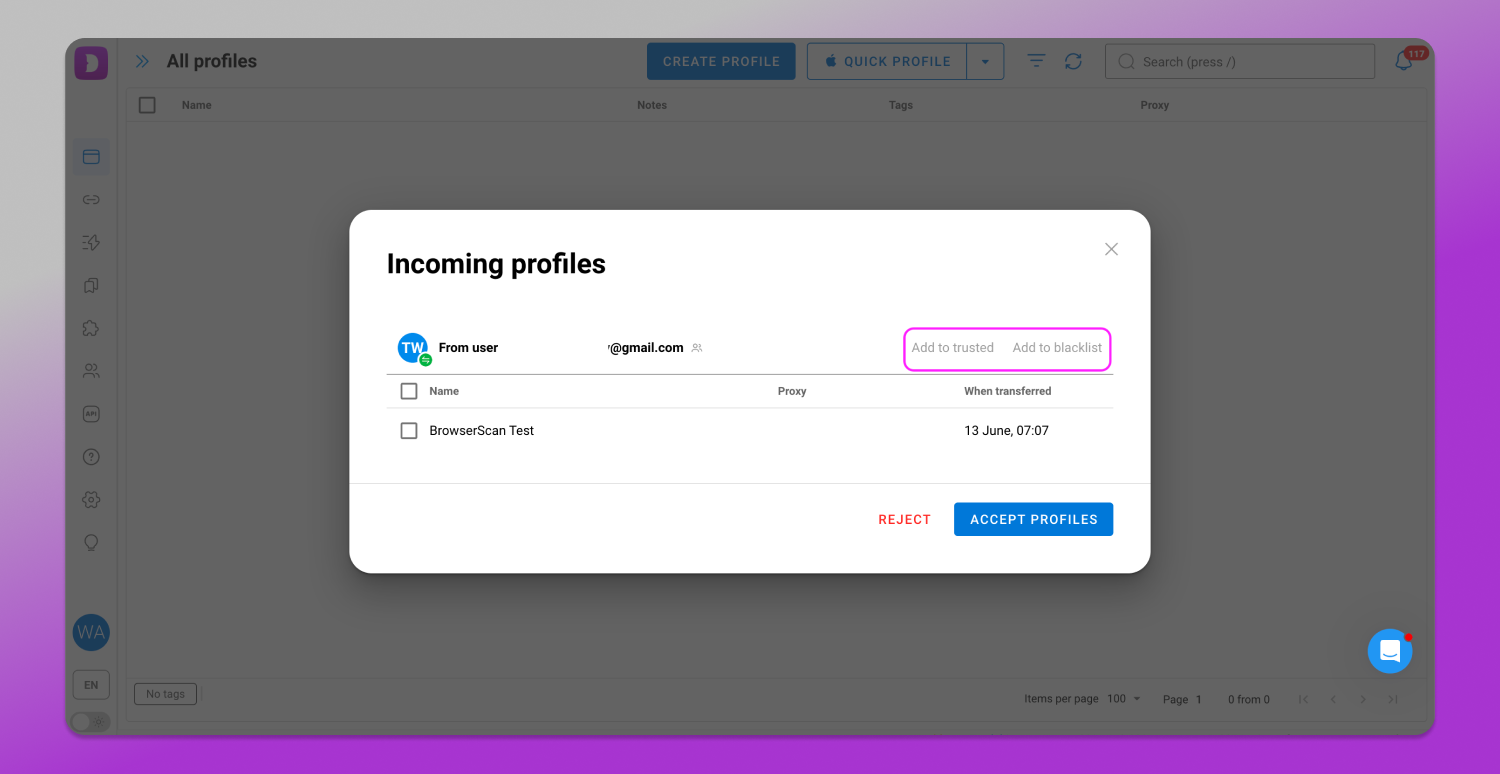
Once a profile is accepted, it receives the “Transferred” tag.
It is also worth noting that profiles can be transferred within a team even if the recipient has already reached their profile limit. This eliminates the need to free up space in advance and simplifies resource reallocation.
Team Sharing
Not every profile needs to be transferred permanently. In many cases granting access for collaboration is enough. This approach helps maintain control over the infrastructure while allowing the team to work with the necessary resources.
Profile Sharing
Profile sharing allows multiple team members to 💻 work with the same profile. The key advantage of this approach is flexible permission management. You can define which actions each user is allowed to perform and which are restricted. Access permissions can be changed or revoked at any time.
To share a single profile, open the context menu and select the appropriate option.
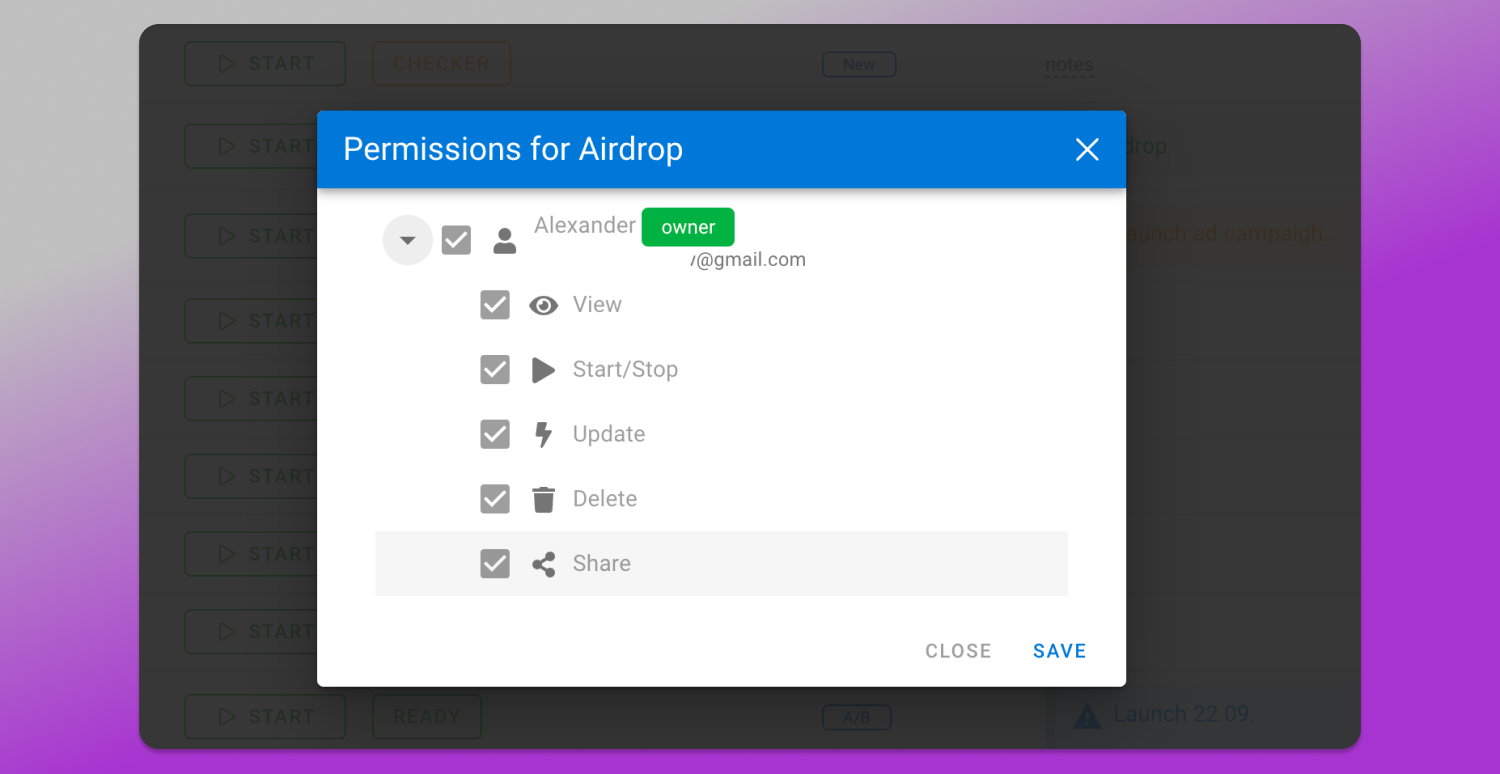
To share multiple profiles, select them, click the “Transfer” button in the bulk actions panel and choose the “Share” tab.
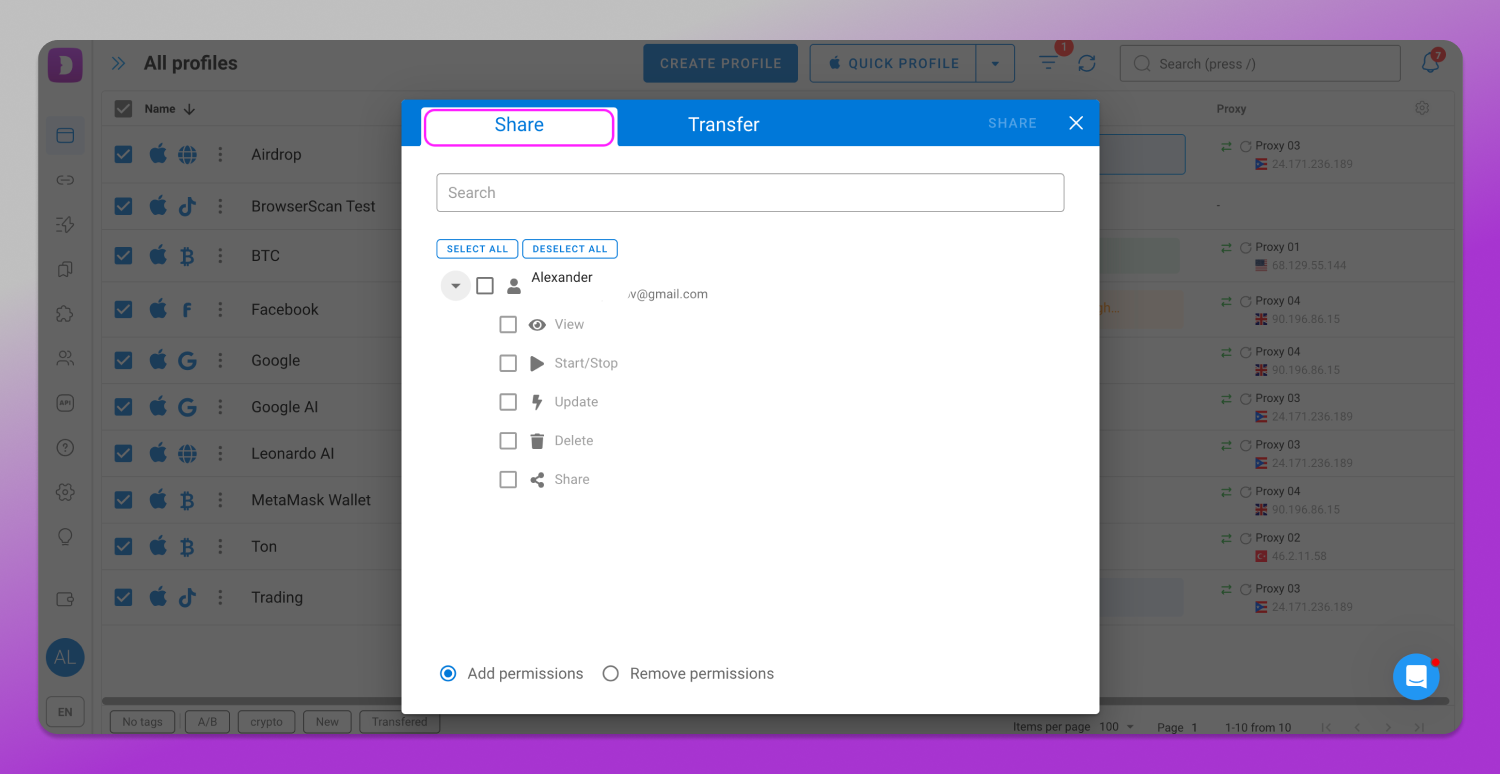
To modify permissions, open the profile context menu and select “View Access”.
Folder Sharing
Instead of granting access to each profile individually, an administrator or team lead can 📁 share an entire folder related to a specific project, traffic source or geo and configure access permissions. For example, users can be allowed to view folders, edit folder settings, delete folders or launch, edit, add and remove profiles within them.
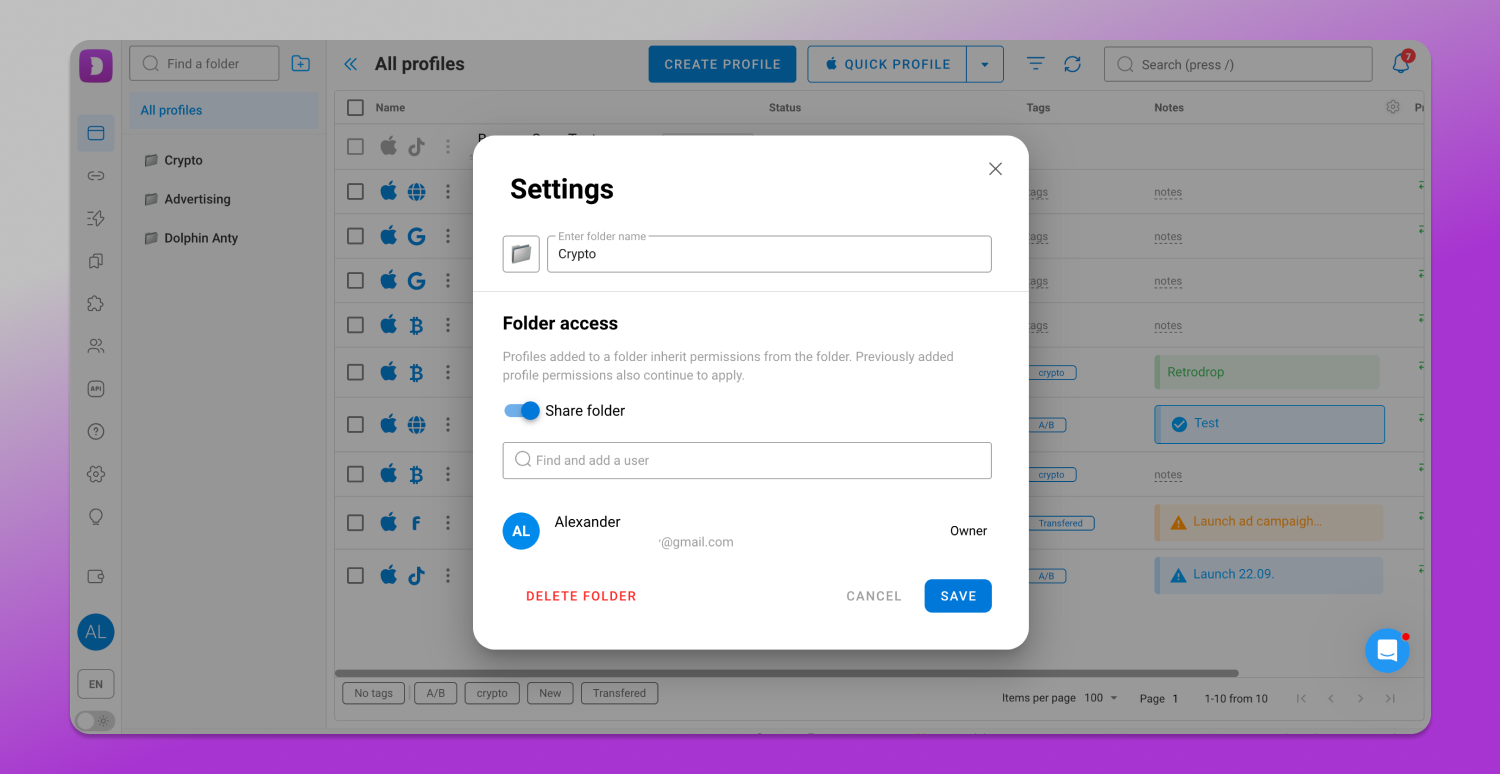
To share a folder, open the folder list, hover over the three dots next to the folder name and select “Edit” to configure the access.
Permissions can also be configured during folder creation.
Proxy Sharing
In addition to profiles and folders team members can 🔗 share proxies. They can be transferred together with a profile or separately. To do this, go to the “Proxies” section, select the required proxies, and click the “Share” button in the bulk actions panel.
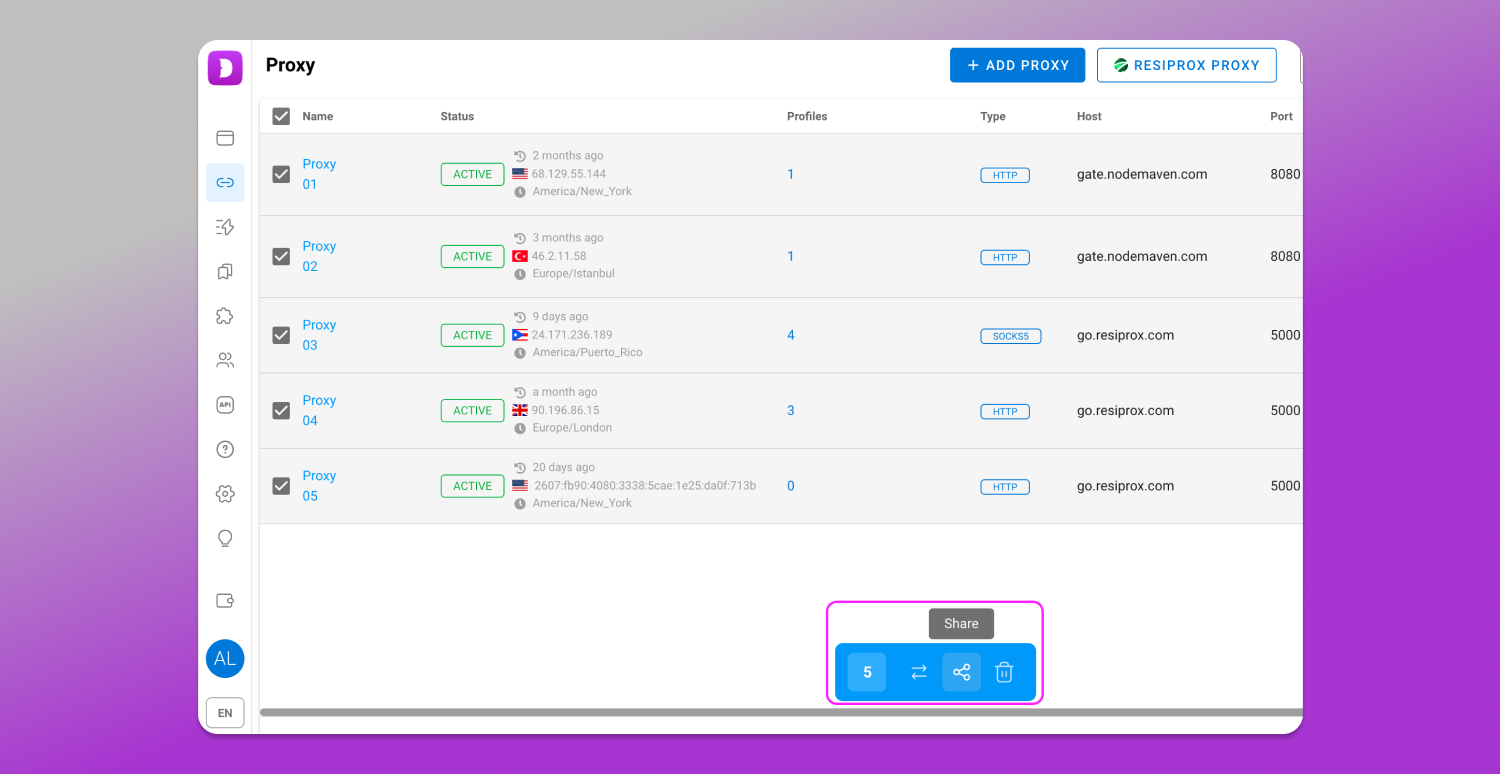
This ensures all settings remain within the team and eliminates the need for team members to manually exchange connection details.
Scenario Sharing
Dolphin Anty users can also 📹 share automation scenarios they have created. To do this, open the relevant section and click the “Share” button.
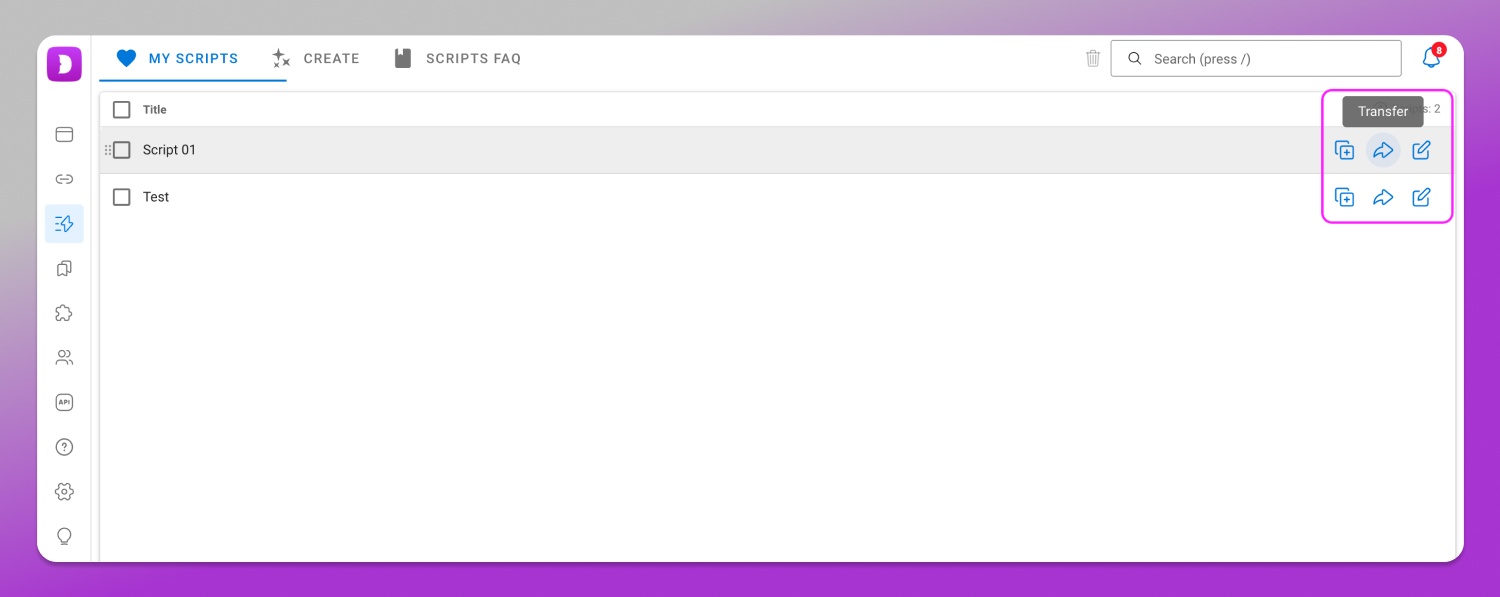
The scenario will then appear in the recipient’s account without requiring confirmation.
Switching Between Accounts
Many specialists work across multiple teams or use several accounts for this purpose. For such cases Dolphin Anty offers 🔄 quick account switching without the need to repeatedly enter login credentials.
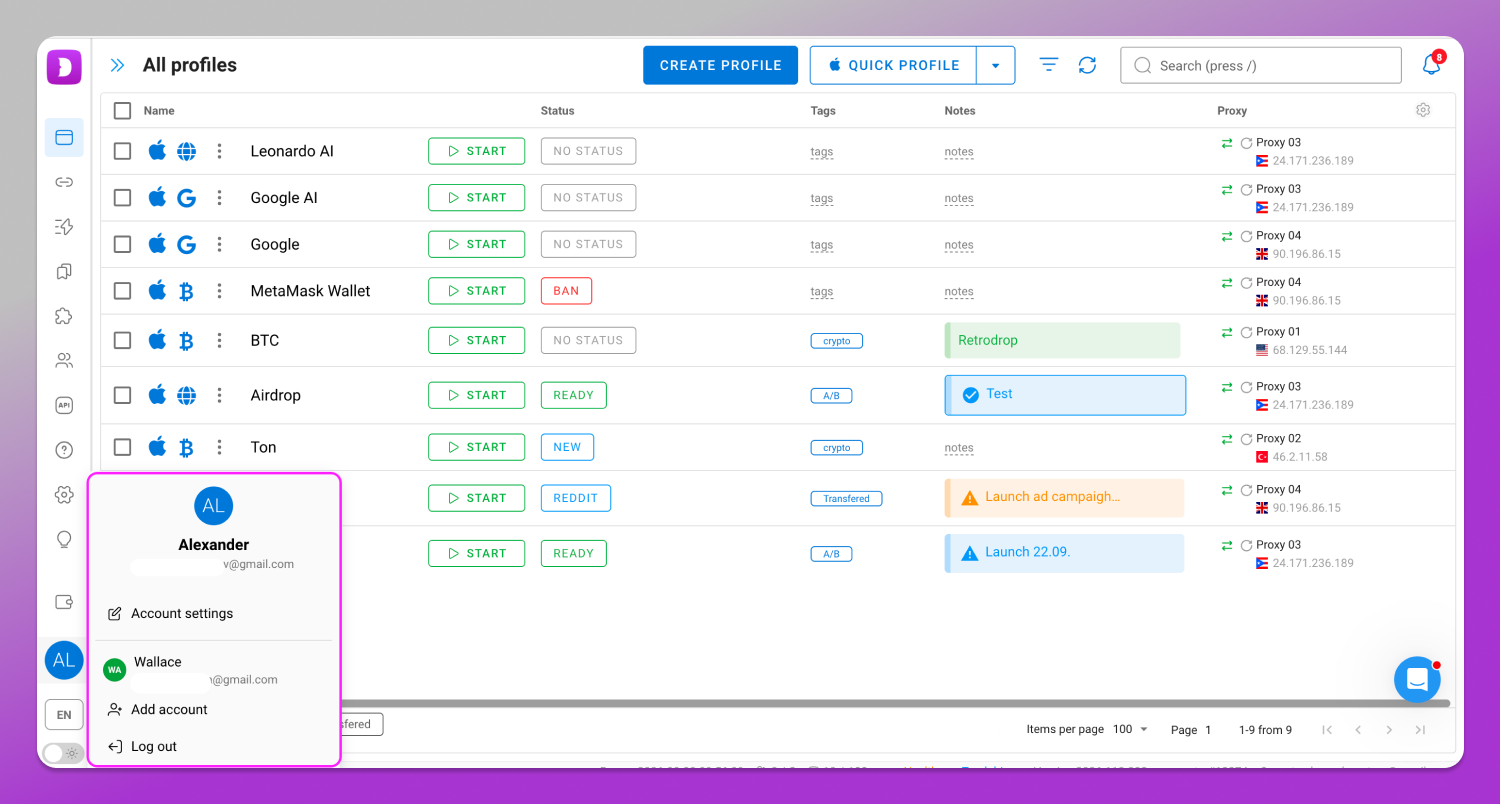
After the initial sign-in, account data is saved, so switching between accounts takes just a few clicks.
Password Protection for Profiles
In Dolphin Anty profiles can be 🔐 protected with passwords. This provides an additional layer of security for important accounts. To enable it, open the profile context menu and select “Profile Password”.
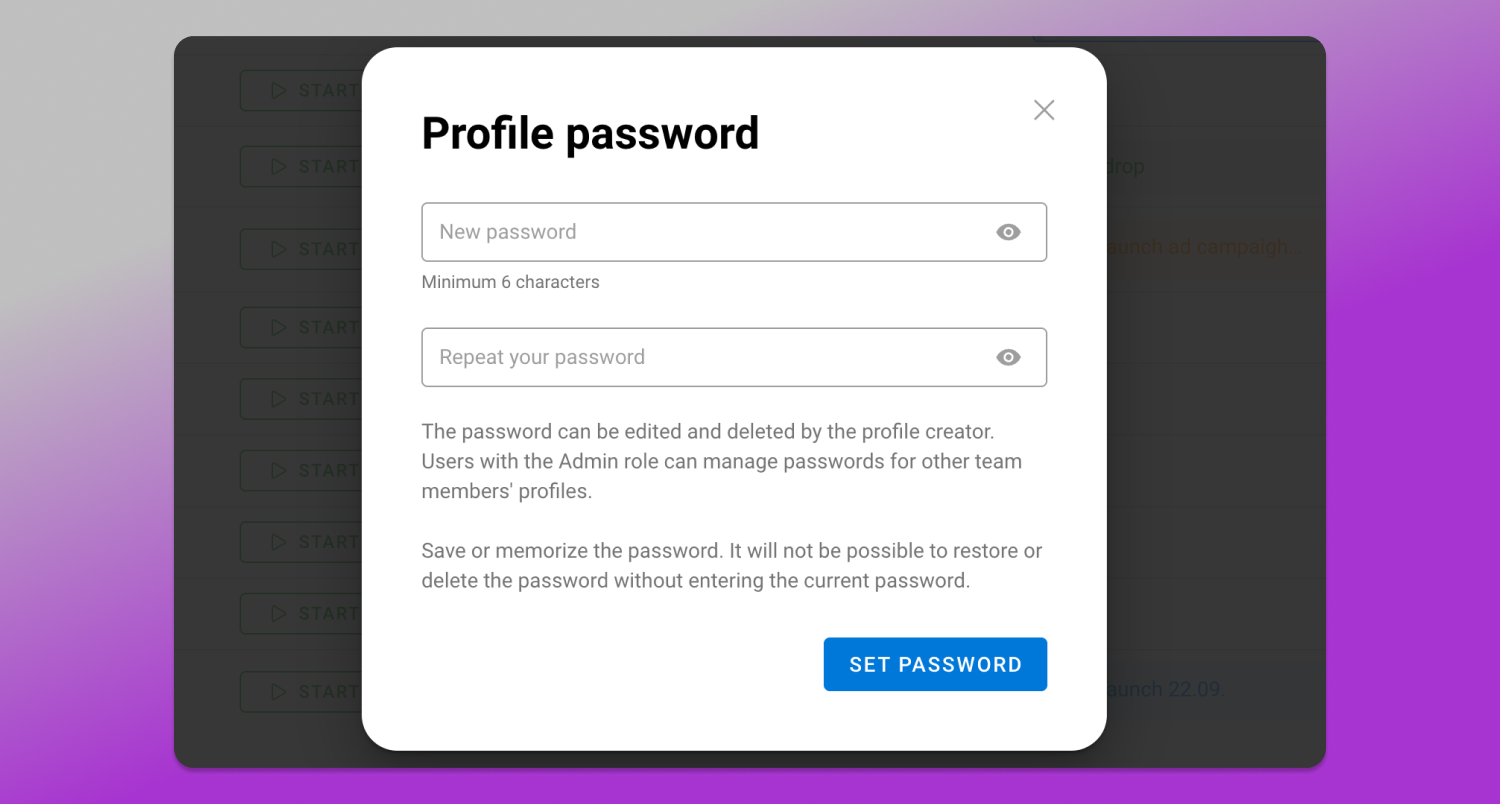
Even if someone else gains access to the device, they won’t be able to open a protected profile without the password.
Conclusion
As teams grow, infrastructure management becomes just as important as finding profitable setups and scaling ad campaigns. User roles, flexible permission management, profile transfers, collaborative work with folders and proxies and built-in security tools help establish controlled and efficient team workflows.