
A Guide to Automation with MCP
Modern AI agents can do much more than answer questions and write text. They can also perform various actions in a browser: open pages, click buttons, fill out forms, read website content and verify results. You can also connect AI to browser profiles 🚀 Dolphin Anty using chrome-devtools-mcp, an MCP server that provides AI with tools for controlling a browser. In this guide we’ll explain how the automation works, why an additional script is needed and how to connect it to Dolphin Anty.
What You’ll Need to Connect an AI Agent
To set up the automation, you’ll need:
- An AI agent – a program with AI that receives a task from the user and can perform actions using connected tools. In our case, this could be Claude Code, Cursor, VS Code, Windsurf or another compatible client.
- MCP (Model Context Protocol) – a standard that allows an AI agent to connect to and use external tools.
- chrome-devtools-mcp – a ready-to-use MCP server that provides AI with tools for controlling a browser.
- A Dolphin Anty profile – the browser profile where the AI agent will perform actions.
The resulting automation should work according to the following flow:
- Give the AI agent a task;
- The agent accesses chrome-devtools-mcp through MCP;
- The agent controls the Dolphin Anty profile.
How to Connect chrome-devtools-mcp to Dolphin Anty
Connecting chrome-devtools-mcp to a Dolphin Anty profile allows you to hand control of the profile over to an AI agent, which can then perform the required actions on its own.
👉 Keep in mind that the agent won’t have access to the entire antidetect browser. It will only work with a specific profile.
The agent will have full access to that profile, including open tabs, cookies, logged-in sessions, extensions and other data. For this reason, only connect profiles that 📣 do not contain sensitive information.
What You’ll Need Before Setup
Before connecting everything, make sure you have:
- A paid Dolphin Anty plan, as automation is not available on the Free plan;
- Node.js LTS with npx – chrome-devtools-mcp is downloaded from npm the first time it is launched;
- An MCP client that supports local MCP servers over stdio;
- The Dolphin Anty profile ID.
It’s best to close the profile that you’ll connect to MCP before starting the setup. The script will launch it automatically in automation mode later.
Step 1. Install Node.js
chrome-devtools-mcp runs through Node.js, so first install the latest LTS version of Node.js.
After installation, open a terminal and check that Node.js and npx are available:
node -vnpx -v
Both commands should return the installed version numbers.
Step 2. Find the Dolphin Anty Profile ID
You’ll need the profile’s numeric ID to establish the connection. You can find it directly in the Dolphin Anty interface.
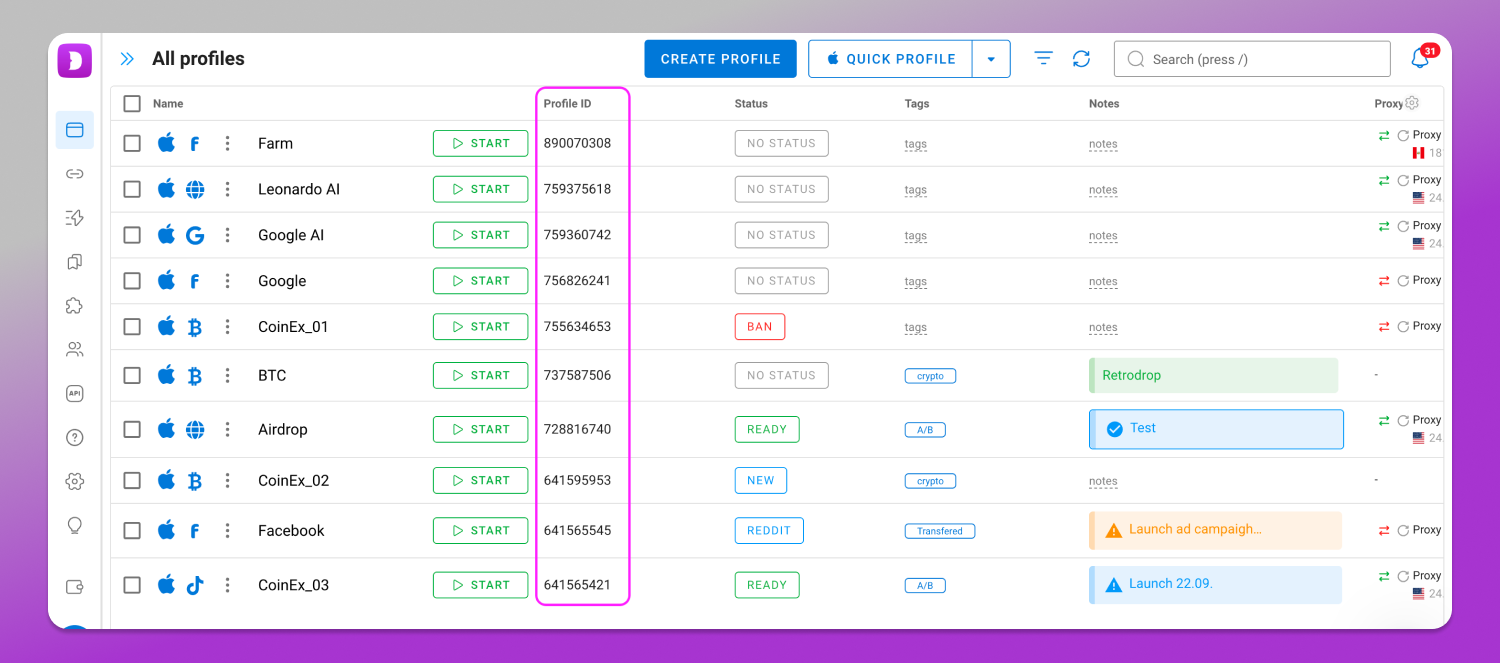
The script needs this ID to determine which profile to launch.
Step 3. Create the Connection Script
For chrome-devtools-mcp to control the browser inside a Dolphin Anty profile, it needs to connect to the running browser through Chrome’s remote debugging interface. The connection is established through a local port.
The problem is that Dolphin Anty does not use one fixed port. Each time a profile is launched through the Local API with the automation=1 parameter, it may be assigned a different port.
This means you can’t simply specify one fixed port in the chrome-devtools-mcp configuration. You need a 📹 script that finds the profile’s current port when it starts and passes it to chrome-devtools-mcp.
Create a file named dolphin-devtools-mcp.mjs and add the following code:
// chrome-devtools-mcp for a Dolphin Anty profile.
//
// Usage: node dolphin-devtools-mcp.mjs <profile ID>

import { spawn } from 'node:child_process';

import { readFileSync } from 'node:fs';

import { homedir } from 'node:os';

import { join } from 'node:path';

const id = process.argv[2];

if (!id) {

  console.error(

    'Specify the profile ID: node dolphin-devtools-mcp.mjs <ID>'

  );

  process.exit(1);

}

const api =

  'http://127.0.0.1:3001/v1.0/browser_profiles';

const appData =

  process.env.APPDATA ||

  (process.platform === 'darwin'

    ? join(homedir(), 'Library', 'Application Support')

    : join(homedir(), '.config'));

const portFile = join(

  appData,

  'dolphin_anty',

  'browser_profiles',

  id,

  'data_dir',

  'DevToolsActivePort'

);

// Profile is already running in automation mode: get the port from DevToolsActivePort.

async function portFromFile() {

  try {

    const port = readFileSync(portFile, 'utf8')

      .split('\n')[0]

      .trim();

    const res = await fetch(

      `http://127.0.0.1:${port}/json/version`,

      {

        signal: AbortSignal.timeout(2000),

      }

    );

    return res.ok ? port : null;

  } catch {

    return null;

  }

}

// Otherwise, start the profile through the Local API with automation=1.

async function startProfile() {

  let res;

  let body;

  try {

    res = await fetch(

      `${api}/${id}/start?automation=1`,

      {

        signal: AbortSignal.timeout(120000),

      }

    );

    body = await res.text();

  } catch {

    console.error(

      'Dolphin: Local API is not responding on 127.0.0.1:3001. ' +

      'Launch Dolphin Anty and log in to your account.'

    );

    process.exit(1);

  }

  let port = null;

  try {

    port = JSON.parse(body).automation?.port;

  } catch {}

  if (port) {

    return String(port);

  }

  if (body.includes('E_BROWSER_RUN_DUPLICATE')) {

    console.error(

      `Dolphin: profile ${id} is already open without automation mode.\n` +

      'Close it and restart the MCP server.'

    );

  } else {

    console.error(

      `Dolphin: failed to start profile ${id}: ` +

      `HTTP ${res.status}\n${body}`

    );

  }

  process.exit(1);

}

const port = (await portFromFile()) ?? (await startProfile());

const win = process.platform === 'win32';

const child = spawn(

  win ? 'npx.cmd' : 'npx',

  [

    '-y',

    'chrome-devtools-mcp@latest',

    `--browser-url=http://127.0.0.1:${port}`,

    '--no-usage-statistics',

    '--no-performance-crux',

  ],

  {

    stdio: 'inherit',

    shell: win,

  }

);

for (const signal of ['SIGINT', 'SIGTERM']) {

  process.on(signal, () => child.kill(signal));

}

child.on('exit', (code) => {

  process.exit(code ?? 0);

});
Save the file in a 📁 separate folder:
- macOS: ~/mcp/dolphin-devtools-mcp.mjs
- Windows: C:\mcp\dolphin-devtools-mcp.mjs
- Linux: ~/mcp/dolphin-devtools-mcp.mjs
The script is used to automatically connect Dolphin Anty to chrome-devtools-mcp. First, it checks the DevToolsActivePortfile in the profile folder. Its location depends on the operating system:
- macOS: ~/Library/Application Support/dolphin_anty/browser_profiles/<ID>/data_dir/
- Windows: %APPDATA%\dolphin_anty\browser_profiles\<ID>\data_dir\
- Linux: ~/.config/dolphin_anty/browser_profiles/<ID>/data_dir/
If the profile is already running in automation mode, its current port can be obtained from this file.
If the profile isn’t running, the script calls the Dolphin Anty Local API:
http://127.0.0.1:3001/v1.0/browser_profiles/<ID>/start?automation=1
Dolphin launches the profile and returns its automation port.
The script then starts chrome-devtools-mcp and passes it the port it found.
Step 4. Add the Script to Your MCP Client
Now you need to point your MCP client to the script you created rather than directly to chrome-devtools-mcp.
For example, for Claude Code, run the following command in the terminal:
claude mcp add dolphin-123456789 -- node /Users/you/mcp/dolphin-devtools-mcp.mjs 123456789Here:
- dolphin-123456789 – the MCP server name;
- /Users/you/mcp/dolphin-devtools-mcp.mjs – the path to the script you created;
- 123456789 – the Dolphin Anty profile ID.
Step 5. Test the Connection
Before testing, close the Dolphin Anty profile if it was opened normally. Then restart your MCP client or create a new session.
The first time you run npx, it may take a little longer because it will download the chrome-devtools-mcp package if it isn’t already installed on your computer.
In Claude Code, you can check the connection status with:
claude mcp listThe dolphin-123456789 server should appear in the list as connected.
You can then test the connection directly through the AI agent. For example, ask it: “Show me the list of open tabs.”
To perform this task, the agent uses the list_pages tool provided by chrome-devtools-mcp. It will then receive information about the browser tabs currently open inside the connected Dolphin Anty profile.
If the list of tabs is displayed, the connection is configured correctly.
Limitations and Security
There are several things to keep in mind when connecting an AI agent to a Dolphin Anty profile.
- The profile launches together with the MCP client. The script launches the profile when the MCP client establishes a connection to the server. This means the profile may open before you give the agent its first task. If you only need the server occasionally, you can remove it from Claude Code after you’re done by running: claude mcp remove dolphin-123456789
- The profile may remain open after you’re done. The debugging port will remain active as well. It is only accessible through
127.0.0.1, so it cannot be accessed from another computer. However, other programs on your computer can connect to this port. After you’re done, you can close the profile in Dolphin Anty or stop it through the Local API: GET http://127.0.0.1:3001/v1.0/browser_profiles/123456789/stop - Use a separate profile for automation. Since the agent has access to the profile’s browser, you shouldn’t connect a profile that contains unnecessary active sessions or sensitive data. It’s better to use a separate profile for these tasks.
- –autoConnect is not suitable for this setup. This mode is designed to connect to a regular Chrome installation, so it looks for Chrome’s data directory. Dolphin Anty profiles are stored elsewhere, so they use –browser-url with the port identified by our script instead.
Common Issues
❌ Script errors are displayed in the logs of the MCP server connected to your client.
| Error | Cause | What to do |
|---|---|---|
| “Profile is already open without automation mode” | The profile is open from the Dolphin Anty interface | Close the profile and restart the MCP server |
| “Local API is not responding on 127.0.0.1:3001” | Dolphin Anty is not running or you are not logged in | Launch Dolphin Anty and log in to your account |
| HTTP 402, “On free plan you can’t use automation” | The Free plan is being used | Switch to a paid plan |
| Server won’t start, node or npx not found | Node.js is not installed or is not available to the MCP client | Install Node.js LTS. Specify the full path to node in the MCP client configuration |
| The first launch takes a long time to respond | npx is downloading chrome-devtools-mcp | Wait for the download to finish. On subsequent launches, the package will be loaded from the cache |
| The agent can’t see the required profile | A different profile ID is specified in the configuration | Check the profile ID in the MCP server arguments |
Conclusion
The 🔥 Dolphin Anty, chrome-devtools-mcp and AI agent combination lets you control a browser profile using simple text commands. The additional script automatically launches the required profile and passes its current port to the MCP server, so you don’t have to configure the connection manually every time you launch it.