
Remote work pushed a practical question into a lot of companies: how do you give someone a complete work computer — operating system, applications, files, and permissions — without that computer physically sitting on anyone’s desk? VDI is one of the oldest answers to that, and also one of the most misunderstood — which is why it pays to be precise about what VDI is and how VDI works.
The short answer: 👉 with VDI, the entire desktop runs on a server and the device in front of you only receives the screen image. Data, applications, and processing stay in the data center, and IT manages all of it from one place.
What VDI is and how it works
VDI stands for virtual desktop infrastructure. The name sounds technical, but the idea comes down to two parts.
The core idea: the desktop lives on the server
Instead of installing Windows or Linux on your computer’s own disk, the company installs that system inside a virtual machine hosted on a central server. What reaches you is only the screen image; your clicks and keystrokes travel the other way. The heavy processing stays in the data center, and your laptop, tablet, or thin client only has to display the result fast enough for the experience to feel local.
What happens when you log in
You open the access client or a browser tab and enter your credentials. A component called the connection broker checks who you are and hands you the right virtual desktop, either one assigned specifically to you or one pulled from a shared pool. From there, the session behaves like an ordinary PC. The difference is that files, software licenses, and processing never leave the server.
How VDI works: the main components
It pays to know the parts, because that is where the real cost of the project lives.
Hypervisor, virtual machines, and the golden image
The hypervisor is the software installed on the physical server that carves it into multiple independent virtual machines: one powerful server starts behaving like dozens of separate computers. Each virtual machine runs its own image, usually Windows, though Linux deployments exist too. The IT team builds a golden image with the right system, applications, and settings, then clones a desktop from it for each user. Updating the golden image updates everyone.
Connection broker, protocol, and storage
The connection broker is the doorman: it authenticates the user and hands over the right session. Then the remote display protocol takes over — RDP, PCoIP, or ICA — carrying the screen image to the device and sending user input back. Application data does not travel over that connection: only pixels and keystrokes. Storage usually keeps files and profiles separate from the desktop image, which lets the environment scale without turning disk management into a mess.
What VDI actually requires
Requirements look very different on each side of the screen.
On the user’s side
A device with an internet connection, a supported client or an HTML5-capable browser, and a stable connection with reasonably low latency. The bandwidth you need varies with the protocol and the type of work: video and graphics-heavy tasks consume far more than a spreadsheet and a browser. As an official reference, Microsoft recommends, for Azure Virtual Desktop: 1.5 Mbps for light workloads (text, spreadsheets), 3 Mbps for medium workloads (roughly 1280×720 resolution), 5 Mbps for heavy workloads (Full HD), and 15 Mbps for power workloads at 4K/30fps. VMware’s Horizon documentation cites lower ranges for basic office work with no video — 50 to 150 Kbps per session — rising to roughly 1–2 Mbps once 480p video enters the picture. In short: minimum bandwidth depends on the vendor and protocol chosen, but 1.5 Mbps per session is a realistic floor for light use, with extra headroom recommended for bursts and multiple monitors.
On the organization’s side
This is where the real investment sits: server hardware or cloud capacity to run the hypervisor, storage for images and user data, licensing for the VDI platform and for the operating systems running inside it, and staff who can keep hypervisors, brokers, and golden images patched. None of it is visible to the end user, but it is exactly where cost and complexity concentrate. In public market figures: Amazon WorkSpaces starts around $25/user/month on the entry-level Value bundle; Citrix DaaS typically charges $10–16/user/month for licensing alone, plus the underlying cloud cost; and Azure Virtual Desktop runs roughly $26–38/user/month for the session host (the control plane is free for organizations with an eligible Microsoft 365 license). Fully managed end-to-end DaaS providers commonly charge between $30 and $100+/user/month, depending on CPU, RAM, storage, and the level of support included.
Persistent and non-persistent VDI
There are two main models, and the difference matters when choosing.
1️⃣ Persistent VDI gives each user a dedicated desktop that keeps settings, shortcuts, and files between sessions. It is the right format for anyone who needs continuity: developers, designers, engineers, any role that tunes its environment and expects to find it unchanged the next day. Storage costs more, because every desktop takes up its own space.
2️⃣ Non-persistent VDI works the opposite way: the user gets a generic desktop cloned from a standard image, and everything resets when the session ends. It fits call centers, service desks, shared classrooms, or any situation with a fixed set of applications. It is cheaper to run and simpler to maintain, since in practice there is only one image to update.
Plenty of organizations combine both models: persistent desktops for specialists and a non-persistent pool for everyone else.
Where VDI actually gets used
A few 📹 scenarios come up again and again:
- Remote and hybrid teams that need the same secure desktop experience at home, in the office, or on the road.
- BYOD policies, where staff connect from personal laptops or tablets without corporate data ever touching the local disk.
- Regulated industries like healthcare and finance, where centralizing data helps with compliance audits.
- Contractors and third parties who need specific tools without full access to the internal network.
- Educational institutions, which give every student the same lab environment without installing anything locally.
A university might run non-persistent lab desktops for coursework and a small persistent pool for researchers, while a hospital uses VDI so clinicians can open records from any workstation on the floor without that data landing on a local drive.
The common thread is not the industry. It is the need to separate where the work happens from where the data and processing live.
Advantages and limits of VDI
The appeal is clear: IT manages everything from one place, sensitive data never leaves the data center, and a lost or stolen laptop is not a breach, because nothing is stored on it. It also stretches the useful life of weaker machines, since the heavy processing happens on the server.
The flip side is complexity. Building VDI from scratch means buying servers, storage, and licenses before the first user logs in, which is a real barrier for small teams. And the experience depends directly on connection quality: on an unstable network, the desktop stutters and lags constantly.
🔐 Security deserves a separate look. Centralizing data cuts some risks but concentrates others: a breach of the central server can expose every connected desktop at once. Access controls, encryption, and regular patching weigh more here than in a traditional setup.
VDI, DaaS, and remote desktop
These terms get mixed up constantly, so it is worth separating them.
VDI is typically self-hosted: the organization owns the servers, manages the hypervisors, and takes on the whole infrastructure. More control, more responsibility.
DaaS (Desktop as a Service) takes the same concept and outsources it. A third-party provider such as Amazon WorkSpaces or Azure Virtual Desktop runs the infrastructure, and the organization simply consumes virtual desktops on a subscription. Less control, less to manage.
Remote desktop (or RDS) works differently: instead of giving each user their own virtual machine, several people share sessions on the same server. It is cheaper to license and simpler to operate, but personalization is limited.
Which one fits depends on how much control your team needs versus how much operational load it is willing to carry.
VDI is not the same thing as syncing browser profiles
The two ideas get conflated easily, and the confusion is expensive. VDI delivers an entire operating system hosted remotely. Keeping browser profiles accessible to a team is a different problem, and a much smaller one.
What Dolphin Anty solves
🚀 Dolphin Anty is an antidetect browser built for people running many accounts at once: social networks, marketplaces, ad platforms. Each profile gets its own fingerprint, generated across more than 20 parameters, plus isolated proxy and cookies. That way accounts do not cross over or carry the same technical browser trace.
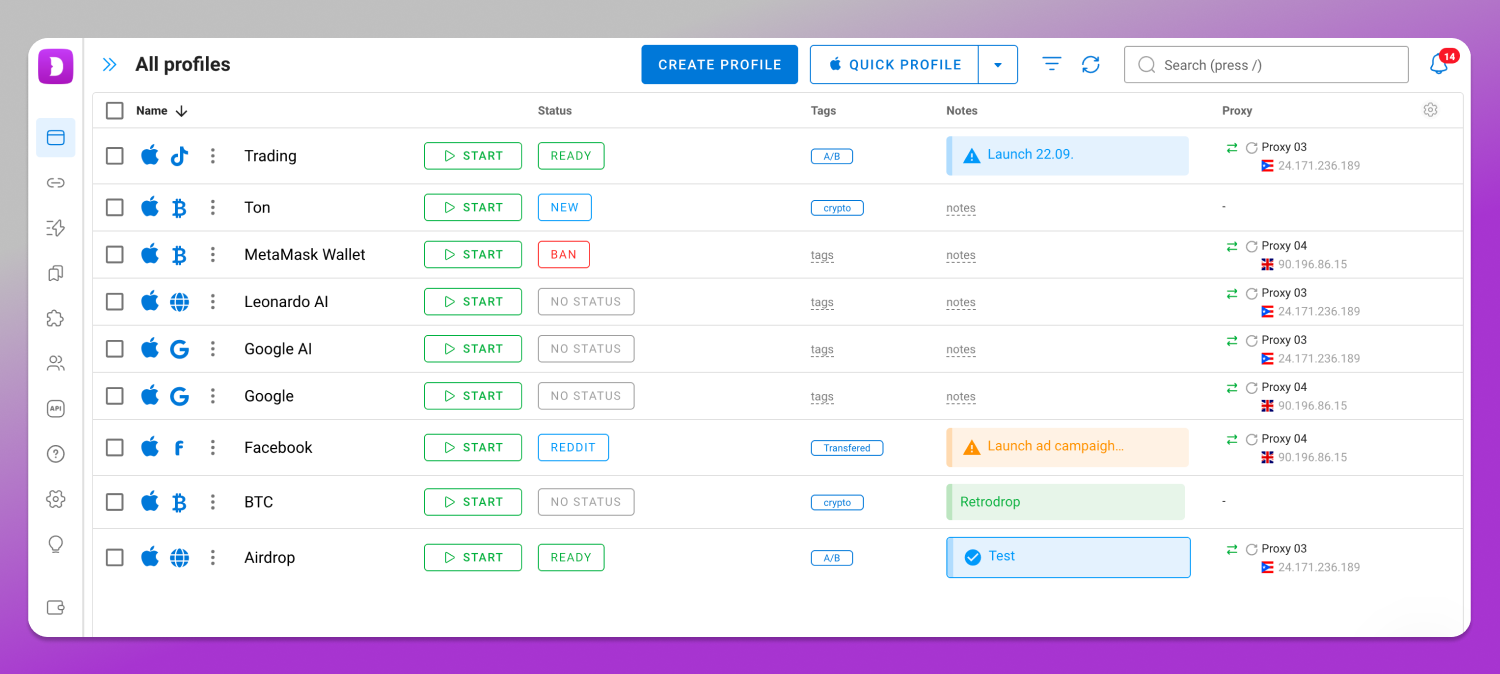
For teams, the practical difference is management: there is team control with per-user permissions, so a profile can move from one person to another without passwords being sent over chat, plus API automation for repetitive tasks. Signing up includes 5 free profiles with no card, which is enough to test the workflow before deciding whether the case really calls for VDI infrastructure.
Profile management tools: how to compare
If the problem is the browser profile rather than the operating system, the factual comparison is this:
- Dolphin Anty — the most complete option for anyone managing multiple accounts: its own fingerprint per profile across more than 20 parameters, isolated proxy and cookies, per-user permissions, and API automation. Plans: Free $0 (5 profiles), Starter $10/month (20 profiles), Base $89/month (100 profiles), Team $159/month (300 profiles), Enterprise $299/month (1000 profiles), and Custom with unlimited profiles on request. Runs on Windows 64-bit, macOS (Intel and M-series chips), and Linux (AppImage, .deb, .rpm).
- Multilogin — a known alternative in the same segment. Plans: Free forever with 5 profiles deleted after 7 days, Pro $11/month or $85/year, and Business $89/month. Requirements: Windows 10+, macOS 14 Sonoma+, or Linux Ubuntu 22+, 64-bit only, minimum 4 GB RAM and 1 GB disk; it is compatible with Apple Silicon M1–M4, but not with Windows on ARM.
- Traditional VDI — solves a different problem. It delivers the full operating system, but it demands servers, licenses, and dedicated staff, typically costing somewhere between $25 and $100+ per user/month depending on the vendor.
Frequently asked questions
Is VDI secure?
It can be, as long as it is configured properly. Centralizing data on the server reduces the risk of leaks from a lost or stolen device, but it turns the central server into a more attractive target. Multi-factor authentication, encryption, and regular patching are not optional here.
What is the difference between VDI and a VPN?
A VPN creates a secure tunnel so your own device can reach the corporate network, but the processing still happens on your machine, and files can be downloaded onto it. With VDI, the entire desktop runs on the server and the device only displays the screen.
Can I use VDI from a phone or tablet?
Usually, yes: most VDI clients are compatible with mobile devices. In practice, typing and navigating a full desktop on a small screen is uncomfortable. It works well for quick checks and one-off approvals, but almost nobody chooses to work that way for hours.
How is VDI different from tools like TeamViewer or AnyDesk?
Those tools give remote control of one specific physical computer, which has to stay powered on somewhere. With VDI there is no physical machine tied to the session: the desktop exists as a virtual machine on a server, created on demand and destroyed when you finish.
Do I need VDI or something simpler?
If the work revolves around full desktop applications and strict compliance requirements, VDI still fits. If the real issue is keeping browser profiles consistent and shared across the team, a dedicated tool such as Dolphin Anty solves it faster and more cheaply.
How much does it cost to keep a user on VDI?
It depends on the vendor and configuration, but public ranges run around $25/user/month on Amazon WorkSpaces (entry bundle), $10–16/user/month for licensing alone on Citrix DaaS (plus infrastructure on top), and $26–38/user/month on Azure Virtual Desktop for the session host. Fully managed end-to-end DaaS providers add up to somewhere between $30 and $100+/user/month.
How to choose the right solution
Before deciding, map the real scenario: how many people need remote access and how often, whether the work depends on heavy applications tied to one operating system, and whether any regulation requires keeping data centralized.
If the answer involves running full corporate applications under strict compliance, traditional VDI remains the more robust choice. If the problem is limited to browser work — accounts, profiles, and access shared across team members — start with 🔥 Dolphin Anty and its 5 free profiles before investing in a whole infrastructure project.