
YouTube may be unavailable not only because of issues on the service itself. Access can be affected by network restrictions, regional specifics, the settings of a particular network, and the IP address used for the connection. In addition, YouTube determines a user’s location using several sources, including their IP address, account data, and device geolocation.
In such scenarios, the combination of IPv4 proxies from Node Proxy + Dolphin Anty makes it possible to separate two different tasks: the proxy handles the network connection and external IP address, while the browser profile provides a separate working environment.
This is especially convenient when you need to access YouTube through an IP from a specific region, check content availability, or work with multiple independent profiles.
a separate Dolphin Anty profile.
Why YouTube Can Determine the Connection Region
🌏 A user’s online location is determined based on more than one parameter. One of the main sources is the IP address. Based on it, a service can obtain approximate information about the country, region, and other geographical parameters.
YouTube explicitly states that it may use an IP address, a saved home or work address from a Google Account, and device geolocation to determine an approximate location.
☝️ Therefore, simply changing the interface language or region in browser settings is not equivalent to changing the network location.
For example, if a user is physically located in one country but connects through an IPv4 address identified as belonging to another country, YouTube will see that external IP for the network request.
Instead of connecting directly, the request passes through a proxy server. YouTube receives the proxy’s IP address rather than the original IP address of the user’s connection.
At the same time, it is important to understand the limitation: IP geolocation is approximate. Even if a proxy is selected for a specific country, different geolocation databases may identify the same address slightly differently. Therefore, it is recommended to check the GEO after connecting.
You can learn more about how to check proxy geolocation and make sure that the IP is identified in the desired region in the Node Proxy blog article. This material explains why GEO is important when working with proxies and how to check the actual IP location before use.
Why IPv4 Proxies Are Suitable for YouTube
IPv4 remains a widely supported standard for connecting to websites and services. For YouTube, this is important primarily from a practical perspective: a proxy should not only have the required country but also work properly with the browser, video player, and other components of the website.
Particular attention should be paid to the following parameters:
- IP address type;
- GEO;
- connection stability;
- response speed;
- IP reputation;
- the ability to use the required protocol;
- session stability.
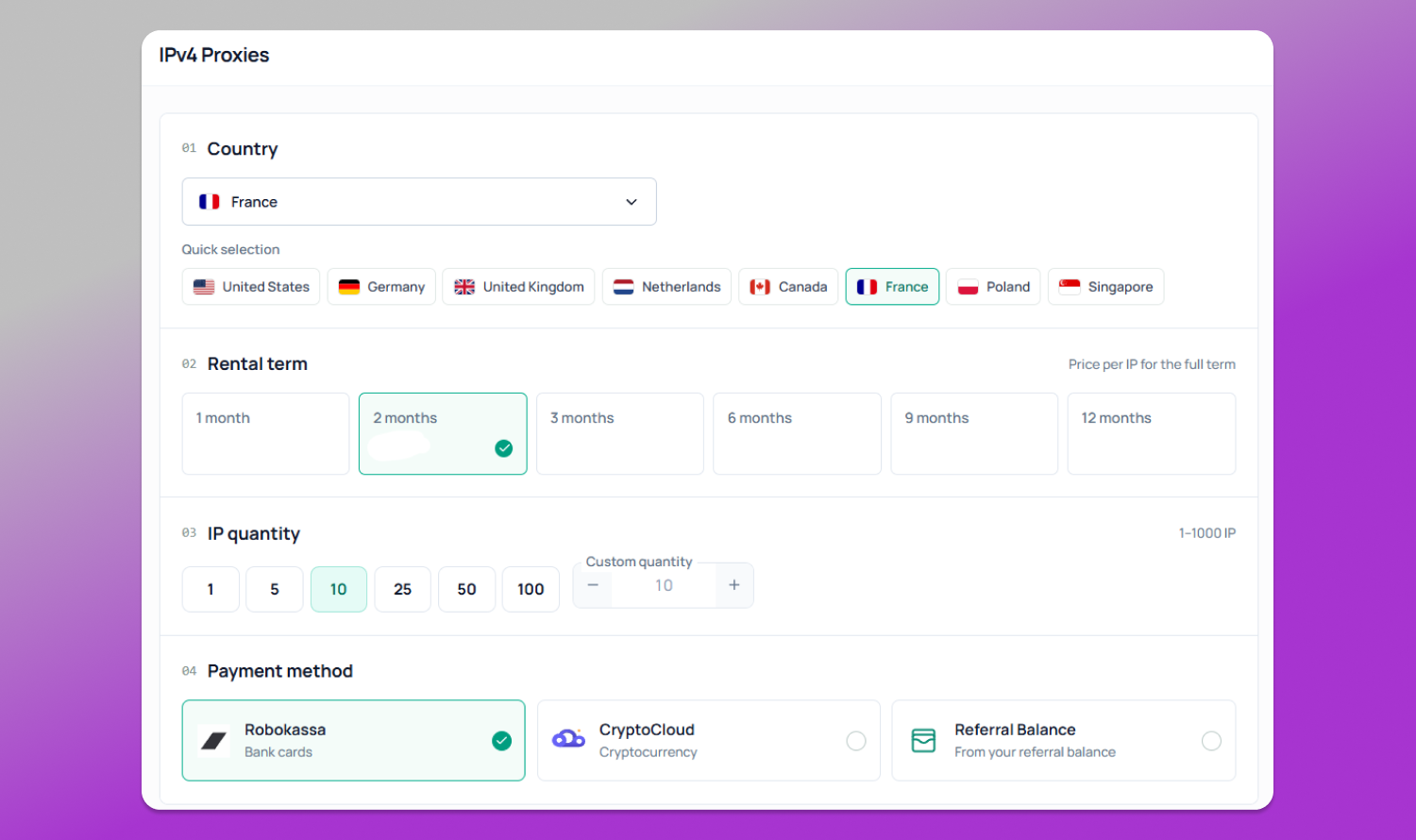
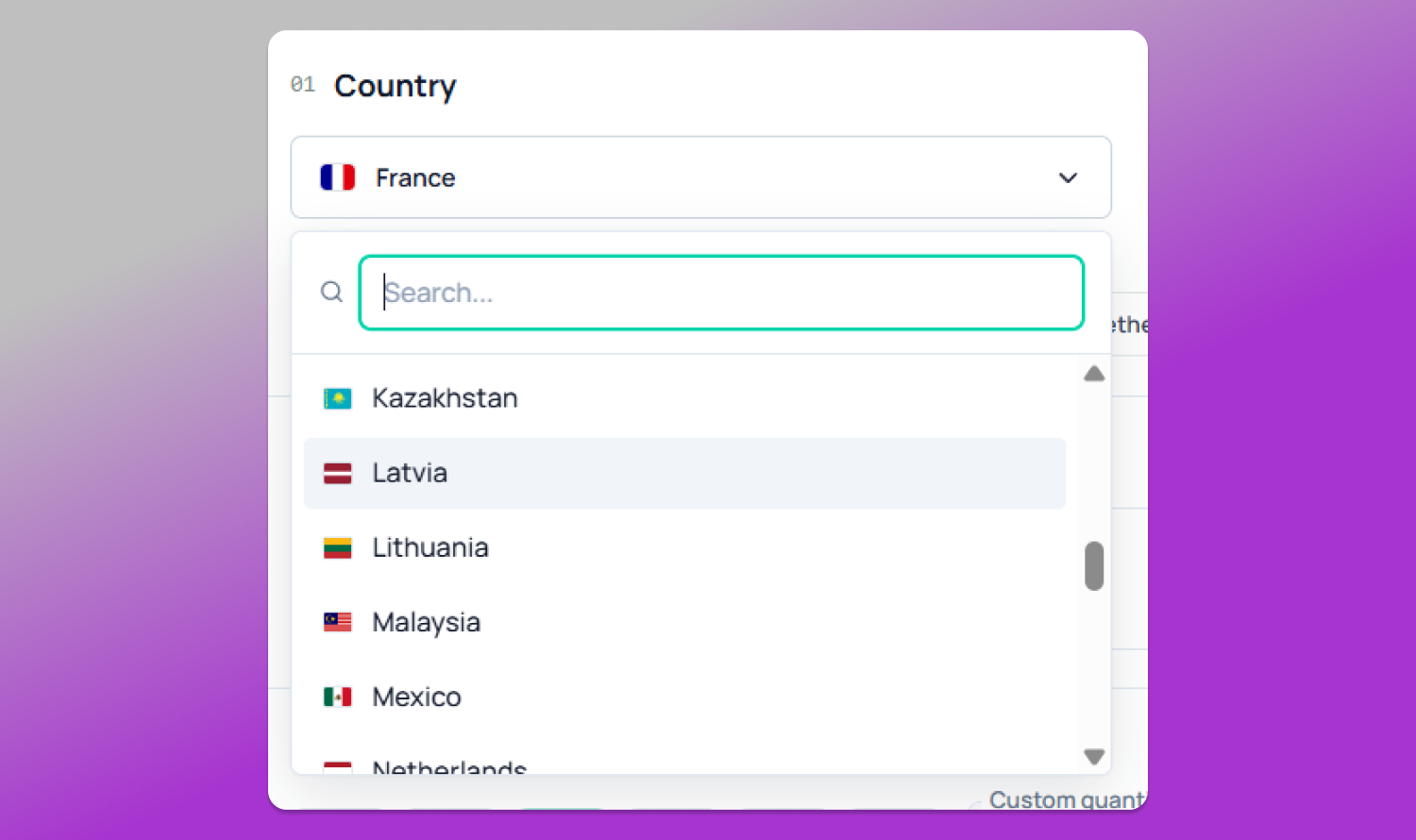
For tasks that require a connection similar to a regular user connection, 🔗 IPv4 proxies can be used. Node Proxy provides a GEO selection when creating a proxy list. This allows you to specify the required country or another available geographical parameter in advance and then check the actual geolocation of the resulting IP.
You can also learn more about how proxies can help organize work with multiple accounts in SMM, YouTube, and other social platforms in the Node Proxy blog article.
What GEO Selection Actually Provides
GEO is not simply the name of a country in the proxy settings. First and foremost, 👉 it refers to which external IP is used for the connection and how that IP is identified by geolocation services.
At the same time, the selected GEO should not be considered an absolute guarantee that every service will identify the IP in the same way. Geolocation databases are updated at different rates and use their own methods for determining location. Therefore, after connecting, it is recommended to check the country and region using third-party services.
Why Do You Need Dolphin Anty If the Proxy Already Changes the IP?
A proxy and an anti-detect browser perform different tasks.
The proxy handles the network side:
- which IP the connection goes through;
- which GEO is identified based on the IP;
- which route is used for the connection;
- which proxy session is assigned to the profile.
Dolphin Anty handles the browser environment:
- a separate profile;
- browser settings;
- cookies and other profile data;
- browser environment parameters;
- management of multiple profiles.
In the official Dolphin Anty documentation, a profile can be created with a proxy, cookies, and other parameters. The settings also include parameters related to WebRTC, Canvas, WebGL, time zone, language, GEO, and other browser environment characteristics.
This makes it possible to keep the network and browser sides of the connection separate.
For example, you can create a separate profile:
YouTube — US → Node Proxy US → Dolphin Anty Profile 1
and for another workflow:
YouTube — DE → Node Proxy DE → Dolphin Anty Profile 2
Each profile has its own settings and can use a separate proxy.
This approach is especially convenient when working with multiple accounts or independent browser environments. Dolphin Anty itself positions profiles as separate working environments, while its documentation provides for managing proxies directly within profiles.
How to Set Up Node Proxy in Dolphin Anty
The setup consists of several consecutive steps.
1. Select an IPv4 Proxy
In Node Proxy, select a proxy with the required GEO.
If the task involves using YouTube for a specific region, select the corresponding country.
After receiving the proxy, save the connection details: hostname or IP, port, username, and password.
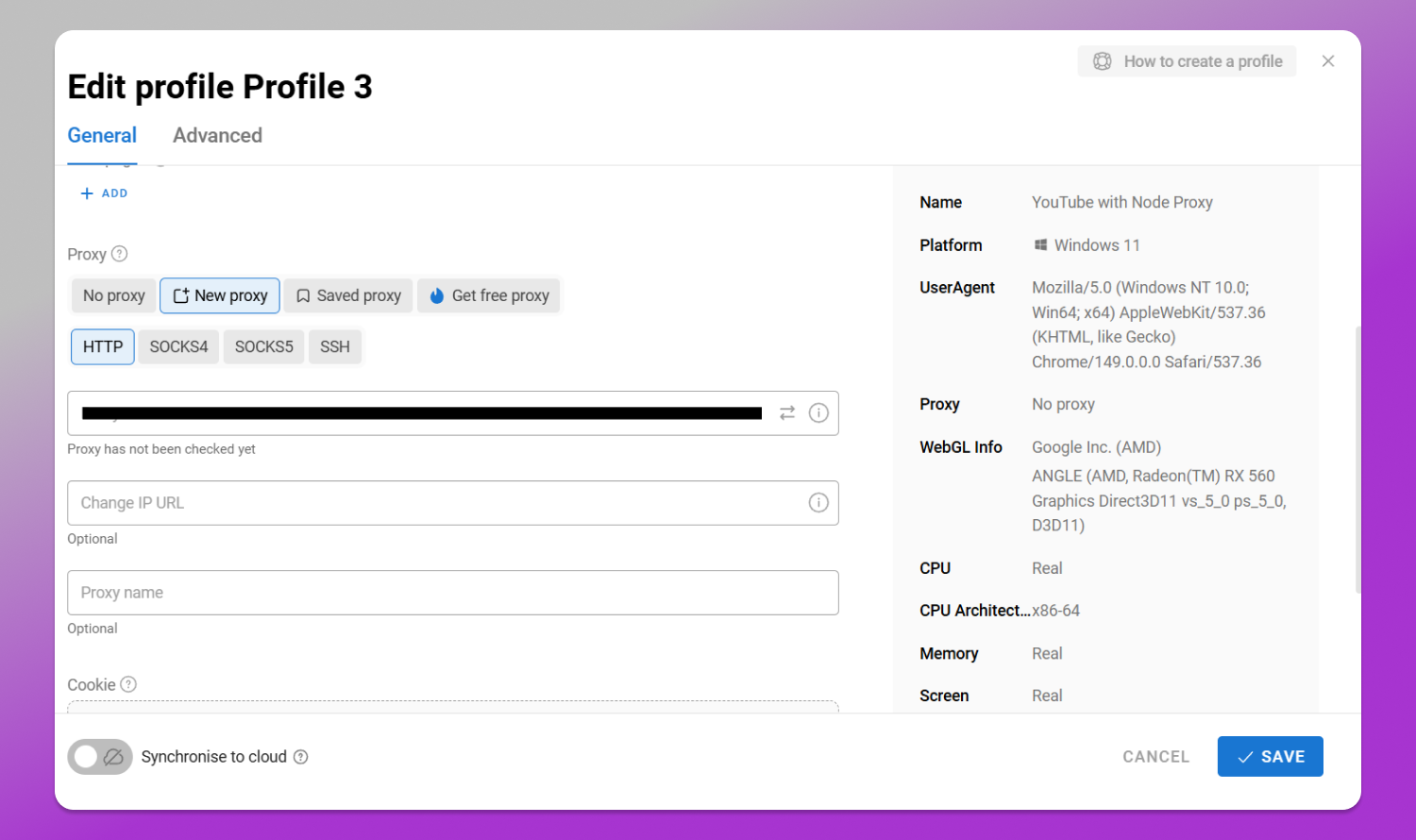
2. Create a Separate Dolphin Anty Profile
Open Dolphin Anty and create a new Browser Profile.
At this stage, you can specify the profile name, add a proxy, and configure other parameters if necessary. According to the Dolphin Anty documentation, a proxy can be added directly when creating the profile or changed later.
For convenience, you can use clear names:
- YouTube US;
- YouTube DE;
- YouTube GB;
- YouTube Test.
This makes it immediately clear which GEO and connection are associated with a particular profile.
3. Add the Proxy
Enter the Node Proxy details in the profile settings.
Check:
- protocol;
- hostname or IP;
- port;
- username;
- password.
Dolphin Anty allows you to check and manage proxies through the corresponding section.
After saving, launch the profile.
4. Check the External IP
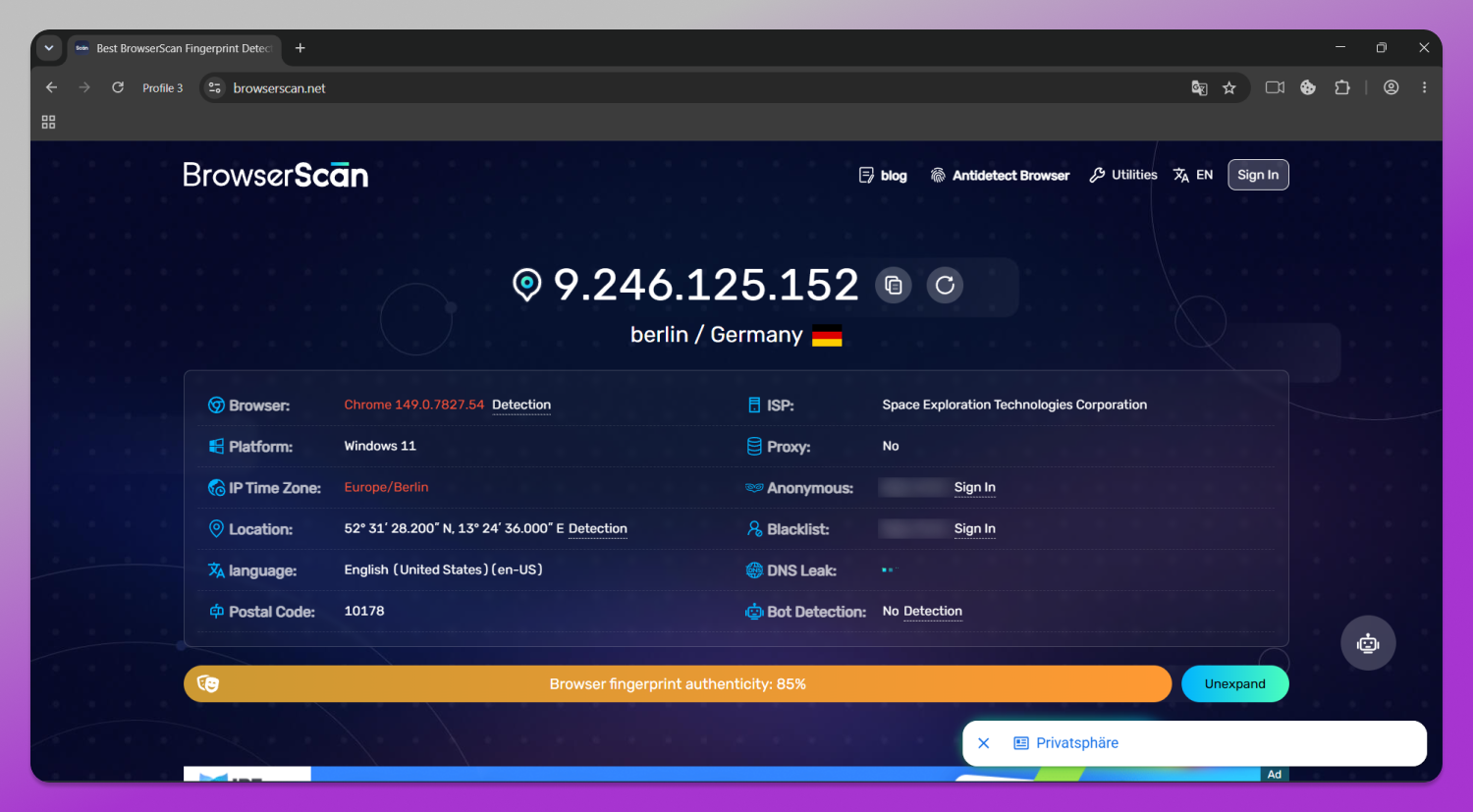
Before opening YouTube, it is useful to check which IP the browser is actually using.
The check should show:
- external IPv4;
- country;
- region or city, if the service identifies it;
- provider;
- other available information.
If you selected a US GEO but the check shows another country, first investigate the proxy’s geolocation. Do not rely on a single checking service, as databases may contain outdated or different data.
How to Check Access to YouTube
After checking the IP, you can open YouTube directly from the created Dolphin Anty profile.
If the problem is actually related to network access or regional routing, connecting through an IPv4 proxy with the selected GEO may change the conditions of the network connection.
☝️ At the same time, a proxy does not fix every YouTube-related issue.
For example, if a video is unavailable due to account settings, content restrictions, copyright, Restricted Mode, or other service conditions, changing the IP will not necessarily solve the problem.
YouTube separately notes that content availability may depend on Restricted Mode settings and other factors.
Therefore, it is better to troubleshoot step by step:
- Check whether YouTube opens without a proxy.
- Connect Node Proxy with the required GEO.
- Check the external IP.
- Check the IP country and region.
- Open YouTube through Dolphin Anty.
- Check whether the availability of the required resource or content has changed.
- If the problem persists, check other possible causes.
This sequence helps determine whether the issue is actually related to the network connection.
IP Score and Why One Proxy Is Sometimes Not Enough
When working with IP addresses, it is useful to look not only at GEO but also at additional characteristics of the address.
For example, an IP can be checked using IP analysis and reputation services. In a user-facing scenario, this can be formulated more precisely:
Proxies from Node Proxy can help reduce the number of issues related to IP quality through preliminary address checks, geolocation control, and connection parameter management.
If a specific IP receives a low IP Score, simply changing the IP may not be enough for your task. In this case, it makes sense to check another address and separately configure the browser profile.
This is where Dolphin Anty has a practical role: the proxy changes the network side of the connection, while the browser profile makes it possible to organize a separate working environment.
You can learn more about one of the browser fingerprint checking services, BrowserScan, and the parameters it checks when assessing browser anonymity in the Dolphin Anty blog article.
How to Use Multiple GEOs in Dolphin Anty
If you need to work with several regional scenarios, it is more convenient to separate the connections rather than manually changing the proxy in a single profile.
Dolphin Anty also supports managing a large number of profiles and working with proxies through the browser interface.
At the same time, different profiles should not be viewed as an automatic guarantee against blocks. A profile and proxy only create separate technical connection conditions. YouTube may take other signals into account as well.
What to Do If YouTube Still Does Not Open
If the problem persists after connecting Node Proxy, check the connection step by step.
The proxy does not connect.
Check the hostname, port, username, password, and selected protocol.
The proxy connects, but the GEO is identified incorrectly.
Check the IP using several geolocation services. If the results differ, take into account the specifics of the databases being used.
YouTube opens, but the required content is unavailable.
In this case, the problem may not be directly related to the IP. Check the regional availability of the specific video, account settings, and content restrictions.
The problem occurs only in one Dolphin Anty profile.
Compare its settings with those of a new clean profile and check the proxy separately.
This approach makes it possible to avoid changing all parameters at once and identify the source of the problem more quickly.
Why the Node Proxy + Dolphin Anty Combination Is Convenient for YouTube
Each component has its own role here.
Node Proxy — network connection, IPv4, GEO selection, and proxy session management.
Dolphin Anty — separate browser profiles and management of their parameters.
Therefore, it is more reasonable to view this combination not as a way to “guarantee bypassing any block,” but as a technical option for organizing a connection when network restrictions or region are relevant.
To test a specific scenario, first select the required GEO, then check the IP, and finally connect the proxy to a separate Dolphin Anty profile.
Conclusion
For scenarios involving regional or network restrictions on access to YouTube, it is important to separate two components of the connection.
Node Proxy IPv4 proxies determine the network route and external IP, while GEO selection makes it possible to choose an address from the required region. 🔥 Dolphin Anty creates a separate browser environment where the settings of a specific working profile can be stored and the corresponding proxy can be assigned to it.
Before getting started, check the IP and GEO, make sure the connection is configured correctly, and only then proceed to YouTube. This step-by-step approach helps determine whether the issue is actually related to the network and IP geolocation or whether the cause lies elsewhere.