🚀 Dolphin Anty lets you run many browser profiles, each with its own fingerprint. To keep those profiles separate, each one also needs its own IP address. In this guide you will connect an SP5 Proxies mobile proxy to a Dolphin Anty profile step by step: pick a plan, copy the connection details, add the proxy, check it, and change its location later without buying a new proxy.
Why use mobile proxies for your profiles
A 📱 mobile proxy sends your traffic through a real mobile network (4G/5G). Many people share the same mobile IP addresses, so websites see these addresses as normal mobile users. That makes mobile proxies a good fit for multi-account work, social media management, ad checks and marketplace accounts.
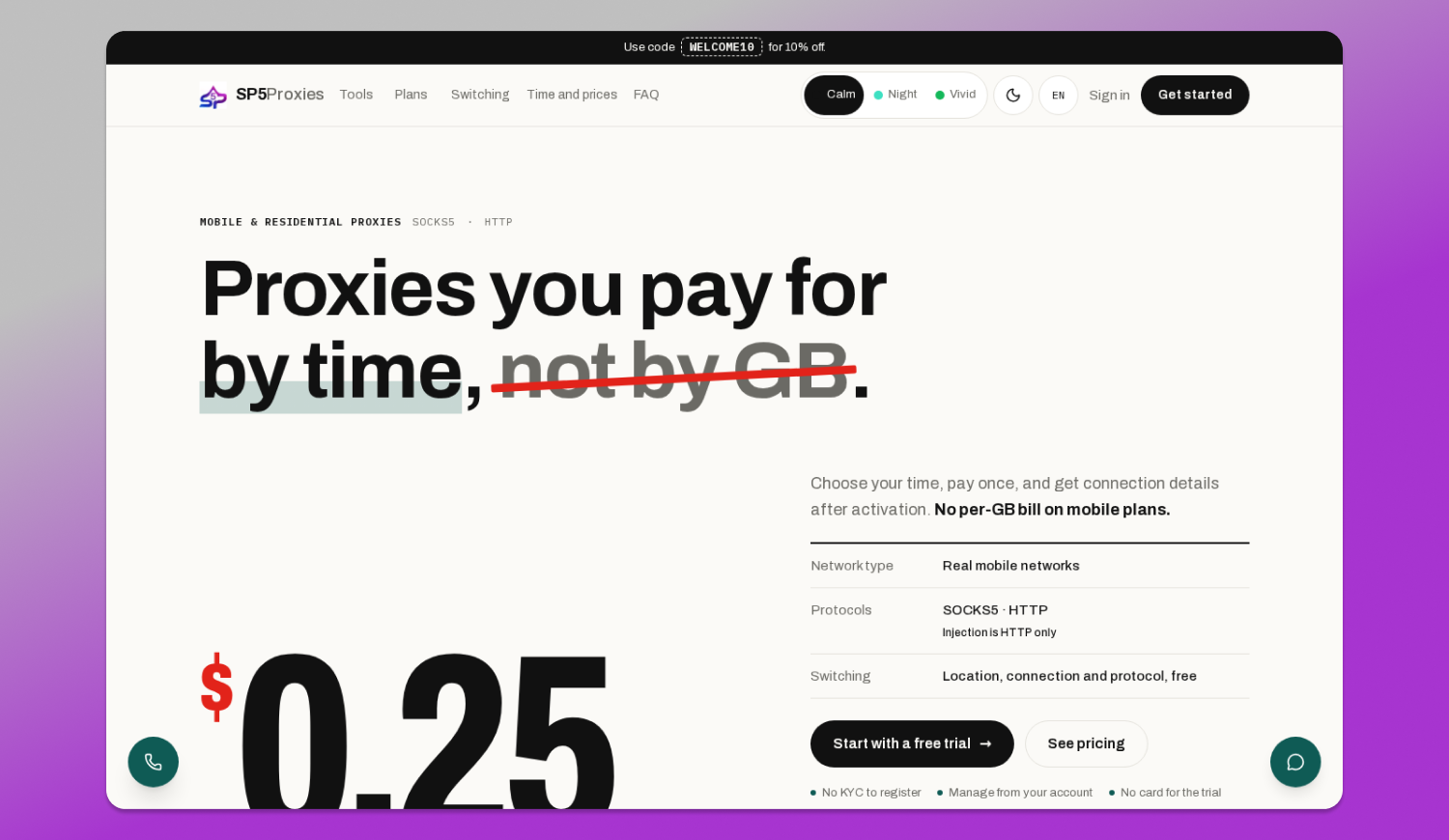
SP5 Proxies sells mobile proxies by 🕓 time, not by GB. You choose how long you need the proxy, pay once, and get the connection details after activation. Paid access starts at $0.25 for 2 hours, and there is a one-hour free trial after email verification.
What you need
- Dolphin Anty installed and signed in (download it from dolphin-anty.info).
- An SP5 Proxies account. You can start with the free one-hour trial.
- A few minutes to copy the proxy details into a profile.
Step 1. Create an SP5 account and choose a plan
Go to 🔗 sp5proxies.com and click Get started. After you verify your email, you can claim the free one-hour trial in your dashboard, or open the pricing page and choose a plan.
For Dolphin Anty, pick a plan with username and password authentication. Then you can use the same proxy from any computer, without adding your IP to a whitelist. Golden, Turbo and Silver use a username and password. The Injection versions use IP authentication over HTTP only, so they are not the best choice for most Dolphin Anty setups.
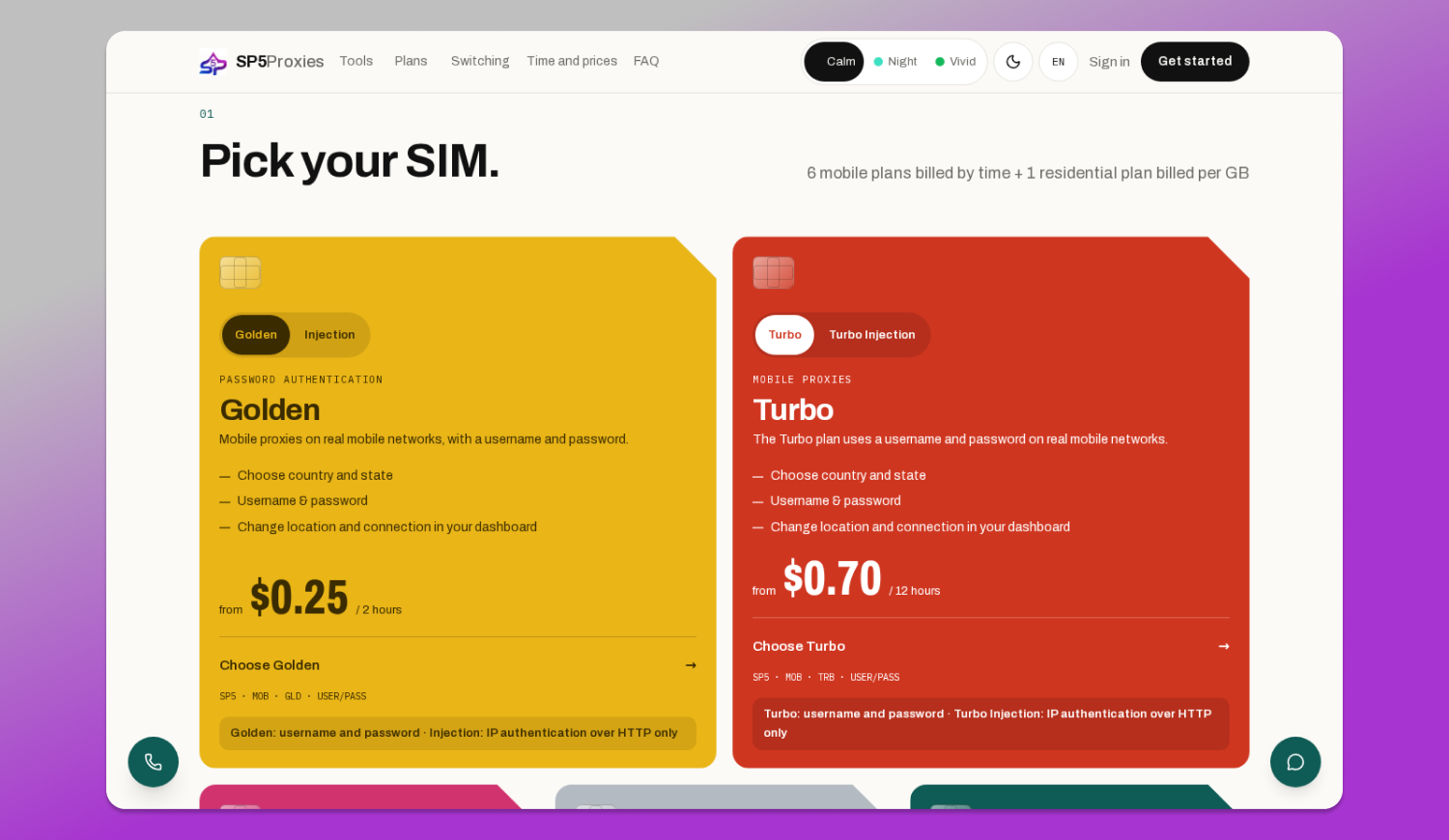
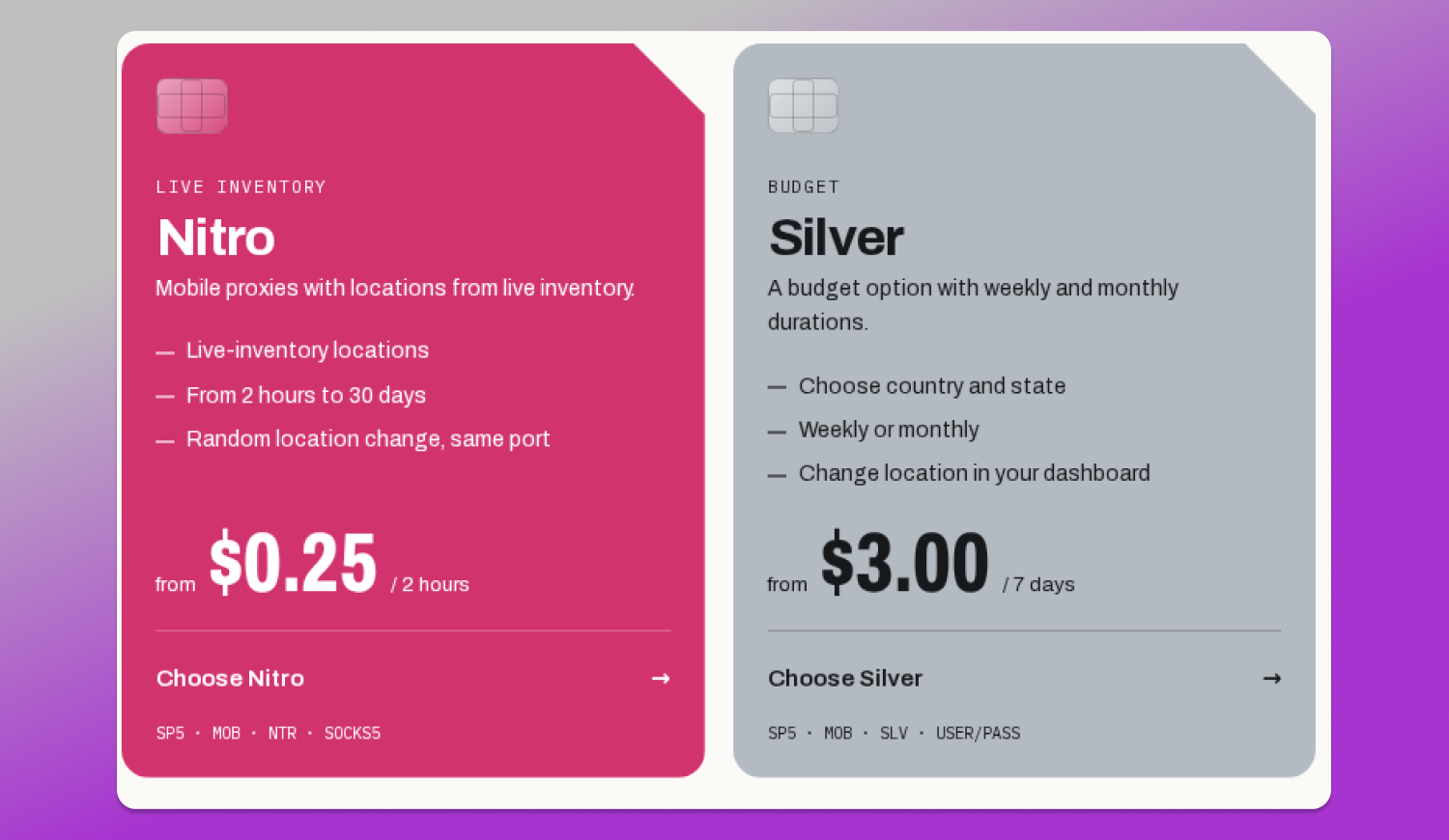
Plans and prices can change, so always check the current options on the pricing page.
Step 2. Copy your proxy connection details
After activation, open your SP5 dashboard and find your proxy. You will see the details you need for Dolphin Anty:
- Protocol: SOCKS5 or HTTP (depends on the plan)
- Host (server address)
- Port
- Username
- Password
Keep these details private. Anyone who has them can use your proxy time.
Step 3. Add the proxy to a new Dolphin Anty profile
- Open Dolphin Anty and click Create profile.
- Give the profile a name, then scroll to the Proxy section.
- Click New proxy.
- Choose the proxy type that matches your SP5 proxy: HTTP or SOCKS5.
- Paste the proxy details. Dolphin Anty accepts several formats in one line, for example:
host:port:login:password
login:password@host:port
socks5://login:password@host:port
Dolphin Anty fills in the host, port, login and password fields for you. You can also type them into the fields one by one.
More details are in the 📔 official guide: How to add a proxy in Dolphin Anty.
Step 4. Check the proxy
Before you save the profile, click the proxy check button next to the proxy field. Dolphin Anty connects through the proxy and shows the IP address and its location. If you see the location you chose in SP5, the proxy works.
If the check fails:
- Make sure the proxy type (HTTP or SOCKS5) is the same as in your SP5 dashboard.
- Copy the username and password again. A missing character or an extra space is the most common problem.
- Check that your proxy time has not ended. Time-based proxies stop working when the time runs out.
- If you use an Injection plan, use HTTP and make sure your current IP is authorized.
Read more in Check proxy in Dolphin Anty.
Step 5. Save the profile and start it
Click Create profile. The profile now appears in your list with the proxy attached. Click Start to open it. All traffic from this profile goes through your SP5 mobile proxy.
👉 Tip: with the proxy connected, leave the profile timezone, language and geolocation on Auto. Dolphin Anty then matches them to the IP address of the proxy, so the profile looks consistent.
Step 6. Reuse the proxy in other profiles
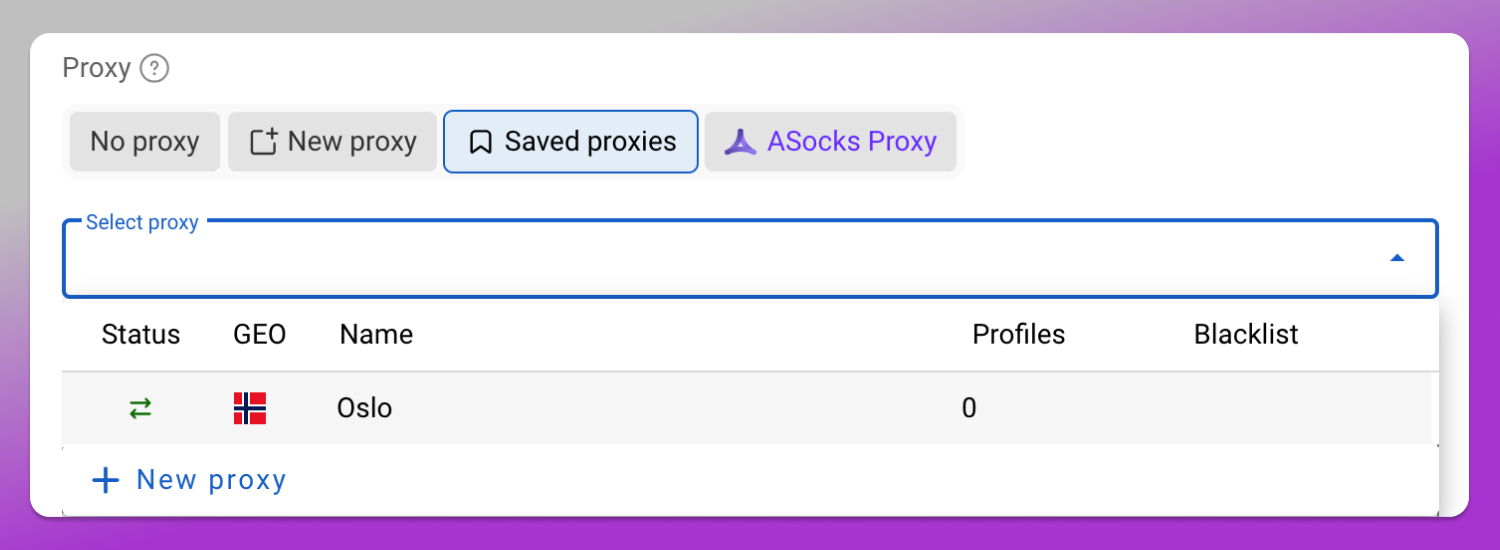
Dolphin Anty saves every proxy you add. In the Proxy section of any profile, choose Saved proxies and pick your SP5 proxy from the list. You can also manage all proxies on the Proxies page in Dolphin Anty. See Working with proxies.
For multi-account work, the safest setup is one proxy per profile. If two profiles share a proxy, websites can see that they use the same IP address.
Step 7. Change the proxy location for free
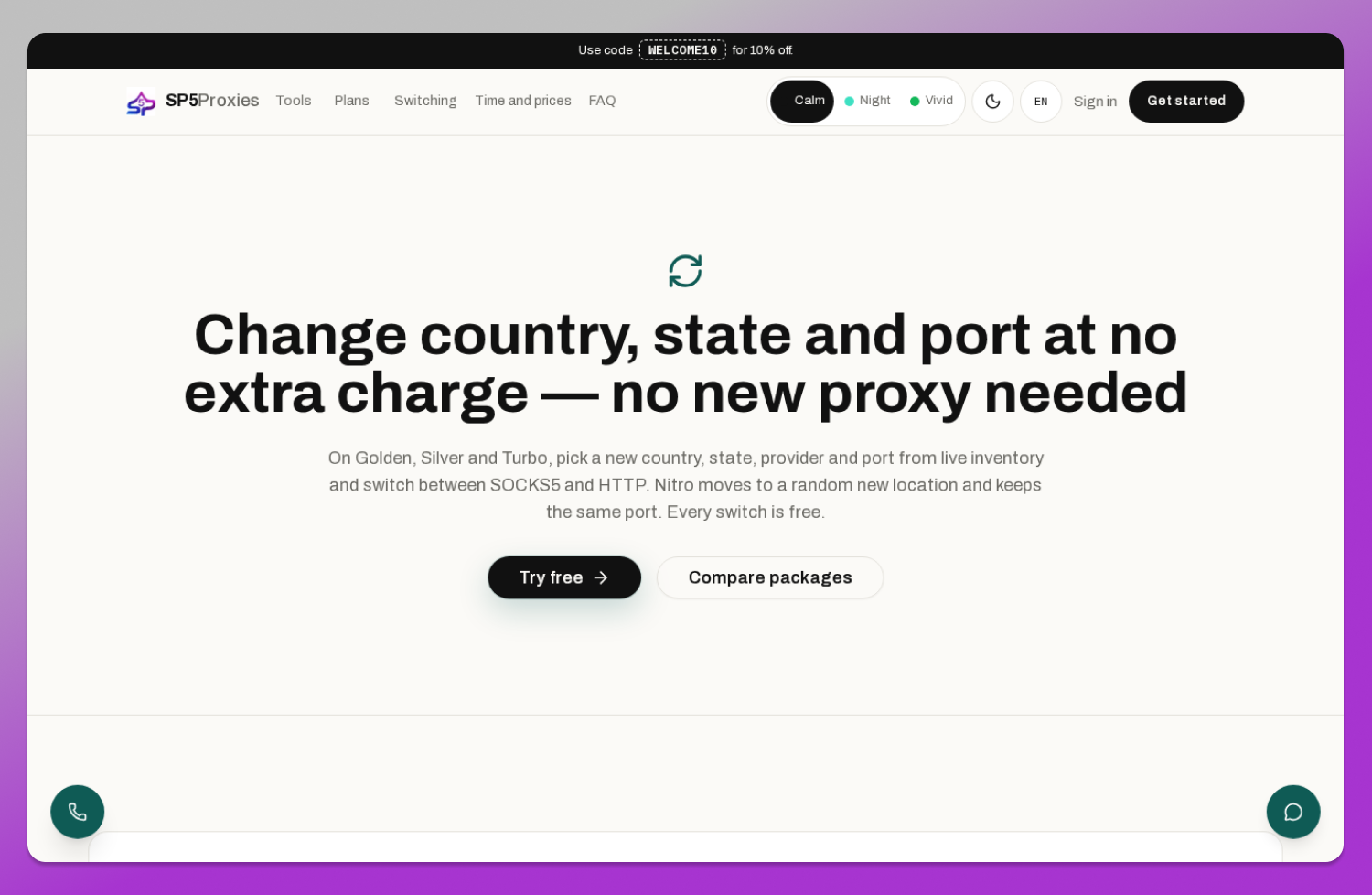
With SP5, you do not need to buy a new proxy to get a new location. On Golden, Silver and Turbo, 🌏 you can pick a new country, state, provider and port from live inventory, and switch between SOCKS5 and HTTP. Nitro moves your proxy to a random new location and keeps the same port. Every switch is free.
After you change the location:
- If the host, port or protocol changed, open the profile in Dolphin Anty, edit the proxy and paste the new details.
- Click the proxy check again to confirm the new IP address and location.
- Start the profile.
Read more on the location switching page.
Good practices
- Use one proxy per profile when the accounts must stay separate.
- Check the proxy before you open an account, not after.
- Keep the profile location settings on Auto so they match the proxy IP.
- Watch your proxy time in the SP5 dashboard and extend it before it ends, so a running profile does not lose its connection.
- Never share your proxy username and password.
Special offer for Dolphin Anty users
Use the code DOLPHIN10 at checkout to get 10% off your first purchase on sp5proxies.com.
Summary
Connecting SP5 mobile proxies to 🔥 Dolphin Anty takes a few minutes: choose a plan with a username and password, copy the connection details, add them as a new proxy in your profile, check the connection, and start the profile. When you need another location, change it for free in your SP5 dashboard and update the profile.
Start with the free one-hour trial or see all plans on the pricing page.