
A cloud browser runs on a remote cloud server instead of your local device, and streams a visual feed back to your screen while your clicks and keystrokes travel the other way. Nothing renders on your machine; you are watching a video of a browser somewhere else.
That definition matters most to a specific reader: the agency lead with six people across three countries, the media buying team where half the buyers work on underpowered laptops, the seller whose contractors log into ad accounts on request. If that’s your situation, here is the conclusion up front. Most distributed teams don’t need a browser that executes in the cloud. They need shared profiles, not a shared machine — synced profile data, roles, and access they can revoke on someone’s last day, with the browser itself installed locally on Windows, macOS or Linux. Those are two different products, and the rest of this piece separates them. Definitions of virtualization, emulators, and browser-in-the-browser sit outside its scope.
How a Cloud Browser Works (in One Paragraph)
A session spins up inside an isolated container on the provider’s infrastructure. Every request, every script, every frame of the page executes there, on their hardware, over their network path. What reaches your device is a pixel stream; what leaves it is input. Close the tab and the container is usually destroyed with it.
- The remote server holds the browser session, its cookies, and its session data.
- Your local device runs a viewer, so its CPU, RAM, and operating system barely matter.
- A disposable session leaves no local history, cache, or cookies on your machine.
- Everything depends on the internet connection between you and the provider.
Cloud Browser as a Workplace vs Cloud Browser as Automation Infrastructure
Search for “cloud browser” today and a large share of the results are not workplaces at all. They are browser-as-a-service platforms: a cloud browser API you call from code so an AI agent, a scraper, or a CI test suite can drive a headless browser at scale. Different buyer, different pricing model. A few hundred milliseconds of latency is irrelevant to a scraper and very relevant to a human dragging a creative into an ad account. This article covers the second case only.
What You Get: The Real Benefits
The upside is real. The landing pages describing it are just incomplete.
- Any device, any OS. A Chromebook, a borrowed desktop, a locked-down office machine — if it renders a web page, it can open a remote browser session.
- Nothing to install. Useful where the person genuinely has no rights to install software. (Using this to route around an employer’s security policy is a bad idea and often a fireable one.)
- One identical environment. Same build, same settings, same behavior for everyone, with no “it works on my machine.”
- No load on local hardware. Twenty heavy tabs cost the provider’s RAM, not the buyer’s eight-gigabyte laptop.
- Fast onboarding. Access is a credential, not a setup afternoon.
- Genuinely disposable sessions. Opening a suspicious link inside an isolated container that gets destroyed afterward is a good use of the technology.
The best illustration: a contractor gets access for one day, on a personal laptop, and installs nothing.
What You Pay for It (the Part Nobody Puts on Their Landing Page)
Every summary of browsers in the cloud lists benefits and use cases. Almost none list the bill. Here it is, on seven axes.
Latency and Responsiveness Under Real Workloads
Reading a page over a pixel stream feels fine. Working does not. Uploading creative batches into Meta Ads Manager or TikTok Ads Manager, dragging spreadsheet rows, filling a long Amazon Seller Central form, cycling through thirty tabs: these are where input lag and the frame rate of the streamed session show up. For a twenty-minute session the difference is noise. Over an eight-hour shift of manual account work, it compounds into lost hours and irritated people.
No Internet, No Browser
The dependency is total. A local browser with pages already open keeps showing you what’s on screen when the connection dies; a remote browser session shows you nothing, and takes any unsaved state with it. Hotel Wi-Fi, a tether in a dead zone, an ISP outage during a launch: each one stops the work. Bandwidth matters too, because a video stream per person loads the office connection permanently.
Your Cookies and Sessions Live on Someone Else’s Infrastructure
Ask the question plainly. Where do the logged-in sessions of your work accounts physically sit, and who else can technically reach them? The answer is: on hardware you don’t own, administered by staff you’ve never met, under a support process you can’t audit. This is a class of risk, not an accusation against any vendor. It doesn’t mean the cloud is unsafe. It means trusting someone else’s machine with a live session on a monetized ad account deserves a deliberate decision.
Limited Control Over the Environment
Remote sessions restrict what you can install and touch. Extensions are often limited to an approved list. Local files, downloads, printing, hardware access, and clipboard behavior all pass through the provider’s rules. Fingerprint customization is bounded by whatever the platform exposes.
Cost That Scales With Sessions, Not With Value
Cloud pricing usually attaches to a session, a seat, or concurrency. That’s fine at three people. At fifteen running parallel sessions all day, the line item grows with headcount and hours rather than with what the accounts earn. Local software behaves differently as the team grows, because the hardware is already bought. Whatever you compare, start by establishing what each vendor actually bills for, and take that from its current pricing page rather than from a quote you were given last quarter.
What Happens If the Provider Shuts Down or Bans Your Account
If the browser and the profile data both live on their side, a suspension at the provider takes your working environment with it. Ask before you sign: can profiles be exported in a usable format, and what does migration to another vendor involve? Lock-in here is not theoretical, since profile formats are proprietary.
Compliance and Data Residency
Jurisdiction follows the data, and with a remotely hosted browser the data moves. If your team handles personal data of people in the EU, GDPR governs it, and sending it to a provider hosting outside the EEA is a restricted transfer that needs a transfer mechanism, an adequacy decision or standard contractual clauses, on top of your lawful basis for the processing itself. UK teams answer to UK GDPR on the same points. If you process personal information of California residents, CCPA/CPRA applies to how that information is shared with a service provider. Under GDPR and UK GDPR you remain the data controller; under CCPA/CPRA you are the business and the provider is a service provider. In every case the accountability stays with you. Where the containers physically run is a question to settle before the contract, not after an incident.
Cloud Profile Sync Is Not a Cloud Browser (and Cloud Phones Are a Third Thing)
Three products get called “cloud” and confused constantly.
A cloud browser executes the browser on the provider’s server. You receive an image and send input. Your device is a screen.
Cloud profile synchronization stores profile data — cookies, session data, browser fingerprint settings, proxy bindings, notes — in the cloud so it travels between devices and between teammates. The browser still launches locally, on the user’s own machine, using local CPU and local rendering. The cloud holds the data, not the execution. This is how Dolphin Anty works: an anti-detect browser, controlling what a site reads about the environment rather than where it runs.
Cloud phones are remote Android devices rented by the hour or month: a separate class of product, not to be conflated with either of the above. Cloud PC (a hosted desktop) and remote browser isolation, or RBI (a security layer that renders untrusted sites away from the endpoint), belong on the same list of adjacent-but-different things.
And It’s Not the Synchronizer Either
Cloud synchronization of profiles and the Synchronizer are two features with unfortunately similar names. Cloud synchronization is about storage and transfer: profile data lives in the cloud so the same profile opens on a second machine or for a second team member. The Synchronizer is about action: it repeats your input across several open profiles at once, so a sequence you perform in one window happens simultaneously in the others. One moves data between devices. The other moves your clicks across windows.
What Distributed Teams Actually Need
Here’s the requirements list teams recite when they ask for a cloud browser, with the honest answer next to each.
| Requirement | Needs the browser to run on a server? |
| Shared access to browser profiles | No — profile data sync covers it |
| Roles and permissions per team member | No |
| Instant revocation of access when someone leaves | No |
| Action history per profile | No |
| Shared proxy settings across the team | No |
| Handing a profile from one employee to another | No |
| Single billing for the whole team | No |
Not one line needs remote execution. What they need is cloud profile sync plus access control.
Onboarding makes it concrete. A new buyer joins on Monday, is granted exactly the profiles their role covers, and works from their own laptop the same morning. They leave in October, their access is revoked centrally, and the profiles do not stay behind as cookie files on a personal machine nobody controls anymore. What matters is that granting and revoking are one administrative action, not a round of copying files between people.
Decision Matrix: Cloud vs Local
| Cloud execution is the right call | A locally installed browser wins |
| Very weak devices, or hardware you don’t own | Sustained, intensive manual work all day |
| A legitimate corporate ban on installing software | Automation via Selenium, Puppeteer or Playwright against a Local or Remote API |
| Short, occasional sessions rather than daily shifts | Requirements around data control, residency and compliance |
| One-day contractor access from a personal laptop | Larger teams where per-session cost scales badly |
| Opening an untrusted link in a disposable session | Constant work with local files and creative assets |
| Quick cross-checks from a tethered connection | Fine-grained control over fingerprint parameters |
Counting the Real Cost
Skip the averages and run your own numbers on four axes.
Subscription. Establish the unit first: per session, per seat, per concurrent instance, or per profile. Then multiply by realistic peak usage rather than average usage, because peaks are when the whole team works at once. Take the unit and the current numbers from the vendor’s own pricing page.
Connection. A streamed session per person is continuous bandwidth. Price the office link plus a backup connection, since the backup stops being optional the moment work is impossible offline.
Downtime. Take one person’s hourly cost, multiply by team size, multiply by the hours of outage you actually had last year. That number is what a hard dependency on connectivity costs you.
Hardware. In the local scenario, machines are a capital cost that is usually already paid. Count only the upgrades you’d genuinely need, and add proxies as their own recurring line in either scenario. Where a tool integrates with proxy providers directly, the current list of integrations lives on its partners page and is worth checking before you buy proxies separately.
How Dolphin Anty Fits (and What It Is Not)
🚀 Dolphin Anty is a desktop application for Windows, macOS and Linux: the browser runs locally on your machine. Cloud profile synchronization lets a team work with shared profiles from different devices, but that is synchronization of profile data — not running the browser in the cloud.
Its anti-detect browser profiles carry their own configurable fingerprint parameters, bind to their own proxy, and open on local hardware at local speed. The goal is profile isolation and reduced linkability between accounts, not anonymity or invisibility.
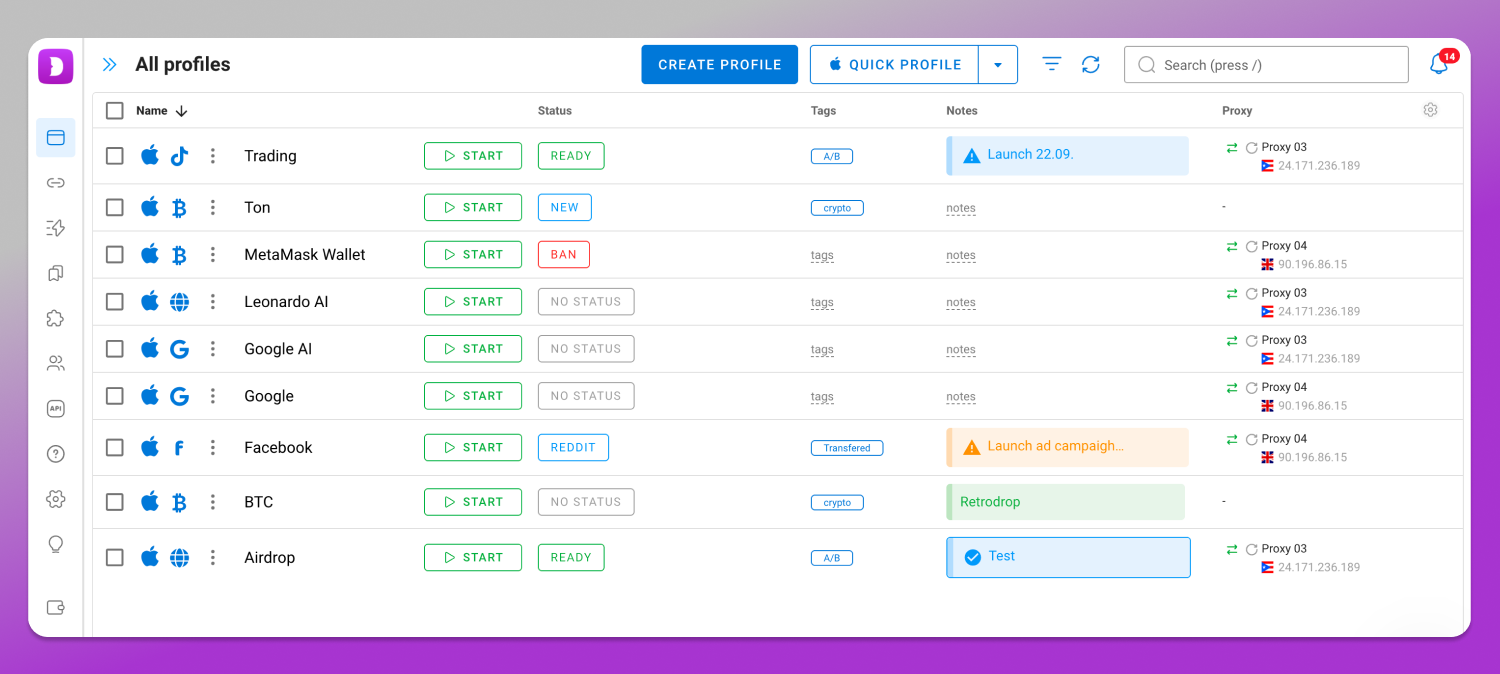
Multi-account work has plenty of legitimate uses: agencies running client accounts, sellers with several storefronts, teams testing creatives across regions. It stays legitimate only while it follows the rules of the platforms involved. The Amazon Seller Code of Conduct, Meta Advertising Policies, and the X Rules all set limits on how accounts may be created and operated, and local law applies on top of them.
Frequently Asked Questions
Are there free cloud browsers, and what’s the catch?
Yes, several. The catch is consistent: disposable sessions, a countdown timer, no persistent profiles, ads or queues, and no clarity about what the operator logs. Fine for opening a sketchy link once. For accounts that hold money, they aren’t a tool.
Do you need an internet connection to use a cloud browser?
Completely. There is no offline mode, because the browser isn’t on your device. A locally installed browser keeps working with pages and data it already has when the connection drops.
What’s the difference between a cloud browser and cloud phones?
A cloud browser gives you a remote browser session on a server. Cloud phones give you a remote Android device: different product, different vendors.
Is it safe to log into work accounts through someone else’s server?
It depends on the provider, and you can’t verify most of what matters. Treat it as a supplier risk decision: read the terms, ask where data is stored, and decide which accounts you’re prepared to expose that way.
What happens to my profiles if the service shuts down?
With a purely cloud product, whatever their export tooling allows, which you should test while everything still works. Keeping profile data recoverable to a local copy is the difference between a migration and a loss.
Does running the browser in the cloud protect me from bans?
No. Platforms link accounts using fingerprint, IP reputation, payment details, and behavior patterns. The physical location of the machine executing the browser is not part of that calculation. A cloud-hosted session with a sloppy fingerprint and a recycled proxy gets flagged exactly like a local one.
The choice comes down to one question: is the browser your team’s workplace, or an occasional utility? If it’s the workplace, install it locally, keep the profile data synced, and manage access by role. Check the current plans on the 🔥 Dolphin Anty pricing page and match the profile count to the team you have.