
Managing multiple online accounts has become an essential part of modern digital work. Effectively managing social media accounts, executing advertising initiatives, performing market analysis, overseeing various e-commerce platforms, or automating web-based activities necessitates not only an appropriate browser but also a dependable proxy provider to sustain organised and autonomous browser profiles.
🔗 Rainproxy provides high-quality proxy solutions tailored for users requiring trustworthy connections, adaptable proxy administration, and robust infrastructure. The platform facilitates the establishment of stable, structured, and scalable multi-account processes by allocating a unique IP address to each browser profile.
Rainproxy smoothly works with 🚀 Dolphin Anty, a premier anti-detect browser that enables users to generate distinct browser profiles featuring unique fingerprints, cookies, local storage, and browser configurations. Rainproxy and Dolphin Anty together offer a comprehensive solution for overseeing several browser identities while ensuring exclusive network connections for each profile.
In this guide, we’ll introduce Rainproxy, explain why reliable proxies are essential for Dolphin Anty users, explore how the two platforms work together, and walk you through the simple setup process so you can get started in just a few minutes.
What is Rainproxy?
Rainproxy is a 🔝 premium proxy provider that enables businesses and individuals to browse the web safely, access geo-restricted material, and scale online activities using dependable IP infrastructure. Whether you’re managing many accounts, collecting public web data, or executing automation workflows, Rainproxy provides quick, stable, and highly anonymous proxy solutions for a variety of online applications.
Why Dolphin Anty Users Need Reliable Proxies
Dolphin Anty is intended to enable users manage several browser profiles by creating isolated browser environments with distinct fingerprints, cookies, local storage, and browser settings. This enables each profile to run independently, making it easier to organise several accounts, clients, or projects without combining browser data.
While browser fingerprinting is necessary for profile isolation, each browser profile also connects to the internet via an IP address. This means that a proxy is a necessary component of creating a comprehensive multi-account workflow. Pairing each Dolphin Anty profile with a dedicated proxy helps to provide a more consistent surfing environment while offering users more control over how and where their profiles connect.
Using high-quality proxies alongside Dolphin Anty offers several ✅ advantages:
- Better separation between browser profiles.
- Access to different geographic locations.
- Greater flexibility for managing multiple projects.
- Support for sticky and rotating sessions.
- A scalable, organized workflow.
Whether you’re running social media campaigns, managing e-commerce stores, performing market research, or working with browser automation, ❗ combining Dolphin Anty with a reputable proxy provider makes your workflow more adaptable and efficient. Using the appropriate proxy solution guarantees that each browser profile has the network connection it requires, allowing you to concentrate on your projects rather than addressing technological constraints.
Why Choose Rainproxy?
When choosing a proxy provider for Dolphin Anty, dependability, versatility, and ease of use are equally important as the browser itself. A high-quality proxy solution should integrate effortlessly into your workflow, give several connection options, and include the capabilities required to handle a wide range of online tasks.
Rainproxy is created with these requirements in mind. Whether you’re managing a few browser profiles or hundreds of users, the platform provides a 💯 full suite of proxy solutions that operate seamlessly with Dolphin Anty.
Users can choose from several proxy types depending on their specific requirements, including:
- Residential Proxies
- Residential Smart Proxies
- Mobile Proxies
- ISP Proxies
- Datacenter Proxies
- IPv6 Proxies
Whether you’re managing a few profiles or hundreds, Rainproxy provides the tools needed to support professional workflows.
How to Integrate Dolphin Anty with Rainproxy
Getting started takes just a few minutes.
Step 1: Create Your Rainproxy Account
Create a Rainproxy account and access your dashboard. Select the proxy type that best suits your workflow, whether it’s Residential, Exclusive Residential, Mobile, ISP, Datacenter, or IPv6 proxies.
Step 2: Generate your Proxy
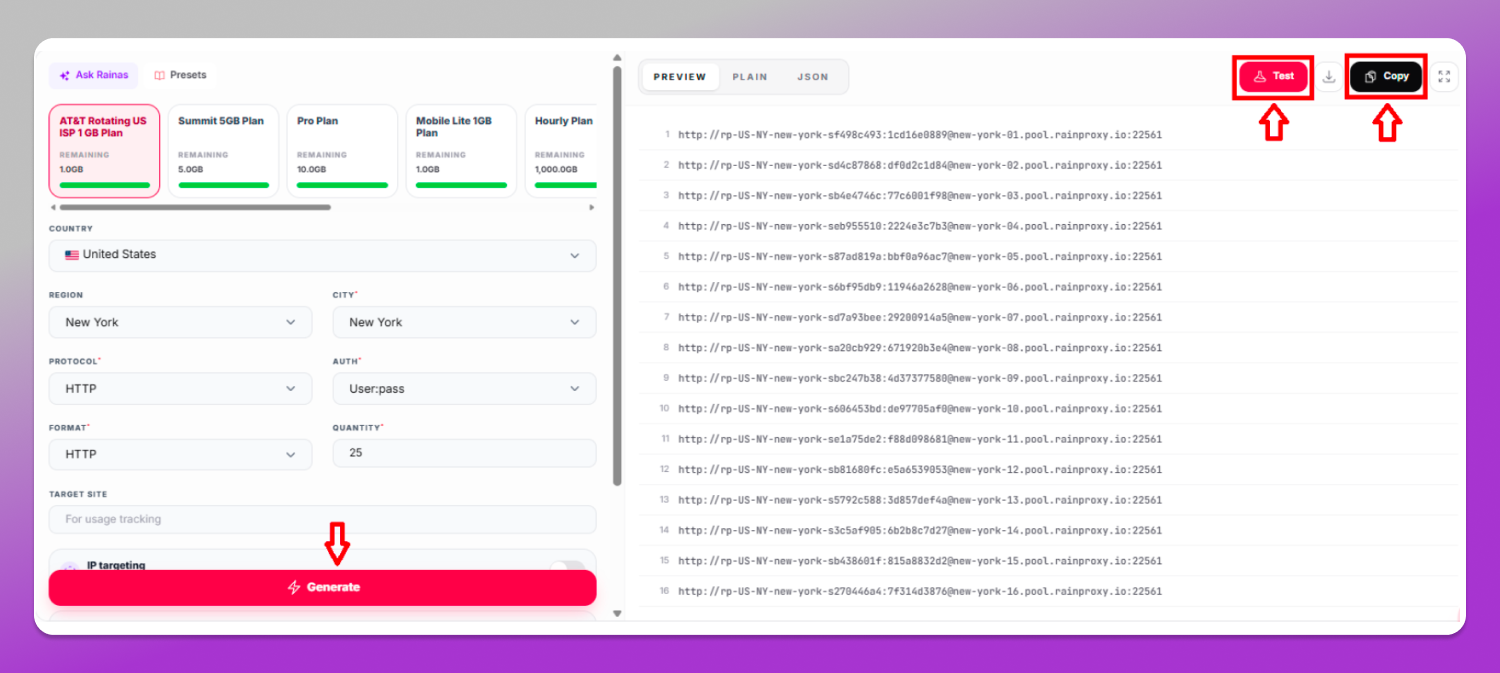
Proceed to the Proxy Generator and configure your proxy settings:
Plan – Choose the proxy plan that you wish to employ.
Location – Select the country that you wish to target. If necessary, you may also specify a particular state or city.
Protocol – Select your preferred protocol (SOCKS5 or HTTP).
Authentication – Select your preferred authentication method.
Format – Select your preferable proxy format.
Quantity – Indicate the quantity of proxies you wish to produce.
Target Site (Optional) – If you wish to monitor proxy usage for a particular website, please enter the target website.
IP Quality Filter (Optional) – Activate this feature to obtain superior-quality IPs filtered by cleanliness and fraud score.
IP Targeting (Optional) – Assign proxies to designated subnet ranges when your process necessitates more reliable IP distribution.
Click “Generate.”
If necessary, you can use the “Test” button to confirm the functionality of your produced proxies prior to copying them.
Once your proxies appear in the Generated Proxies panel, click “Copy” to duplicate the generated proxies for use in Dolphin Anty.
Step 3: Create a Browser Profile in Dolphin Anty
Open Dolphin Anty and select Create Profile.
Assign a descriptive name to your browser profile that reflects the project, client, or campaign for which it will be utilised.
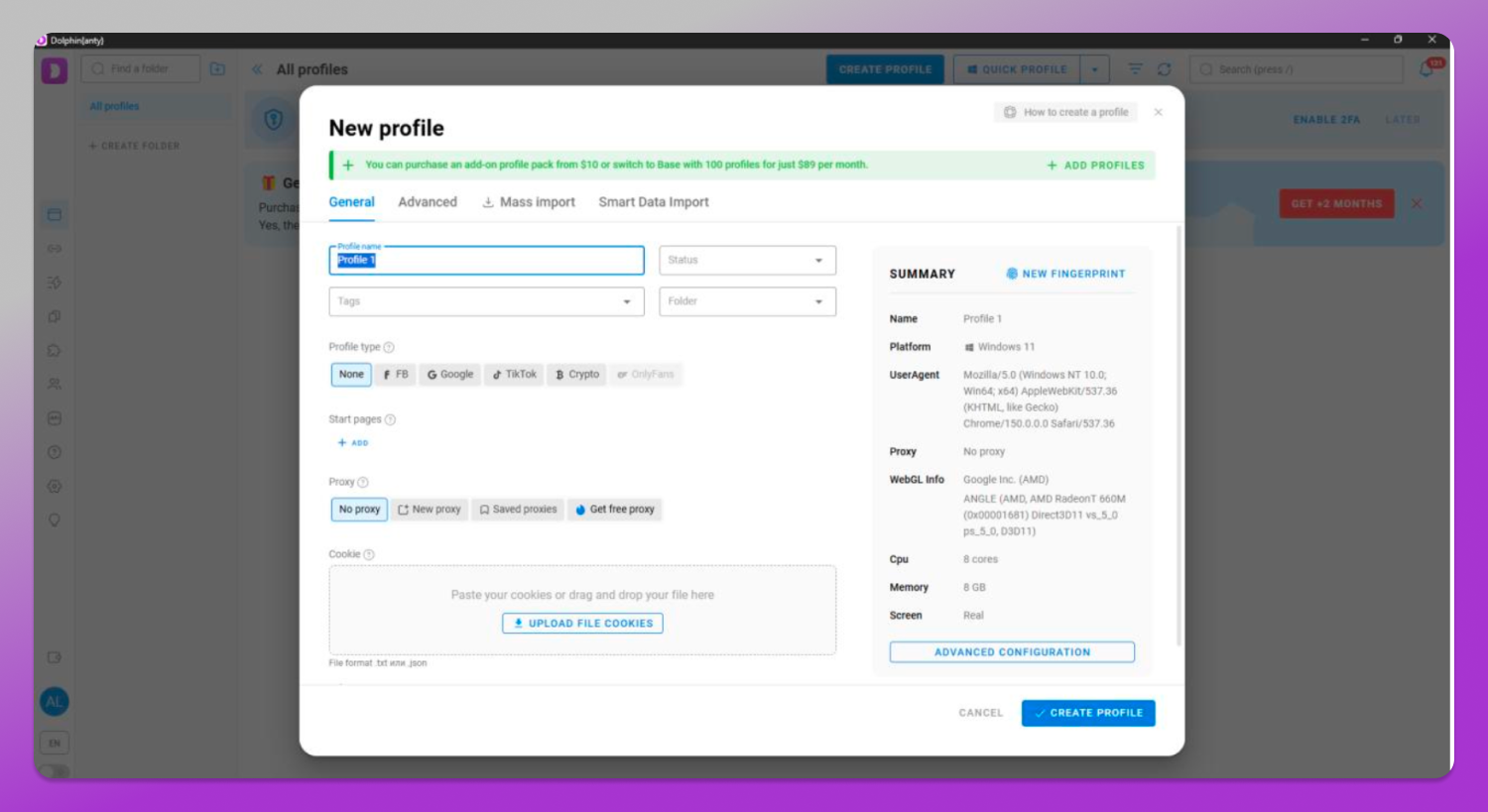
Step 4: Configure the Proxy
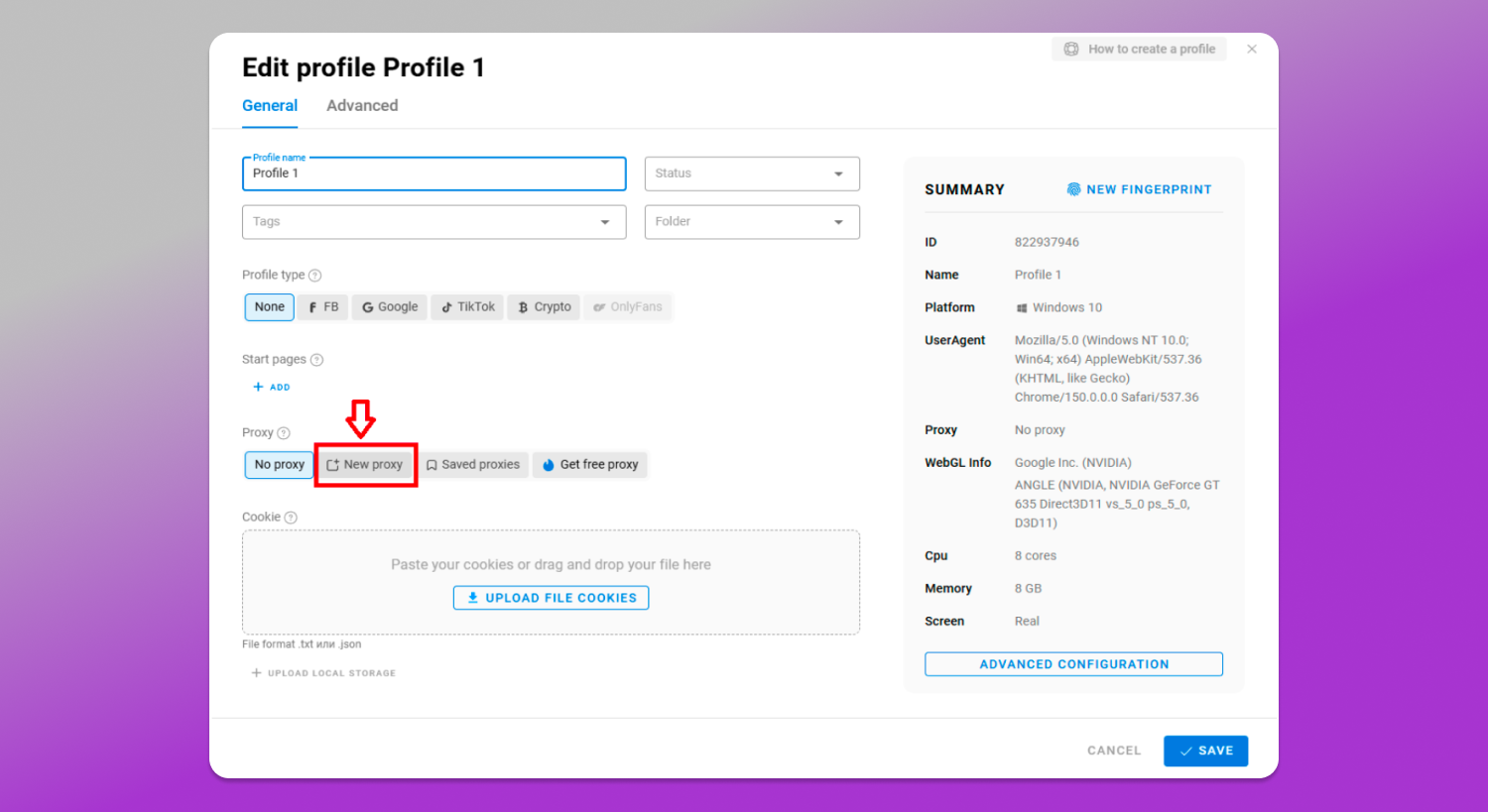
Navigate to the Proxy section of your browser profile and click “New Proxy”.
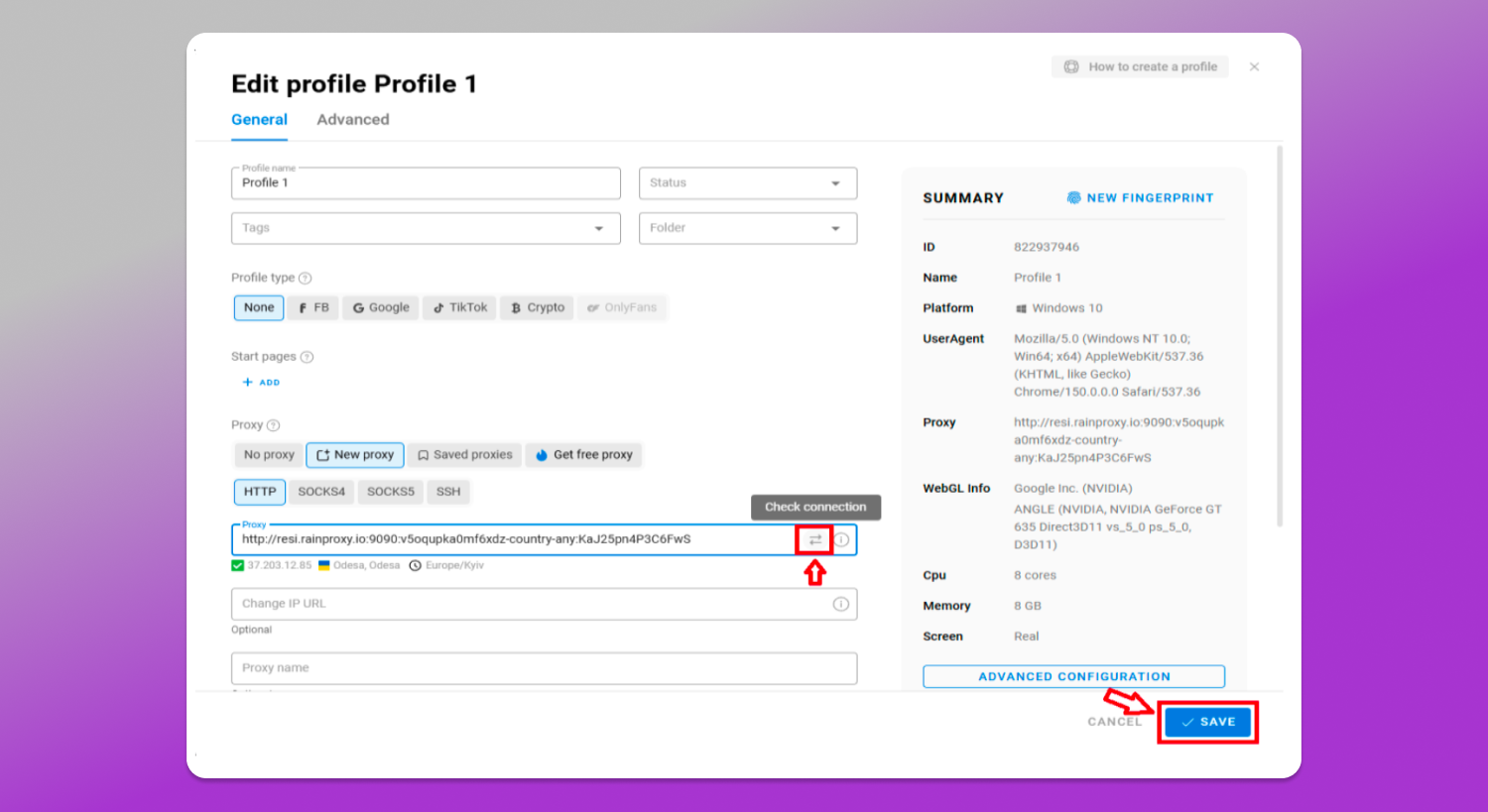
Enter your Rainproxy credentials in the proxy area. Dolphin Anty will automatically detect the necessary connection information.
Use Dolphin Anty’s built-in proxy test to ensure that the connection is working properly. When the test is completed successfully, click Save to add the proxy to your browser profile.
Step 5: Launch Your Browser Profile
After the connection has been verified, save and launch your browser profile.
Your Dolphin Anty profile will now use the Rainproxy connection that you set to it. Repeating this approach for additional browser profiles will result in an organised arrangement with each profile having its own dedicated proxy, making it easier to handle different projects, clients, or workflows from a single platform.
Best Practices
Once you’ve connected Rainproxy with Dolphin Anty, following a few best practices can help you build a more organized and scalable workflow.
📌 Assign One Proxy per Profile
For long-term projects, each Dolphin Anty profile should have a separate Rainproxy proxy. Using the same proxy with the same profile results in a more consistent browsing experience and simplifies account management.
📌 Choose the Right Proxy Type
Rainproxy provides Residential, Exclusive Residential, Mobile, ISP, Datacenter, and IPv6 proxies. Choose the proxy type that will best meet your project’s performance and connectivity demands.
📌 Match Proxy Locations
If your project focuses on a single country, area, or city, use a proxy from that location. Rainproxy’s geo-targeting capabilities make it simple to align your message with your audience.
📌 Keep Profiles Organized
Use clear, descriptive names for your Dolphin Anty profiles so you can quickly identify clients, campaigns, or projects as your workspace grows.
📌 Test Before Launching
Before you launch a profile, use Dolphin Anty’s built-in proxy test to ensure that your Rainproxy connection is working properly.
📌 Common Use Cases for Rainproxy and Dolphin Anty
Rainproxy and Dolphin Anty work together to support a variety of professional workflows by combining isolated browser profiles with reliable proxy connections.
📌 Social Media Management
Manage multiple social media accounts with separate browser profiles and dedicated proxies.
📌 Affiliate Marketing
Run multiple affiliate campaigns using isolated browser profiles.
📌 E-commerce
Manage multiple online stores or marketplace accounts from one workspace.
📌 Digital Advertising
Organize advertising campaigns with dedicated browser profiles and proxy connections.
📌 Market Research
Access localized content with Rainproxy’s geo-targeting capabilities.
Other common use cases include:
- Browser automation
- Public web data collection
- Lead generation
- Multi-account management
Together, Rainproxy and Dolphin Anty provide a flexible and organized solution for managing multiple browser profiles and online projects.
Troubleshooting Common Issues
The Proxy Test Fails
Verify that the username, password, port, and host have been entered accurately. If the problem continues, generate a new proxy in Rainproxy and retest the connection.
The Wrong Location Appears
Verify that you have chosen the correct country or area while generating your proxy.
Unable to Connect
Verify that your Rainproxy plan is active and that the chosen proxy type accommodates your required configuration.
Exclusive Offer for Dolphin Anty Users
In collaboration with 🔥 Dolphin Anty, we are delighted to present a special promotion for the Dolphin Anty users.
Promo Code: DOLPHIN15 for 15% off
To redeem your offer, simply enter the promo code during the checkout process on the Rainp👉 Rainproxyroxy website.