
Key takeaway: 🚀 Dolphin Anty isolates browser identities and local sessions, while 🔗 DuckIP provides a network exit that matches the task. They must be aligned on the target location, session policy and compliance scope to produce reproducible and auditable observations.
As websites increasingly evaluate device signals, network reputation and behavioral patterns together, adjusting browser parameters alone or changing a proxy alone cannot replace a complete workflow design. This 📔 guide describes configuration, validation and routine operations into executable steps so teams can reduce environment drift and determine more quickly whether an issue comes from the browser, the network or the target page.
1. Fingerprint Environment and Network Exit: Why They Must Be Designed Together
Modern anti-automation systems commonly evaluate browser fingerprints, cookies and local storage, language and time zone, screen and hardware parameters, DNS/WebRTC behavior, public IP addresses and geolocation as a combined set. Any inconsistency between layers can lead to inaccurate regional content, abnormal login states or tests that cannot be reproduced.
- Dolphin Anty: Create an independent browser profile for each project to isolate cookies, local storage, browser settings, device parameters and session history.
- DuckIP: Select a proxy connection according to the approved country, region, city and session-continuity requirements for the business task. Supported protocols, line types and parameters are subject to the current DuckIP console.
- Validation loop: First confirm that the connection is usable, then verify the exit location and finally confirm that page content and the business flow behave as expected. Connectivity alone does not mean that the result is valid.
The value of this combination is control and consistency, not a promise that any platform review or risk-control system will be passed automatically. Teams should record browser configuration, network context and business conclusions separately so technical signals are not mistaken for business outcomes.
2. Before You Begin: Define the Task Boundary
Before creating a profile, 🎯 define the target market, target page or service, whether the task is a single check or a multi-step flow, the expected session duration and whether access authorization has been obtained. A clear task definition determines the proxy line type, session policy and validation criteria.
Pre-execution checklist
Step 1 | Business scope
Confirm: target market, page, account or feature; permitted access scope and stop conditions.
Record: task ID, owner and authorization basis.
Step 2 | Network requirements
Confirm: protocol, country/region/city, session duration and line type.
Record: DuckIP connection reference, creation time and validity period.
Step 3 | Browser environment
Confirm: language, time zone, geolocation, device and browser parameters. Record: Dolphin Anty profile name and version.
Step 4 | Validation criteria
Confirm how connection, location, page content and the business flow will each be judged successful.
Record: checks, screenshots, or log locations.
3. Create a Proxy Connection in DuckIP
1. Select the Target Location and Line Type
Sign in to the 💻 DuckIP console and select the proxy type and target location approved for the task. Depending on the current DuckIP product scope, location granularity may include country, state/province or city. For multi-step flows, first determine whether the session must remain continuous throughout the task.
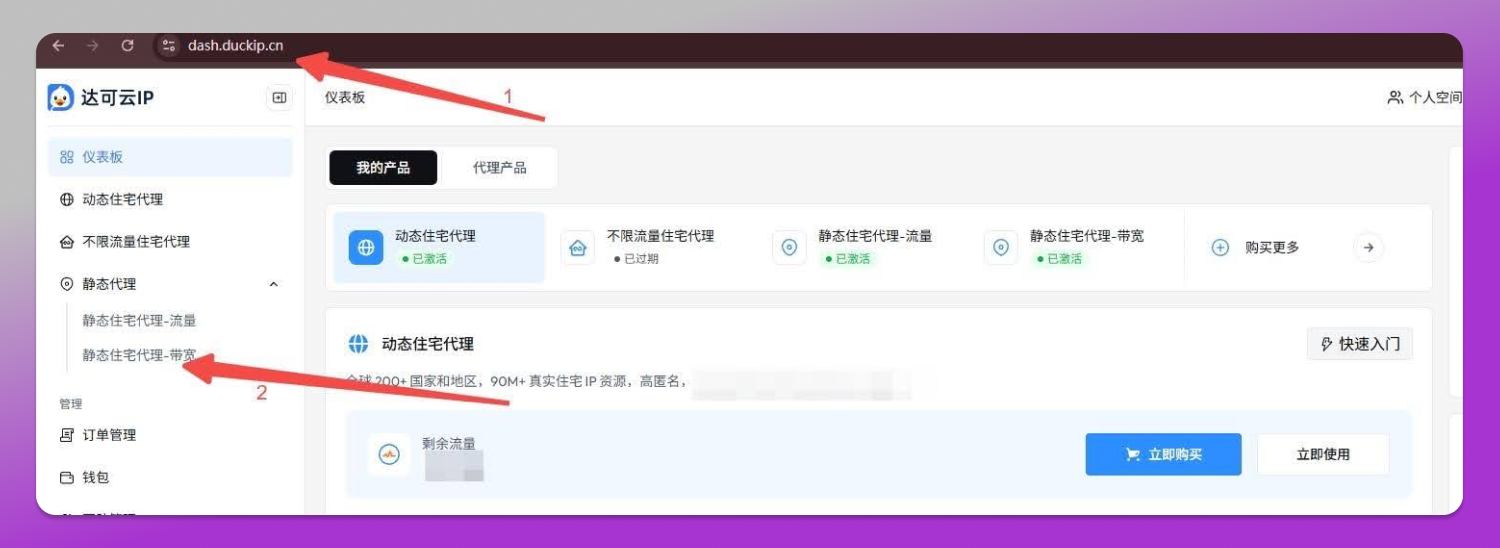
Short sessions are usually easier to manage for an isolated page check. For tasks that require continuous login, form completion or multi-page operations, use a fixed or sticky session policy that matches the workflow duration.
☝️ Do not switch locations or line types without a plan during the same task.
2. Retrieve and Protect Connection Parameters
Copy the connection details generated by the DuckIP console and follow the field order provided by the console. Common fields include:
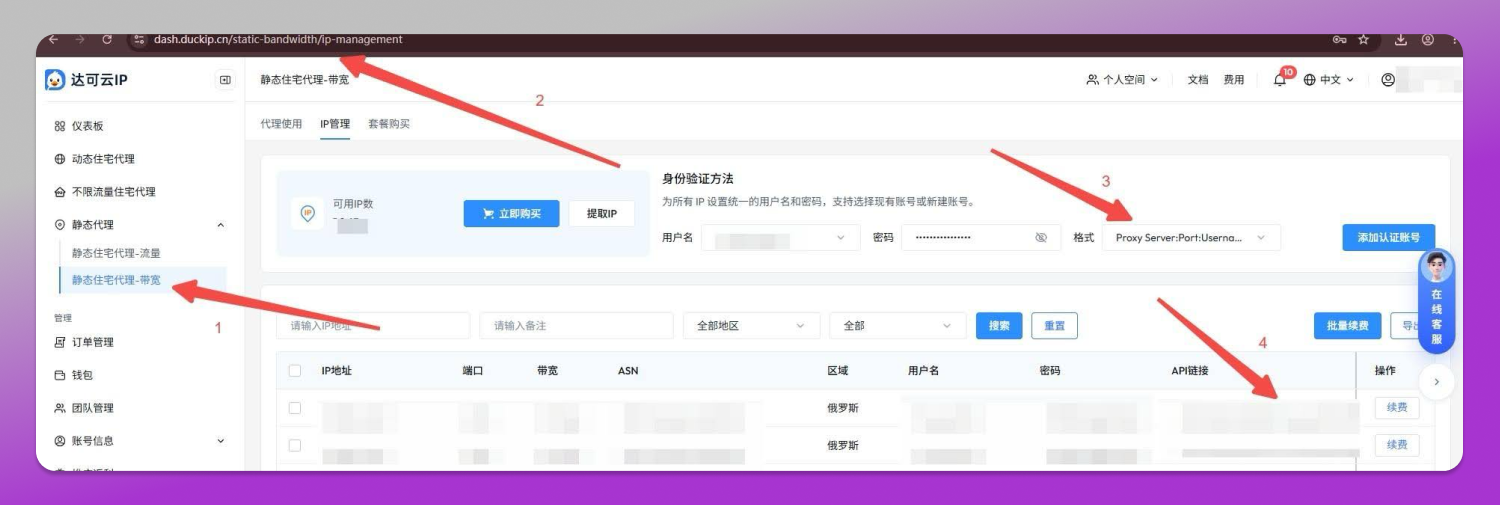
DuckIP Connection Field Reference
Host: Proxy server address. Do not use an internal note or a complete URL as the host field.
Port: Proxy service port. Confirm that it matches the selected protocol and line type.
Username / Password: Authentication credentials. Do not place them in public documents, ticket screenshots, or code repositories.
Session / Location: When supported by the DuckIP product, controls session continuity or the target location.
Protocol: HTTP, HTTPS, SOCKS5 and similar options. Use the options jointly supported by the current versions of DuckIP and Dolphin Anty.
Credential security: Shared documents should retain only the connection reference, line type and validation date. Store real usernames, passwords and complete connection strings in a controlled credential system and grant least-privilege access.
4. Bind DuckIP in Dolphin Anty
Dolphin Anty’s menu names and field locations may change between versions. The following steps describe a general path; before production configuration, check the latest official documentation from both DuckIP and Dolphin Anty.
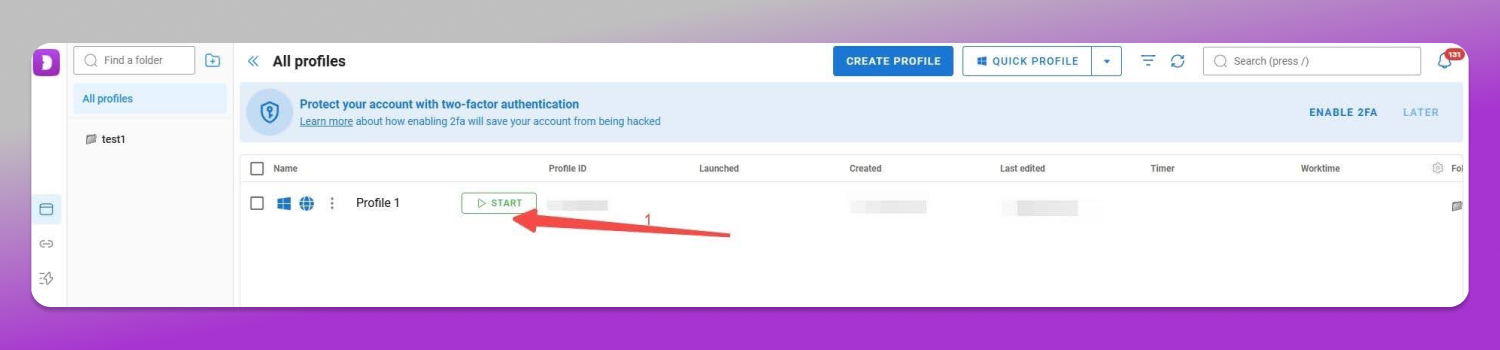
1. Create or open a Dolphin Anty browser profile. Give the profile a clear purpose, such as “QA – UK – Checkout” or “Research – Canada – Category Review”. Avoid using personal names or real account information in the profile name.
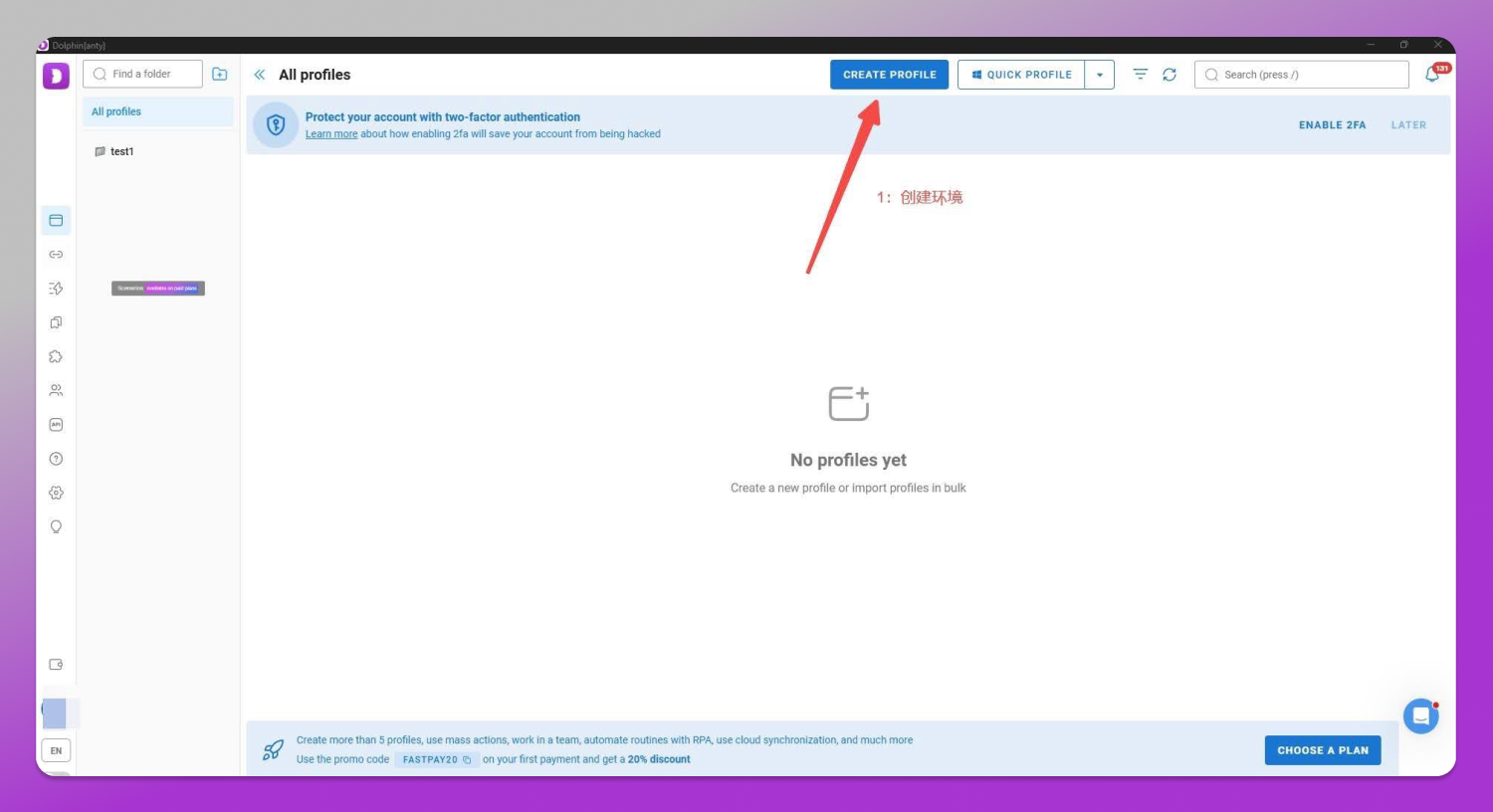
2. Open Proxy Settings or Proxy Manager. A profile can contain proxy details directly, or you can enter and validate the connection in Proxy Manager first and then reuse it from the drop-down list.
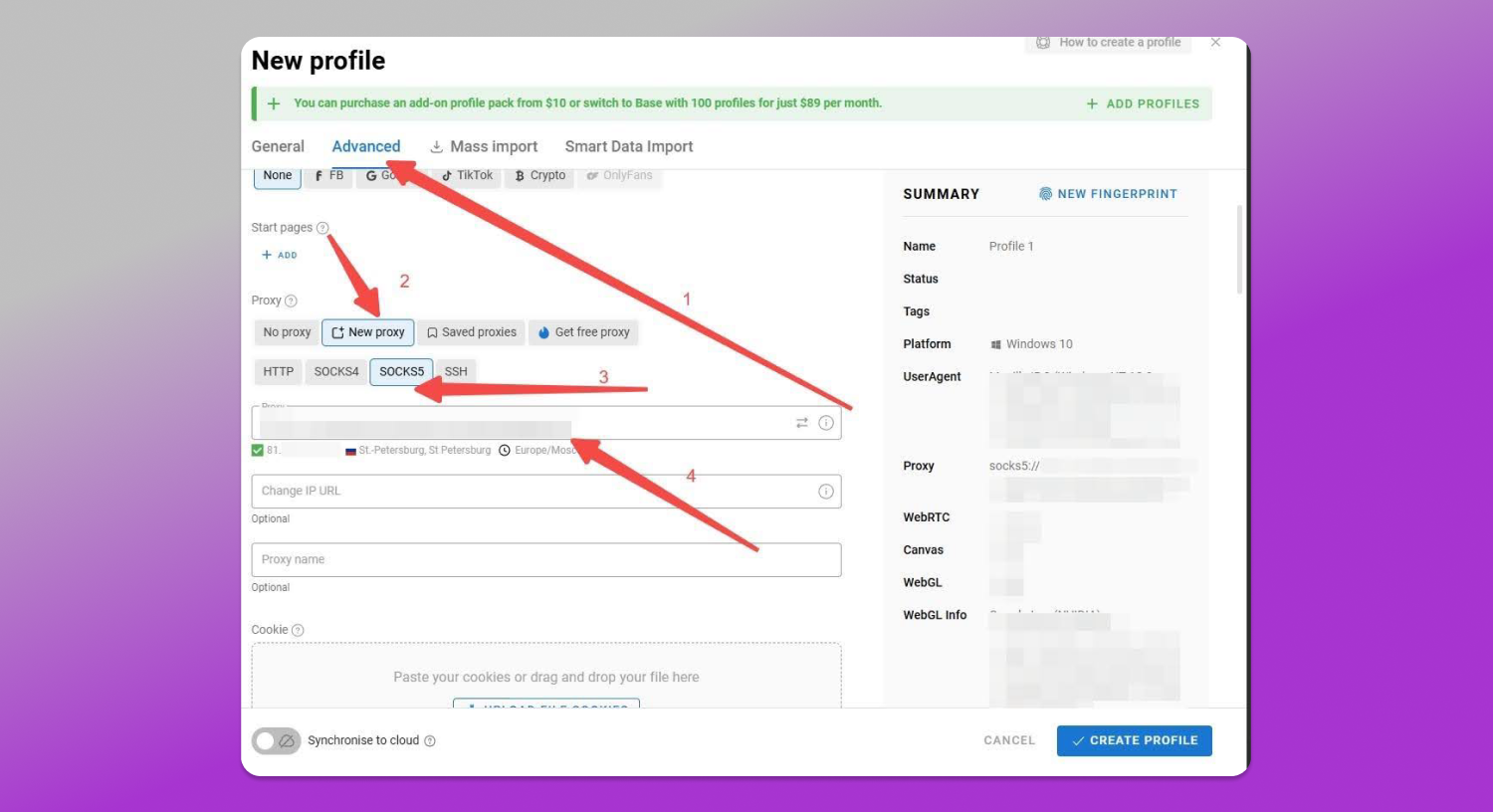
3. Select a protocol supported by DuckIP and fill in fields such as Host, Port, Username and Password. If the console provides Session or Location parameters, enter them separately in the DuckIP format; do not rewrite the field order.
4. After saving the profile, set the language, time zone, geolocation permissions, device parameters and browser version consistently so they match the target network location description.
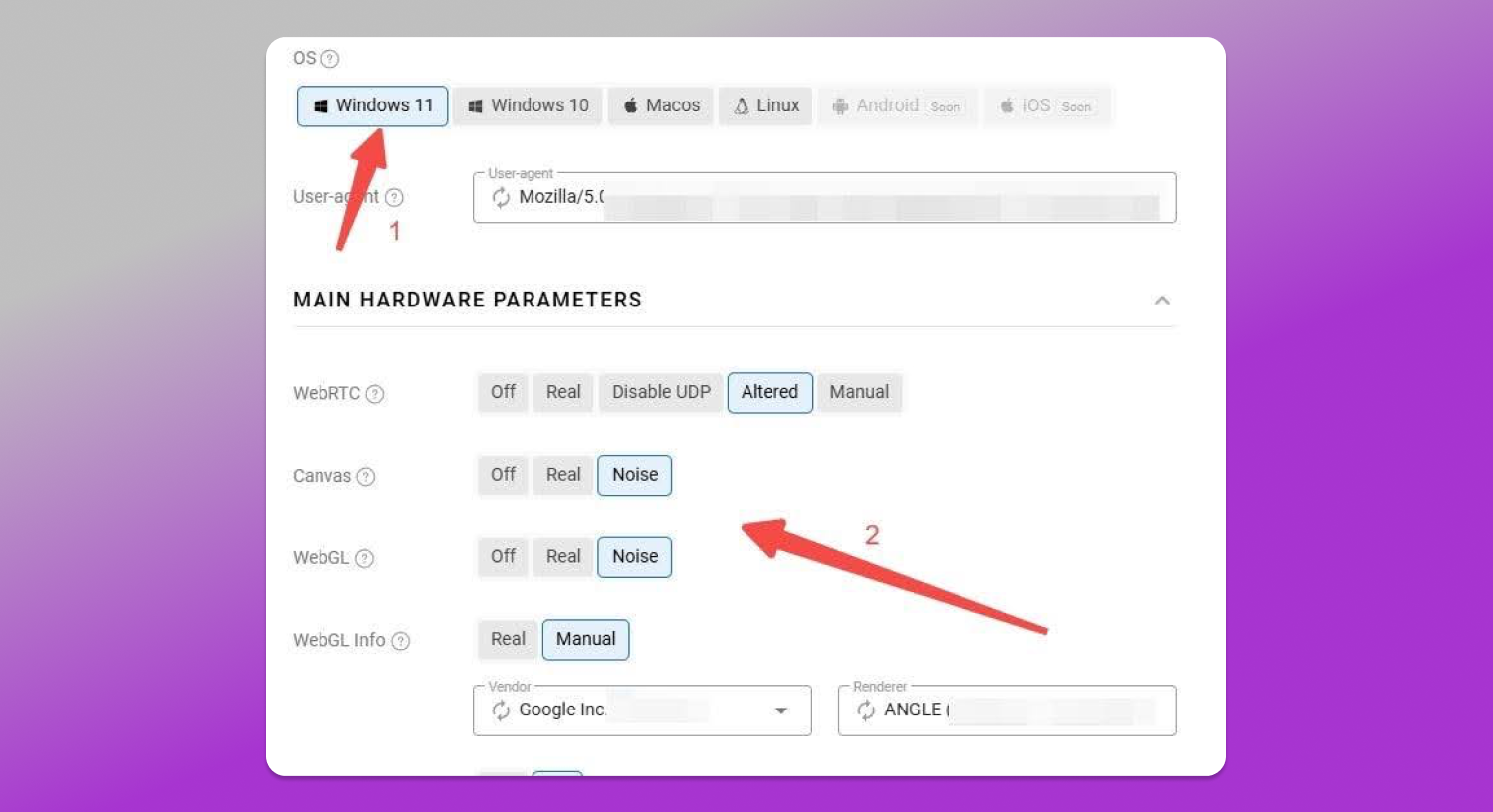
5. Bind the DuckIP connection to the profile and record the connection reference, validation time, operator and task scope so that a successor can reproduce the environment.
If you need to import a text format, a common example is:
host:port:username:password[HTTP]
host:port:username:password[SOCKS5]
These are field-format examples only and contain no usable credentials. The protocol suffix and field order are subject to the current Dolphin Anty import interface and DuckIP console documentation.
5. Validate Before Launch: Separate Technical Signals from Business Conclusions
We recommend splitting validation into five independent checks and recording each result. If any item falls outside expectations, pause the task and identify the cause instead of masking a configuration issue with repeated retries.
1. Connection availability: Use Dolphin Anty’s connection check or an approved diagnostic method to confirm that the proxy can establish a connection and record the response time.
2. Exit location: Use an independent location lookup to confirm the public IP, country/region and city where available, then compare them with the DuckIP console and task requirements.
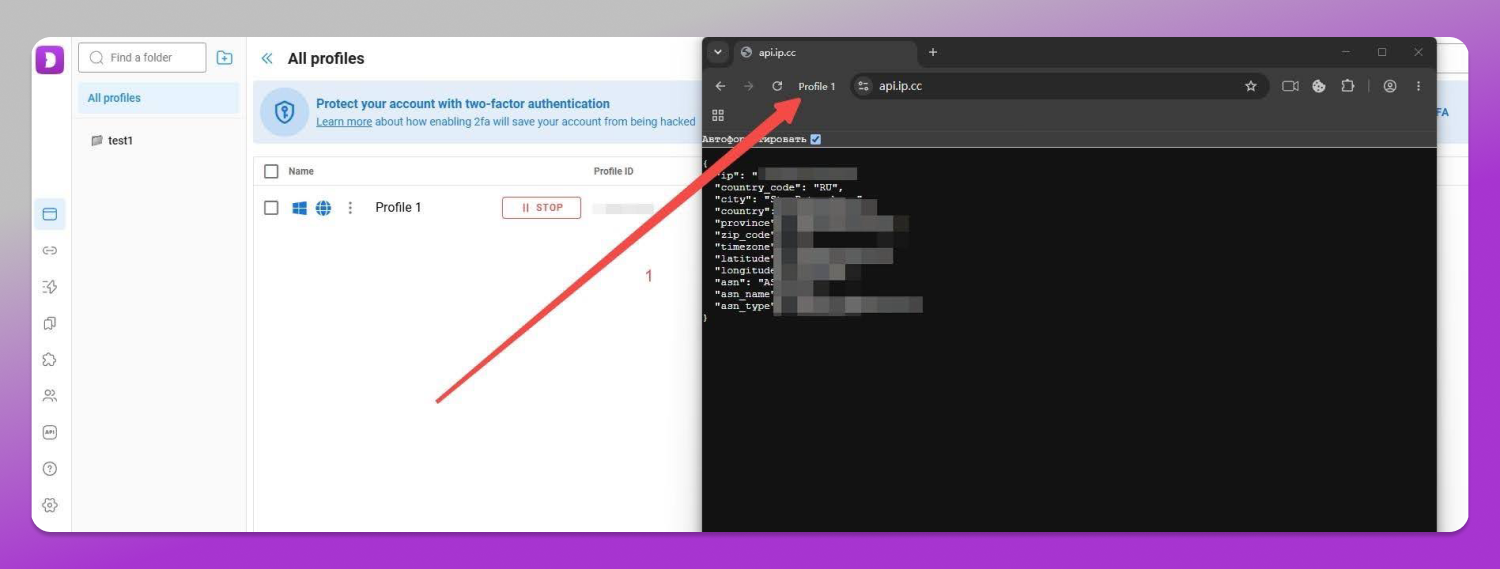
3. Browser consistency: Check language, time zone, geolocation permissions, device parameters and, when necessary, DNS/WebRTC exposure.
4. Page presentation: Visit an authorized test page and confirm that language, currency, inventory, shipping information, or advertising materials are presented for the target market.
5. Business status: Record separately whether login succeeded, the page loaded completely and the target flow finished. Do not equate any one of these results with platform approval.
Record-keeping recommendation:
Maintain a minimal change record for each profile: profile name, DuckIP connection reference, target market, protocol, validation date, operator, reason for change and stop conditions.
6. Typical Workflows for Website Operators
Localized Storefront and Landing-page QA
Create an independent Dolphin Anty profile for each target market, bind the corresponding DuckIP location and fix the page path, language, currency, device parameters and observation window. This makes regional defects reproducible after site updates while preventing old cookies or locations from affecting the result.
Cross-border Advertising and Campaign Validation
Advertising teams can verify whether creatives, landing pages, consent management and localized copy are displayed correctly in the target market. Save the test date, page URL, device context and authorization scope so the result can be reviewed.
Public-page Market Research
Researchers can compare publicly visible content across countries or cities. To keep the sample valid, fix the page path, browser settings, observation window and success criteria. If the location cannot be verified, document the gap explicitly instead of silently substituting another market.
Authorized Multi-account Operations
For accounts or workspaces with explicit authorization, assign each business unit an independent profile, cookie/storage set and network reference, with a clear owner and stop conditions. Platform permissions, account history and business rules remain controlled by the platform itself.
7. Routine Operations and Troubleshooting
Make Profiles Readable and Transferable
- Name profiles using “purpose – market – page/flow”. Do not include email addresses, account IDs or proxy passwords in the name.
- Assign an owner and a change record to every profile. When the proxy, language, time zone, or device parameters change, record the date and reason.
- Distinguish and record four separate signals: connection successful, location correct, page complete and business flow complete.
- Use a session policy that matches the task for multi-step flows. When a session fails, pause the investigation before deciding whether to establish a new connection.
Troubleshooting
Connection timeout or rejection
Check first: Host, Port, protocol, credentials and connection validity.
Recommended action: confirm that the line is active in the DuckIP console, then recheck the Dolphin Anty field mapping.
Location does not match the target market
Check first: public IP, Session/Location and browser geolocation.
Recommended action: regenerate or switch to the correct connection, bind it again and revalidate. Do not change the business conclusion directly.
Page language or content is abnormal
Check first: cookies, cache, language, time zone and page URL.
Recommended action: use an independent profile for the relevant market, clear unrelated site data and observe again.
Multi-step flow fails midway
Check first: session continuity, connection changes and login state.
Recommended action: pause retries, confirm that the session policy matches the workflow duration and check whether the platform’s own verification was triggered.
The same result cannot be reproduced
Check first: profile version, proxy reference, observation time and page path.
Recommended action: compare the change record, fix the variables, rerun the test and mark any factors that remain unverified.
8. Capability Boundaries and Compliance Requirements
Dolphin Anty and DuckIP can help teams 🛠 manage browser environments and network context, but they cannot guarantee that a third-party service will accept an account, display a specific result, remove a restriction or approve a business operation. Account history, user behavior, identity verification, platform rules and target content remain outside the tools’ control.
- Use only for authorized access, public-page checks, quality assurance, research and lawful commercial purposes.
- Comply with the target website’s terms of service, privacy obligations, intellectual-property requirements, local laws and regulations and platform policies.
- Do not impersonate others, access non-public data, conduct deceptive activities, or interfere with platform security and access controls.
- If the authorization scope, location, or abnormal signals cannot be verified, pause immediately and escalate to the owner. Do not replace review with a line change or repeated retries.
9. Exclusive Offer for Dolphin Anty Users
If you are building a fingerprint-browser workflow that selects network exits by market and session requirements, visit DuckIP to learn about available products and line options here.
🔥 Dolphin Anty users receive 10% off eligible DuckIP products.
Discount code: DOLPHIN
We recommend validating location and session behavior first in a small, authorized workflow before expanding usage. Stable results come from clear profile purposes, a matching DuckIP network context, traceable validation records and review whenever the market or task changes.