
Secure browsing is not a browser you install. It’s a short list of settings you turn on in the browser you already have. Most people arrive here after a fright: an email saying “new sign-in from a device we don’t recognize,” an extension asking to “read and change all your data on all websites,” or logging into a store dashboard from station Wi-Fi. The checklist runs in five layers:
- Account — passwords, 2FA, sessions, connected apps
- Browser — updates, HTTPS, permissions, saved data
- Extensions — what’s installed and what it can read
- Network — public Wi-Fi, DNS, what a VPN does and doesn’t do
- Device — lock screen, encryption, updates, backups
Every item says why it matters and how to confirm it worked.
What You’re Actually Protecting Against (And What This List Won’t Stop)
Five things go wrong far more often than anything exotic.
Session hijacking. Your browser holds a session cookie proving you already logged in. Steal that cookie and an attacker skips the password and the second factor, because the account never sees a login attempt. That one mechanic justifies most of the browser layer below.
A password leaked from someone else’s database. You never got breached. A forum you used in 2019 did, and the same email and password get replayed against your marketplace and ad accounts. That’s credential stuffing.
A malicious or resold extension. It was fine when you installed it. Ownership changed, an update shipped silently, and the permissions you granted years ago still apply.
Interception on an open network. Smaller than folklore suggests, but not zero.
Phishing. Still the most productive attack there is, because it targets you, not your software.
The honest part: this lowers risk without eliminating it, and nothing here makes you anonymous or immune to account bans. It also doesn’t override platform rules or data protection law. GDPR (EU), UK GDPR or CCPA-CPRA (California) covers anyone handling other people’s data, as do Meta Advertising Policies, the Amazon Seller Code of Conduct and the X Rules.
One distinction first: security is not privacy. This article is about people not taking your accounts. Ad networks watching what you read is a different mechanic with a different fix.
Layer 1 — Your Accounts
Unique Passwords and a Password Manager
Password reuse is the multiplier. One credential pair stolen in an unrelated data breach becomes a sweep across every service where you used it. A reputable password manager makes uniqueness free: you stop remembering passwords, so you stop reusing them.
How to check it worked: the manager’s reused-password report reads zero, and your email, the recovery route into everything else, has a password used nowhere else.
Turn On 2FA, and Pick the Right Kind
Two-factor authentication (some services label it two-step verification) blocks the replayed-password attack outright. The type matters. An authenticator app or a hardware security key beats an SMS one-time code, because a phone number can be moved to another SIM and SMS codes get phished in real time. Keys and passkeys are phishing-resistant by design.
How to check it worked: sign out fully, then back in. No prompt means 2FA covered only part of the login flow.
Save Your Backup Codes Before You Need Them
Backup codes (also called recovery codes) exist for the day your phone dies. Put them in your password manager or on paper, never in a note synced to the account they open.
How to check it worked: you can read the codes from a device that isn’t your phone.
Audit Active Sessions and Linked Devices
Every serious platform keeps a page that lists where your account is currently signed in and which devices still hold a session; you reach it from the account’s own security settings. Walk that list on the accounts that matter: Amazon, eBay, Etsy, Shopify, Meta Ads, Google Ads, TikTok Shop. Unfamiliar device or city? Sign out everywhere. That’s also the first move when you suspect a stolen cookie, because it invalidates the cookie the attacker holds.
How to check it worked: after a reload, only this week’s devices remain.
Revoke Third-Party Apps You Don’t Use
That analytics tool you trialed once may still hold API access to your store or ad account, and such access survives a password change.
How to check it worked: the connected-apps list is empty, or every entry is one you can justify in a sentence.
Layer 2 — Browser Security Settings
The browser security settings below are the ones that change outcomes.
Keep the Browser Updated (And Actually Restart It)
Downloaded is not installed. Chromium browsers stage the patch and apply it on restart, which is why a machine awake for three weeks runs last month’s build.
How to check it worked: the About page reports the browser up to date, with no Relaunch button.
Turn On HTTPS-Only Mode
It forces encrypted connections and warns before loading anything plaintext, which closes the downgrade tricks used on shared networks. Every major browser carries the switch in its own privacy or security settings; search those settings for HTTPS and turn the option on.
How to check it worked: an unencrypted address gives you a warning page, not a silent load.
Saved Passwords in the Browser: What You Get and What You Risk
Browser password storage is convenient and far better than reuse. The trade-off: those credentials are tied to your profile and, in practice, to whoever has your device while it’s open. Sharing a laptop? Move them into a manager with its own lock.
How to check it worked: viewing a saved password triggers an authentication prompt.
Autofill and Saved Payment Methods
Turn off card autofill. The upside is a few saved seconds; the downside is a page you didn’t mean to trust being handed payment details through a form you barely looked at.
How to check it worked: the saved payment methods list is empty.
Site Permissions: Camera, Microphone, Location, Notifications
Permissions granted “just this once” have a habit of becoming permanent. Open site settings and walk the list per permission type.
How to check it worked: camera, microphone and location show only sites you actively use, and notifications almost nothing.
Cookies: The Security Part
One thing matters: session cookies are login credentials. Clearing cookies for a site signs you out of it, exactly what you want on a shared or suspect machine. Make it the last thing you do on any computer that isn’t yours.
How to check it worked: you revisit the site and it asks you to log in.
Layer 3 — Extensions
Extensions are the widest hole in an otherwise tidy setup, because they run inside the page with your permission. The phrase to understand is “read and change all your data on all websites.” That lets an extension see page content everywhere, including sites you’re already logged into, and alter what you see. Plenty of legitimate tools need it, which is the problem: the warning can’t separate them.
The other risk is ownership. An extension can be sold, and the buyer inherits your installed base along with the permissions. Updates ship quietly, and trust in the original developer doesn’t transfer.
Open the extensions page, open Details on each one and read what it can access, remove anything unused for a month, then check where each survivor came from.
How to check it worked: the list is shorter, and you can explain every remaining item in one sentence.
Layer 4 — Your Network
Open Wi-Fi at an airport or a coworking space is less dangerous than its reputation, because HTTPS encrypts your traffic. What it doesn’t hide is which sites you visit, and it won’t help against a captive portal pushing you toward a fake login page.
Encrypted DNS (DNS over HTTPS) hides your lookups from whoever runs the network, though the destination IP still is not secret. It’s a checkbox in the browser or in your operating system’s network settings, not something you buy.
How to check it worked: secure DNS names a provider instead of “Off”; every page you type into shows the padlock; the VPN client reads connected before you sign in.
And the objection everyone has: does a VPN protect my accounts? No. A VPN moves the endpoint of your connection. It doesn’t stop phishing or credential stuffing, and it does nothing about a stolen session cookie.
Layer 5 — Your Device
All of this assumes nobody has physical access to an open machine. Set a screen lock with a short timeout, because a laptop left open during a coffee break bypasses every setting on this page in the time it takes to sit down at it. Turn on full-disk encryption, which ships with the operating system: FileVault on macOS, and device encryption on Windows, where the full BitLocker feature set is not part of the Home edition, so check what your own edition gives you. Keep the OS patched, use a separate user profile for work on a shared computer, and back up. Phones and tablets get the same basics: lock screen, automatic updates, an app permission review.
How to check it worked: locking the screen demands a password, not a resume; the encryption panel reports the drive encrypted; the About screen shows no update waiting on a restart; and you have restored one file from a backup.
One Paragraph About Tracking
Some settings sitting right next to these aren’t about security at all. Blocking third-party cookies and turning on tracking protection targets advertising networks profiling your behavior, a different mechanic with different trade-offs that deserves its own treatment. Keep the two goals separate. Nothing in this paragraph protects an account, and nothing above it stops an ad network.
Where This Checklist Stops Working
Two honest boundaries. First, private or incognito mode does not make you anonymous. It keeps history off the local machine; that’s the whole feature.
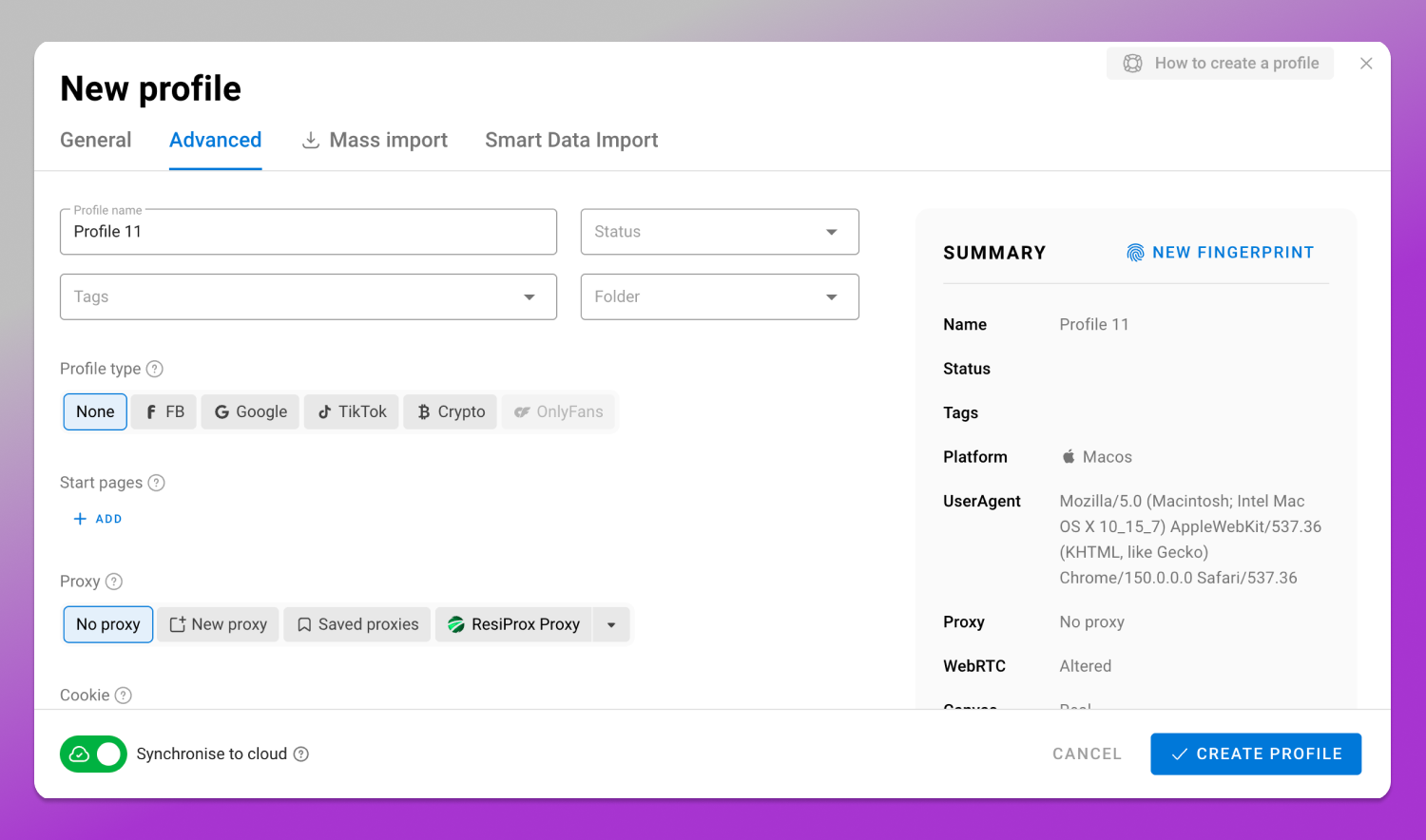
Second, browser settings assume one person with one set of accounts. Once you run many accounts that must not be associated with each other, one browser stops being the right tool: sessions, cookies and saved logins live together in a single profile, and no checkbox separates them. Think of the freelancer running four clients’ ad accounts from a personal browser, or the store owner handing an assistant the login and password because there was no other way to delegate. Both are session isolation problems, not settings problems.
🚀 Dolphin Anty is built for that case: a desktop application for Windows, macOS and Linux that runs each account in its own browser profile with its own cookies, storage and fingerprint, and gives teams access rights instead of shared passwords. It is not a security product and will not save a weak password, so treat it as the layer that starts where this checklist ends. Current plans are listed on the pricing page.
The Full Secure Browsing Checklist (Copy, Print, Tick Off)
Account
- A unique password per account, from a password manager.
- A password on your email used nowhere else.
- 2FA with an authenticator app or key, not SMS.
- Backup codes stored where you can reach them without your phone.
- Active sessions reviewed, unknown devices signed out.
- Unused third-party apps revoked.
Browser
- Browser updated and restarted.
- HTTPS-only mode on.
- Saved passwords moved into a locked manager.
- Card autofill and saved payment methods off.
- Camera, microphone, location and notification permissions audited.
- Cookies cleared and sessions ended on borrowed machines.
Extensions
- Anything unused for a month removed.
- Permissions of each survivor read.
- Source and developer verified.
Network
- Open Wi-Fi treated as hostile.
- Encrypted DNS on.
- VPN treated as connection protection, not account protection.
Device
- Screen lock with a short timeout.
- Disk encryption on.
- Operating system updates installed.
- Separate profile for work.
- A backup you have restored from once.
Frequently Asked Questions
How Do I Check My Browser Security?
Open privacy and security in your settings and verify four things: the browser is up to date, HTTPS-only mode is on, site permissions list only sites you use, saved payment methods are empty. Then open each extension’s details page and read what it can access.
How Can I Check if My Browser Is Hacked?
Look for symptoms: a homepage you didn’t set, extensions you don’t remember installing, tabs opening on their own, redirects you didn’t request. That’s browser hijacking, usually through an extension. Remove it, reset settings to default, run an antivirus scan, then change passwords from a clean device.
What Is the Most Secure Way to Browse?
An updated browser, HTTPS-only mode, a short extension list, unique passwords in a manager, 2FA everywhere it’s offered.
How Do I Turn On Safe Browsing?
Chrome and Edge enable a phishing and malware warning system by default. Chrome offers three levels: Enhanced protection, Standard protection, and No protection. Standard is a hybrid rather than a simple blocklist: a copy of the known-bad list sits on your device and is checked locally, and that is backed by real-time checks routed through a privacy server that hides your IP address. It covers sites, downloads and extensions. Firefox and Safari have equivalent deceptive-site protection, also on by default. In every one of them the control sits in the browser’s privacy and security settings.
How Do I Turn Off Safe Browsing?
Turning it off is the third level rather than a switch: in Chrome’s security settings you pick No protection, and the browser shows a confirmation warning before it applies. Read that warning. With protection off you get no alerts about dangerous sites, downloads or extensions, and other Google services that lean on the same signals lose it too. If you disable it to get one file through, put it back on Standard the same day.
What Are the Three Ways to Secure Your Online Account?
A unique password, a second factor that isn’t SMS, and a periodic review of active sessions and connected apps. The third is the one everybody skips, and the only one that catches an intruder already inside.
Is There a “Secure Browsing Browser” I Can Just Install?
No. Browsers differ in defaults, and some ship with stricter ones, but the gap between a secure setup and a vulnerable one is the five layers above. Work through them in the browser you already have.