Building Clean Browser Profiles in Dolphin Anty
Blog » Building Clean Browser Profiles in Dolphin Anty
Fingerprints, Proxies, and Safe Automation
When automation begins, platforms check two things right away. The first is how the browser looks, and the second is where the request comes from. The fingerprint reveals device traits, while the IP shows region and network identity.
Any overlap, mismatch, or repeated pattern links accounts together. That’s why 🥷 staying undetected starts with a clean profile and a clean proxy. 🚀 Dolphin Anty handles the profile side, and 🔗 Ping Proxies completes the network layer. This guide shows how to generate and connect both correctly.
Why Clean Fingerprints Matter in Dolphin Browser
Your browser reveals canvas output, WebGL traits, fonts, timezone, and hardware details, which form a fingerprint.
The fingerprint fields are important for the platform as it understands how the device behaves through them. When any of the values across the mentioned fields start looking identical, then the system connects them quickly.
Once that link forms, the platform reacts with verification loops or full blocks because the behavior looks coordinated.
Automation faces this problem more frequently because the scripts repeat actions with identical timing, identical rendering paths, and identical environmental signals.
If you know what forms a fingerprint, then you can 🌱 build cleaner identities before automating. A unique fingerprint avoids all of these connections.
Setting Up Browser Profiles in Dolphin Anty That Keep You Undetected
Before you create a profile in Dolphin Anty, you need active ☝️ proxies ready to assign. Proxies define the network identity of the profile, and without them, the session won’t look stable, local, or consistent.
Generate Your Proxies With Ping Proxies
Ping Proxies provides clean static, residential, and ISP routes that match your region and help avoid GEO conflicts from the first login. Here’s how you can create your proxies effortlessly:
Static Proxies (Datacenter & ISP)
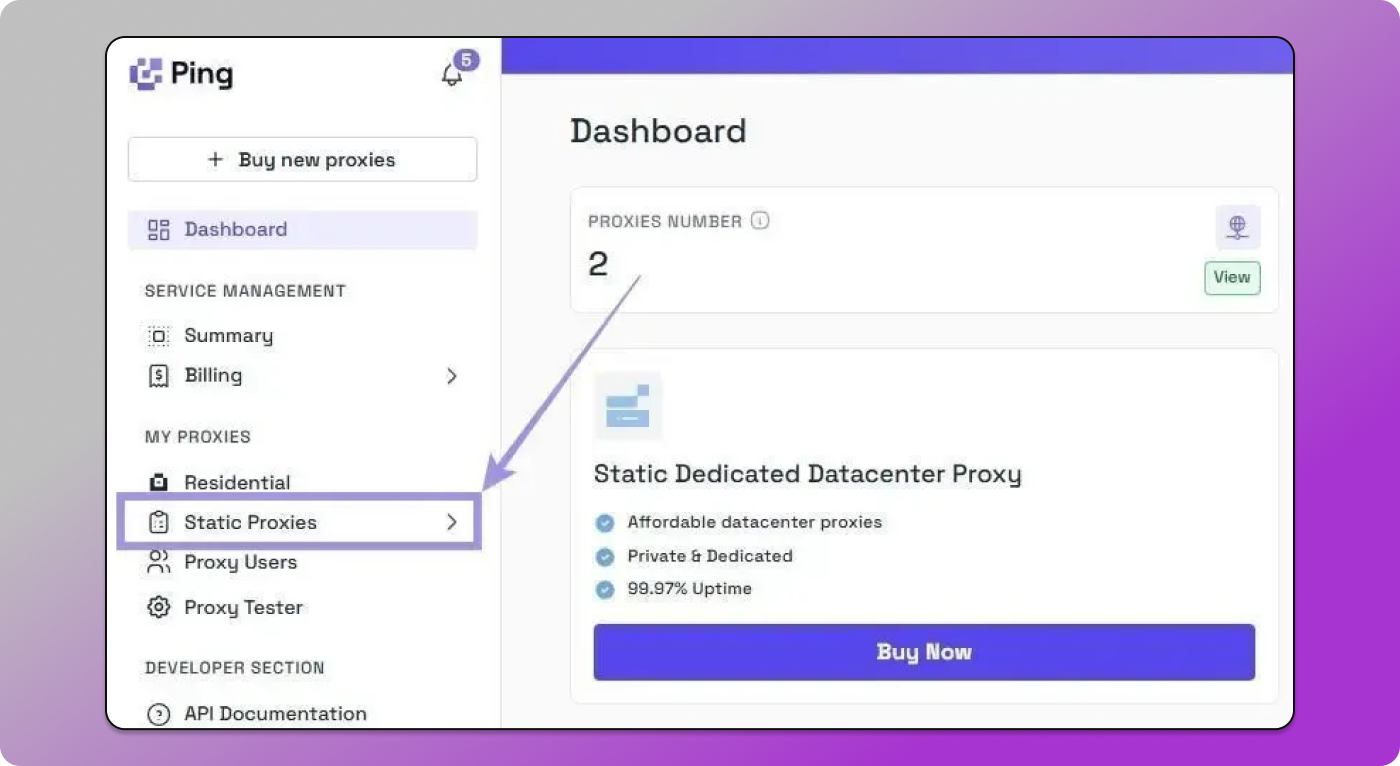
1. Go to the “Static Proxies” option under the “My Proxies” section on the left in the dashboard.
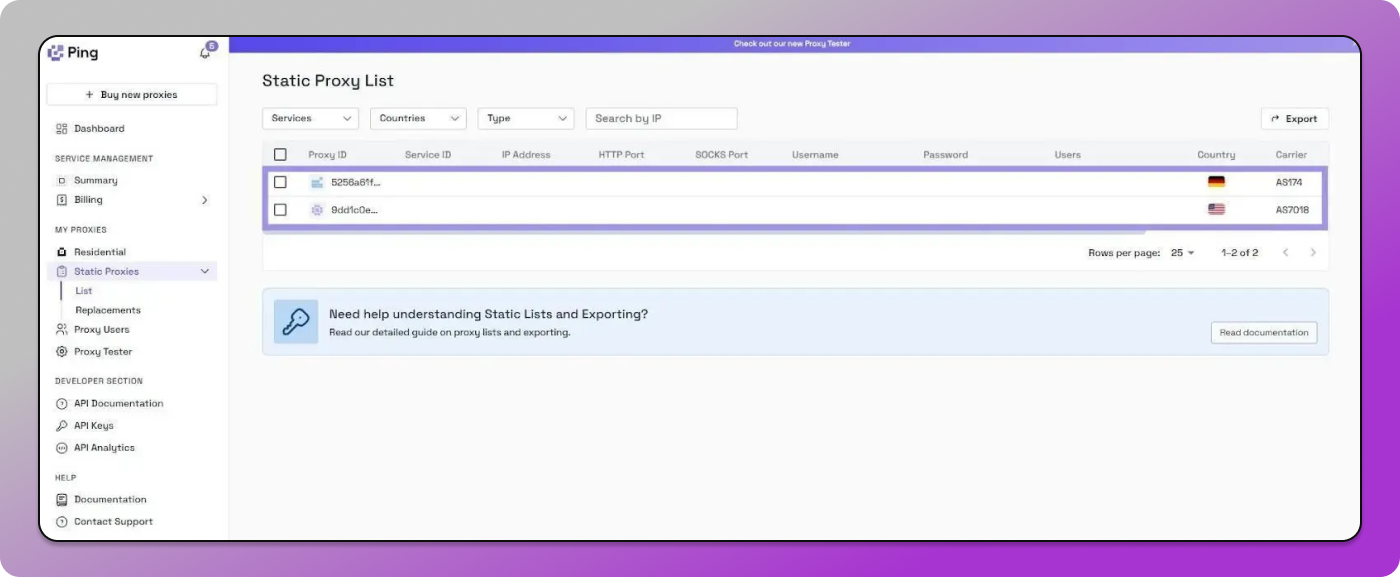
2. Your full list appears with hostname, port, username, and password. No generation needed. Just copy the credentials.
Residential Proxies
1. On the dashboard, go to the “My Proxies” section on the left and select the “Residential” option.
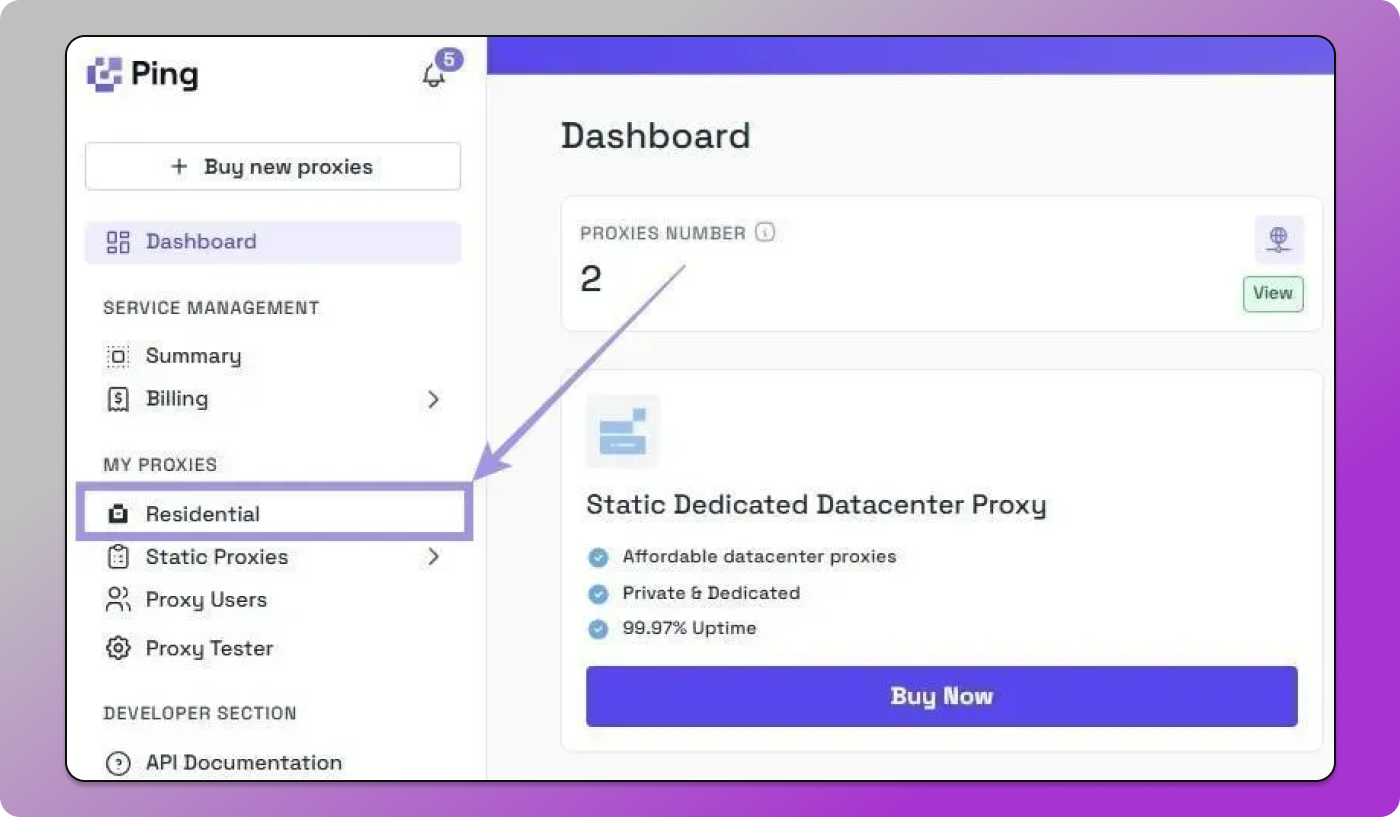
2. Select the format (rotating or sticky + HTTP/SOCKS5).
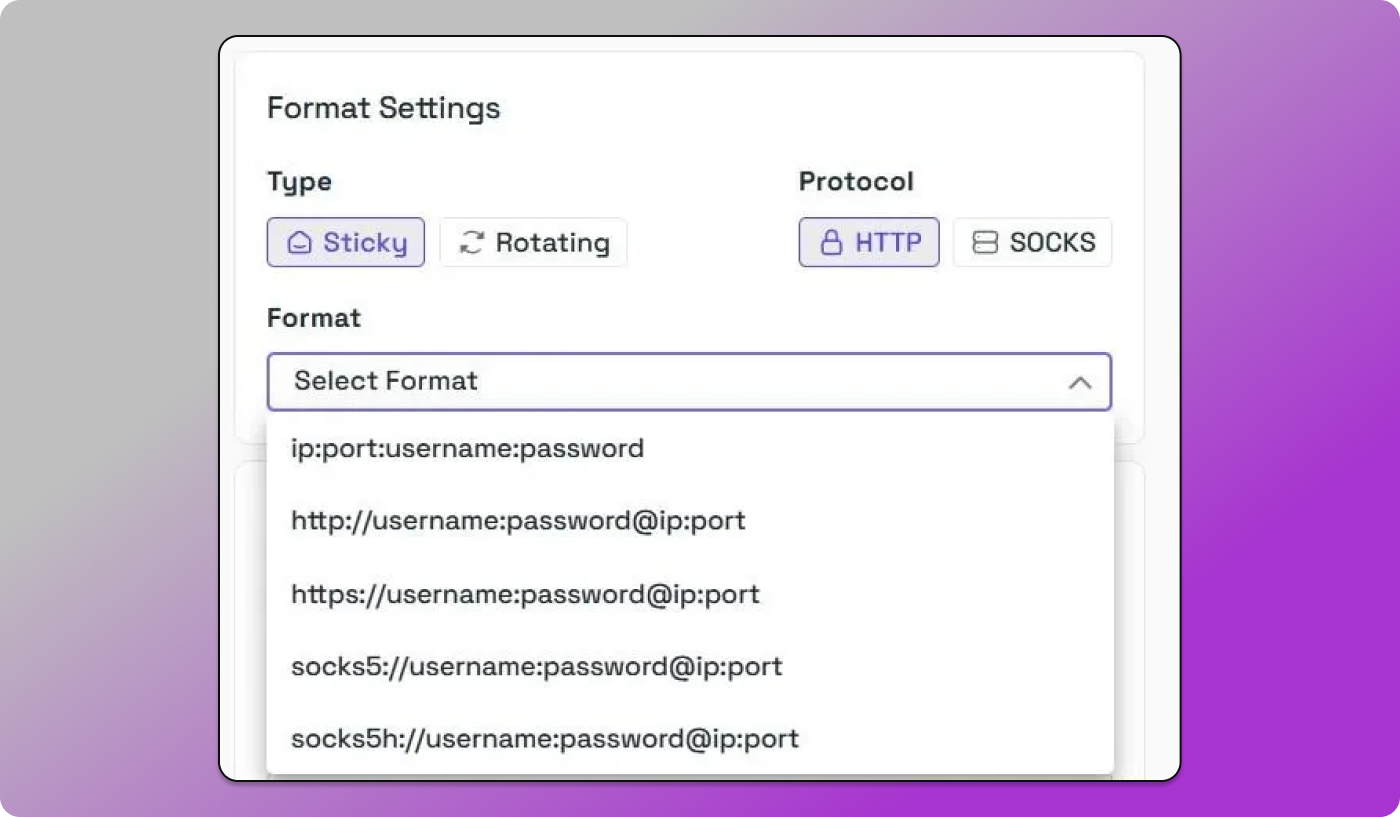
3. Choose a targeting option: country, city, ZIP, ISP, or ASN.
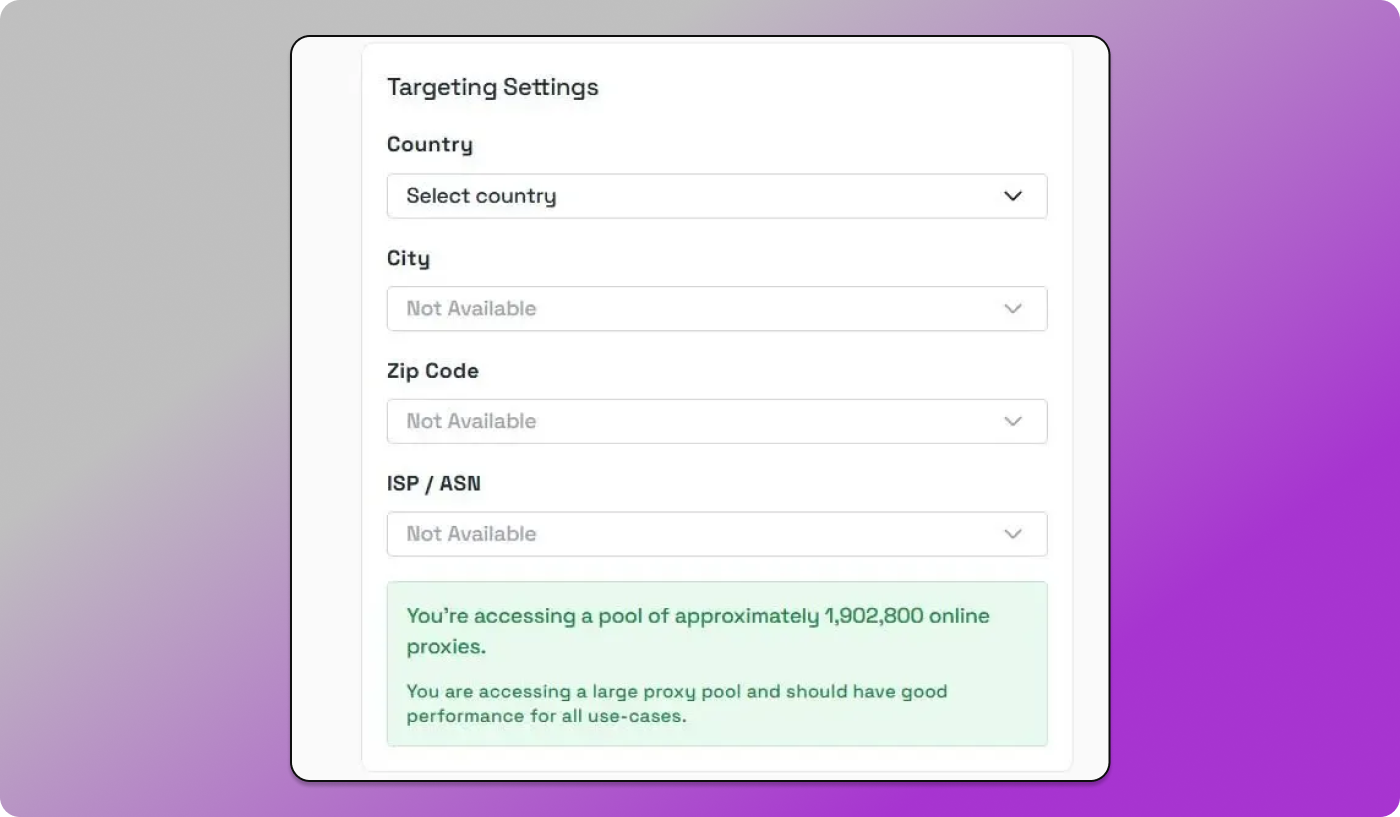
4. Add quantity and click Generate.
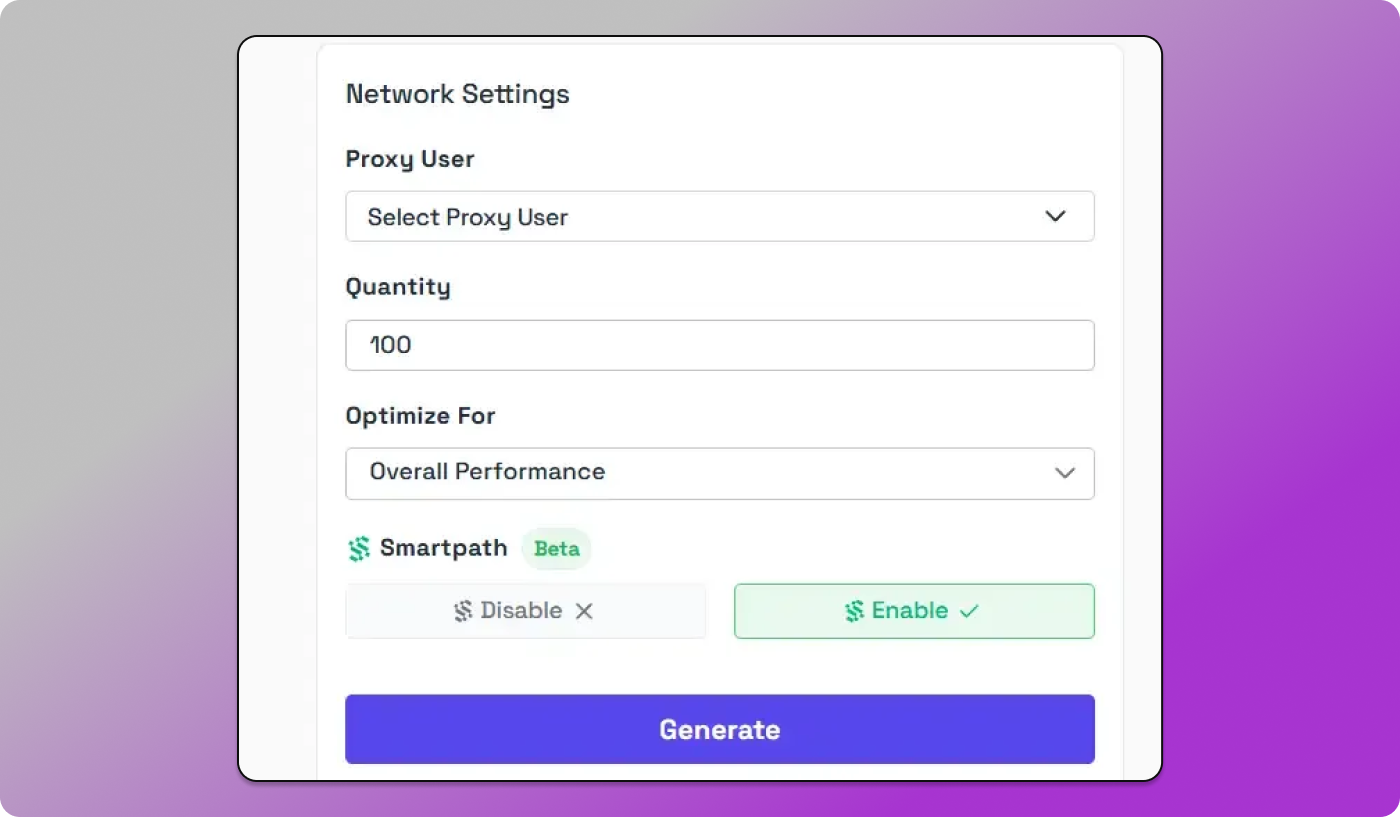
5. Enable SmartPath to save residential bandwidth.
Your proxy will appear as (hostname:port:username-country:password).
Creating Your First Isolated Profile in Dolphin Anty
Here’s how to create an isolated profile that stays undetected from the very first session.
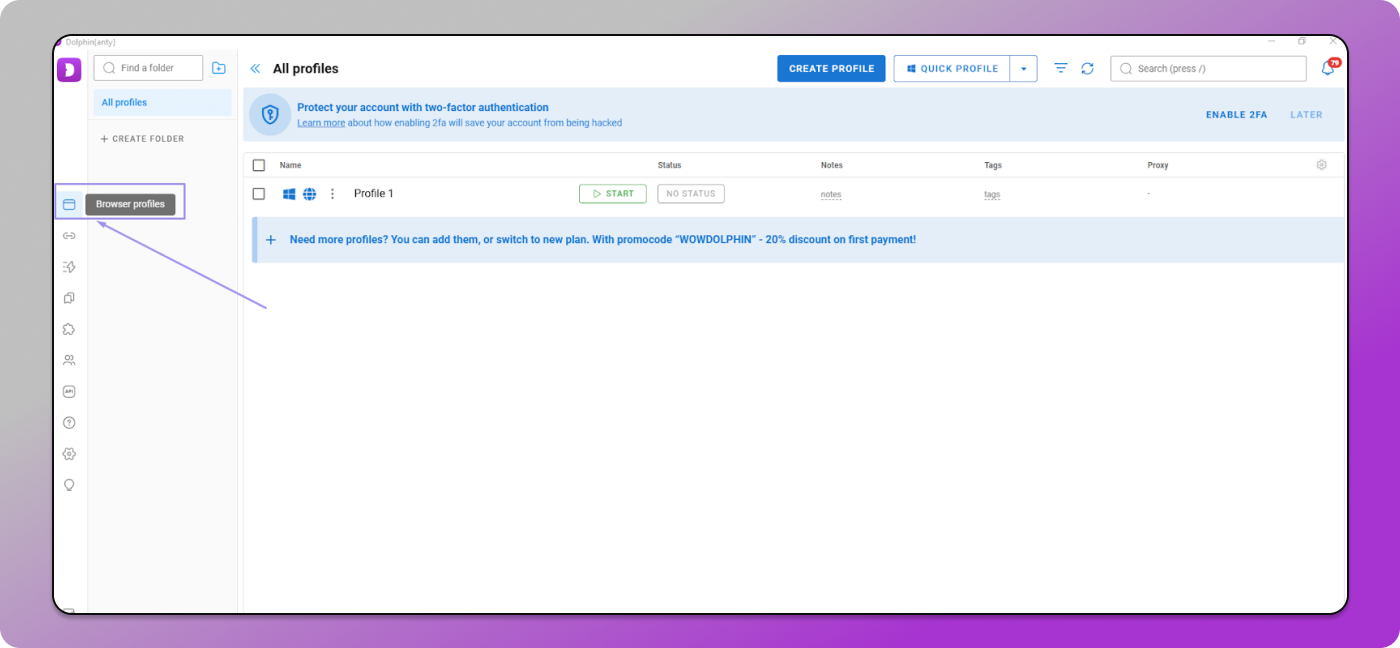
1. Open 🔥 Dolphin Anty. On the left sidebar, click Browser Profiles. This section lists your current profiles and gives you the option to create a new one.
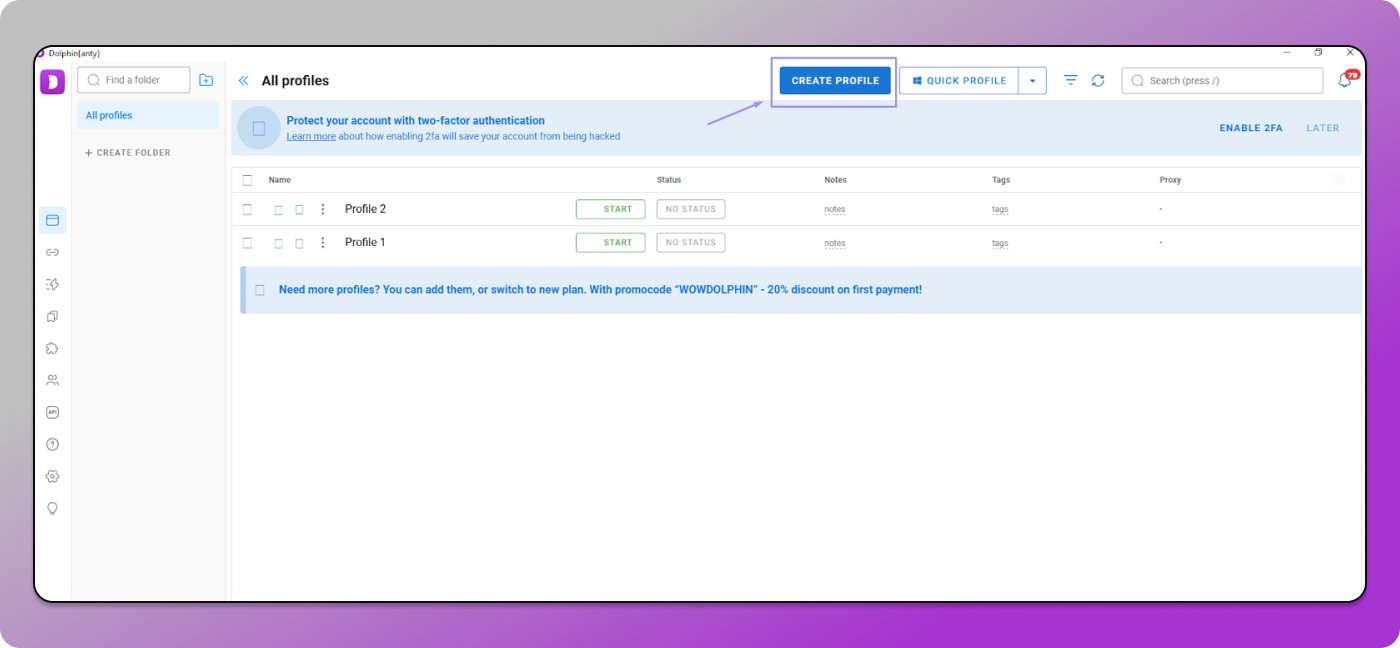
2. Select Create Profile in the top-right corner. A full configuration window opens, where you define how this new device will appear online.
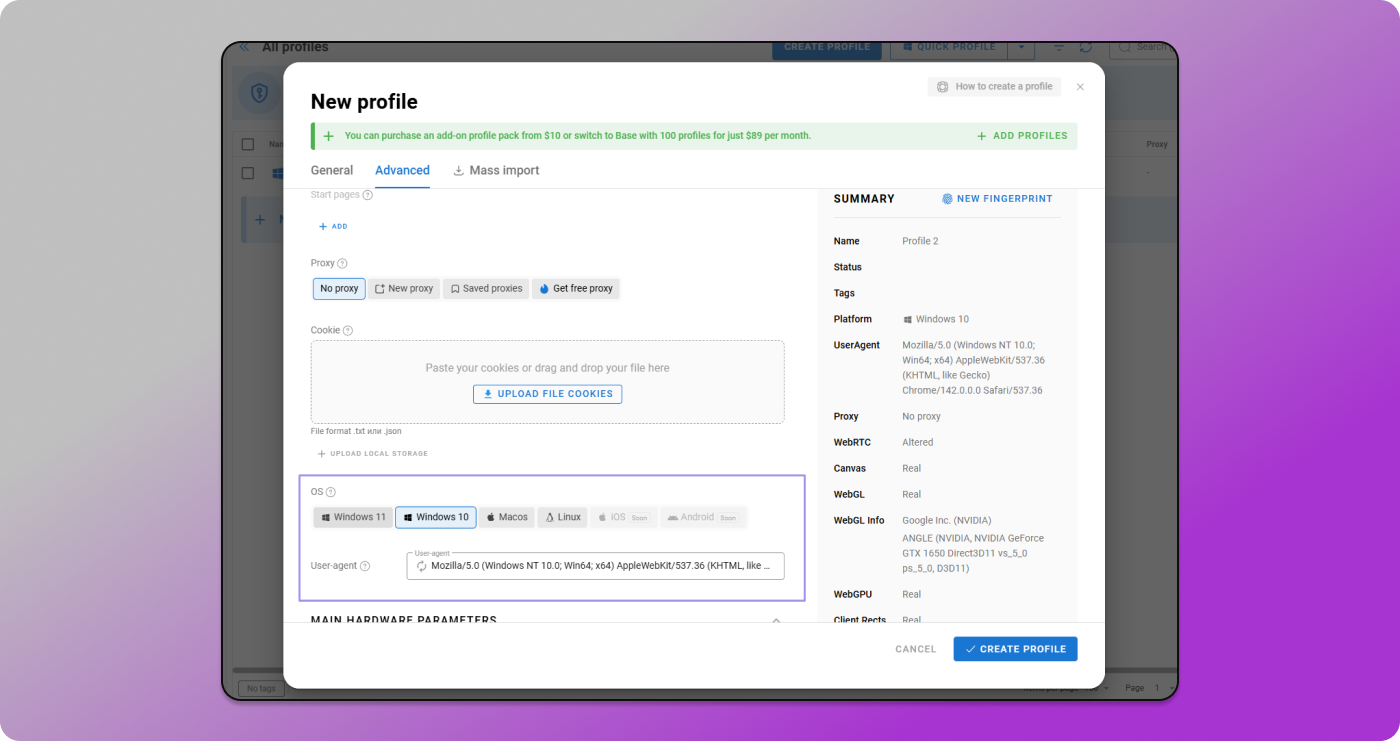
3. In the fingerprint section, Dolphin Anty already provides a base template. You don’t need to modify everything manually, just confirm fields such as:
- Canvas
- WebGL
- Audio
- Fonts
- Hardware traits
- WebRTC
Keeping these values steady helps the device look consistent across sessions.
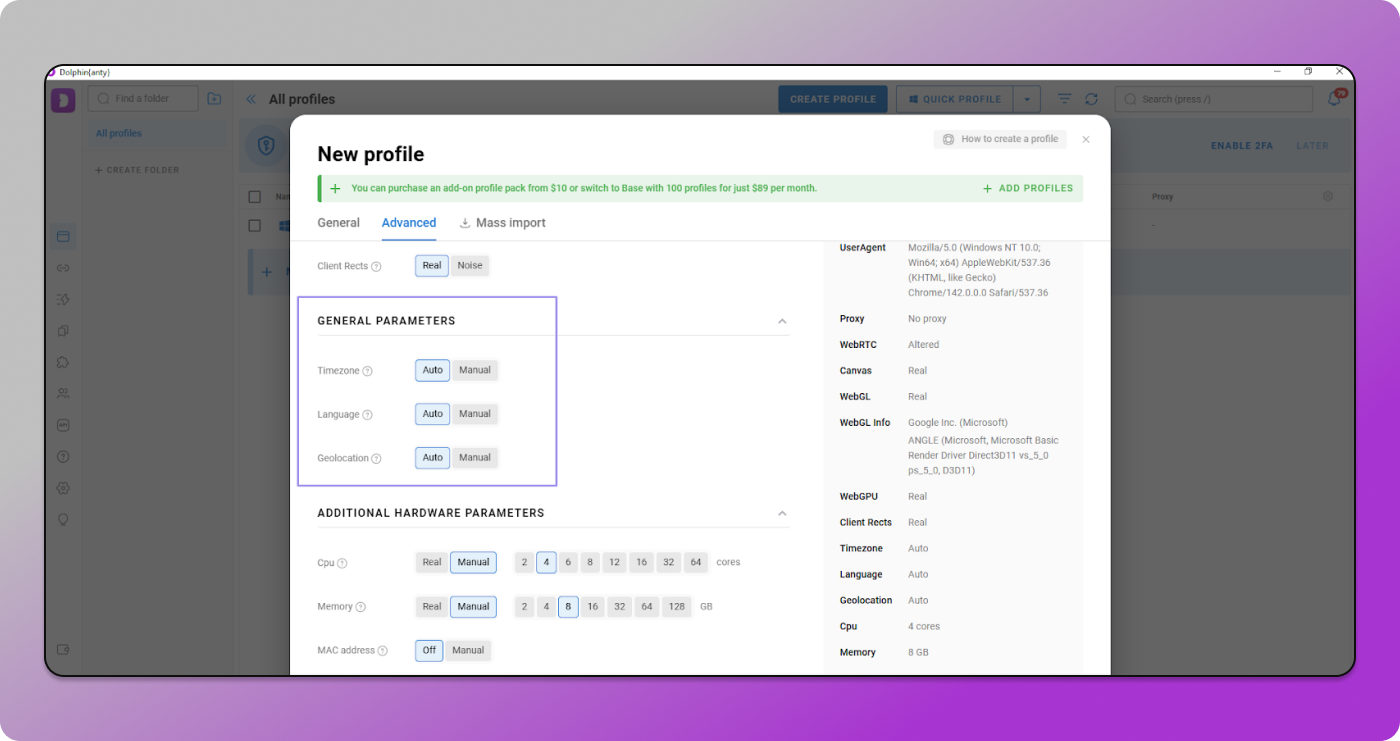
4. Scroll to the general parameters. Choose a timezone and language that match the region you plan to pair with your proxy later. Matching these values prevents early GEO mismatches.
 5. Go to Extensions and keep it minimal. Extra plugins leave patterns that some platforms flag.
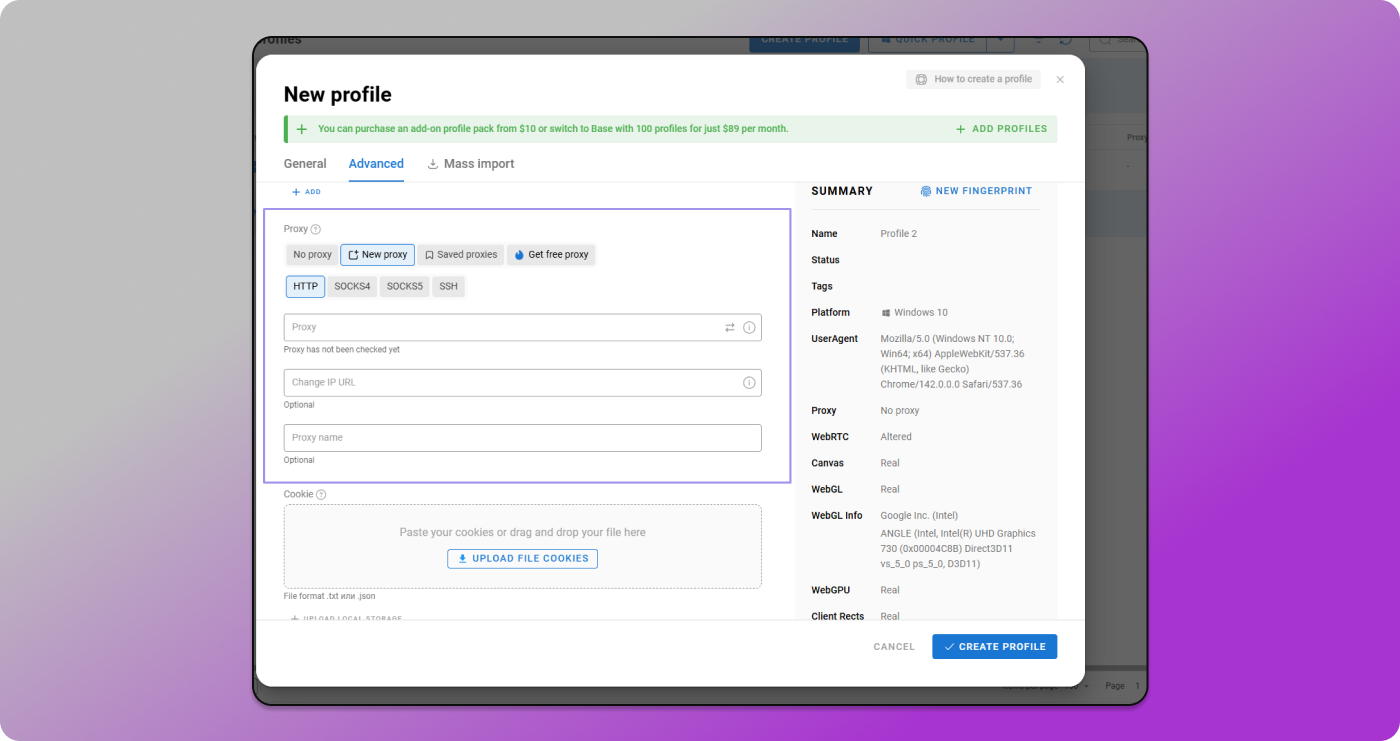
6. Scroll to the Proxy field and paste your Ping Proxies credentials. Dolphin Anty accepts the full proxy format (hostname:port:username:password), so you can copy it directly from the Ping Proxies dashboard. After pasting it, click Check Connection to confirm that the IP, location, and connection status are correct.
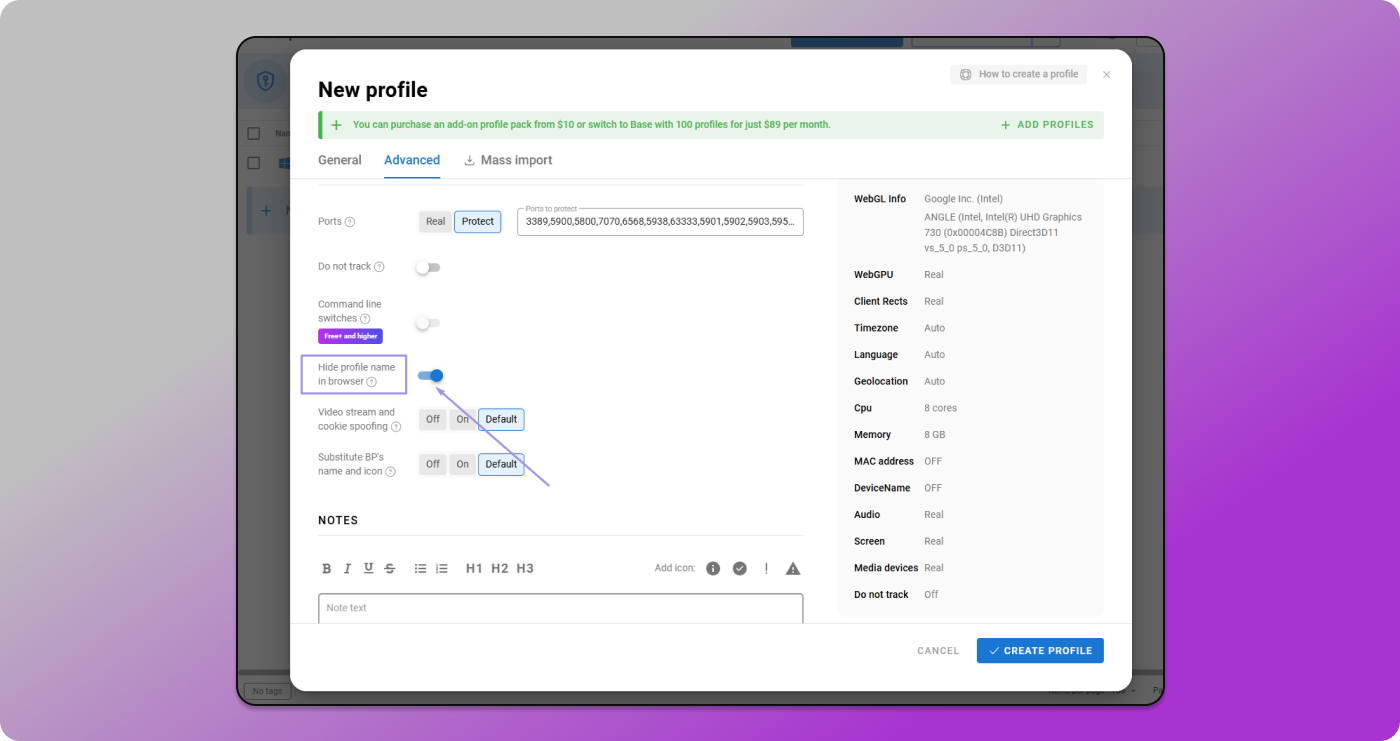
7. Adjust stealth options when required. Use the toggles to hide profile names or replace icons during KYC or support screenshots.
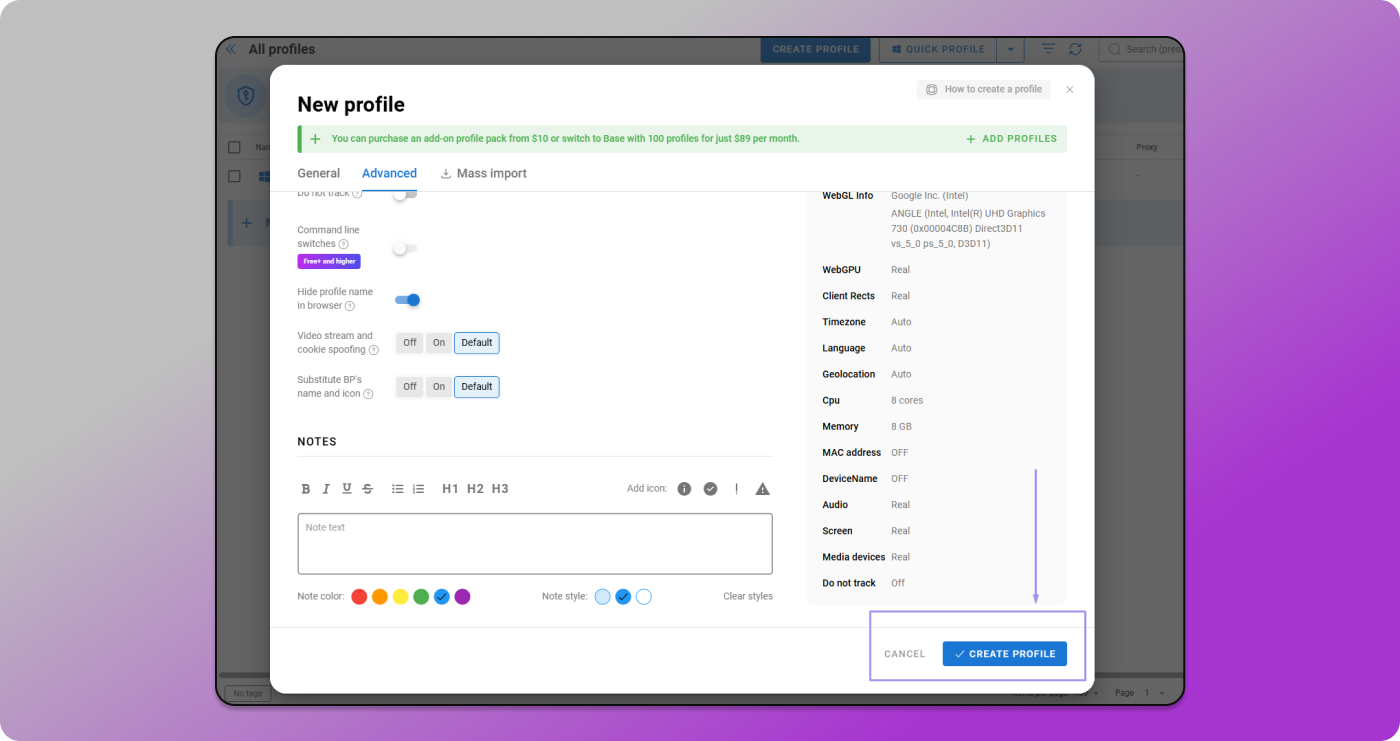
8. Click Create Profile to lock in the environment.
Treat the profile as one device. Using it consistently helps keep identity signals stable during automation.
Why Clean Proxy Signals Are Critical for Dolphin Browser Profiles?
Every browser profile in Dolphin Anty builds its identity in two layers: the device layer and the network layer.
The fingerprint handles the 💻 device side by defining how the browser looks internally. On the other hand, a proxy manages the network side by shaping how the request travels.
When a profile goes online, it sends its request through the assigned proxy. Once the request arrives, the site checks the IP, location, and ASN before anything else. Any conflict between these signals creates a detection problem.
Automation highlights these conflicts because repeated tasks expose inconsistencies. Now, how does a stable proxy help?
A stable proxy integration in Dolphin Anty reduces this risk by aligning the IP with the profile’s region, activity pattern, and history.
- IP region must match the fingerprint timezone
- Language settings need to follow the same region
- ASN should resemble normal consumer traffic
- Routing paths need steadiness across long sessions
- Clean IPs from providers such as Ping Proxies help maintain consistent network behavior
Different proxy types fit different needs:
- Datacenter routes focus on speed.
- ISP proxies add stability with consumer-like traits.
- Residential proxies resemble everyday user traffic and help with marketplace accounts, ad logins, and sensitive workflows.
- SmartPath routes non-critical traffic through datacenter segments to reduce residential bandwidth use.
Stable routing lowers the chance of logouts or verification loops. When the proxy aligns with the fingerprint and the session pattern, each profile behaves like its own user. This network consistency forms the foundation for safer automated workflows.
What Makes a Dolphin Anty Profile Fully Isolated
Dolphin Anty builds isolated profiles with distinct device traits, so every browser window behaves like a separate machine.
Now this separation keeps ⚙️ automated activity safer because it reduces or completely eliminates all the links between one profile and another.
Every profile runs with its own storage, fingerprint, cookies, timezone, and language settings. Now, the thing is, this setup makes sure nothing leaks from one account into another. Because the moment those traits match across profiles, the platform assumes the same device is behind them.
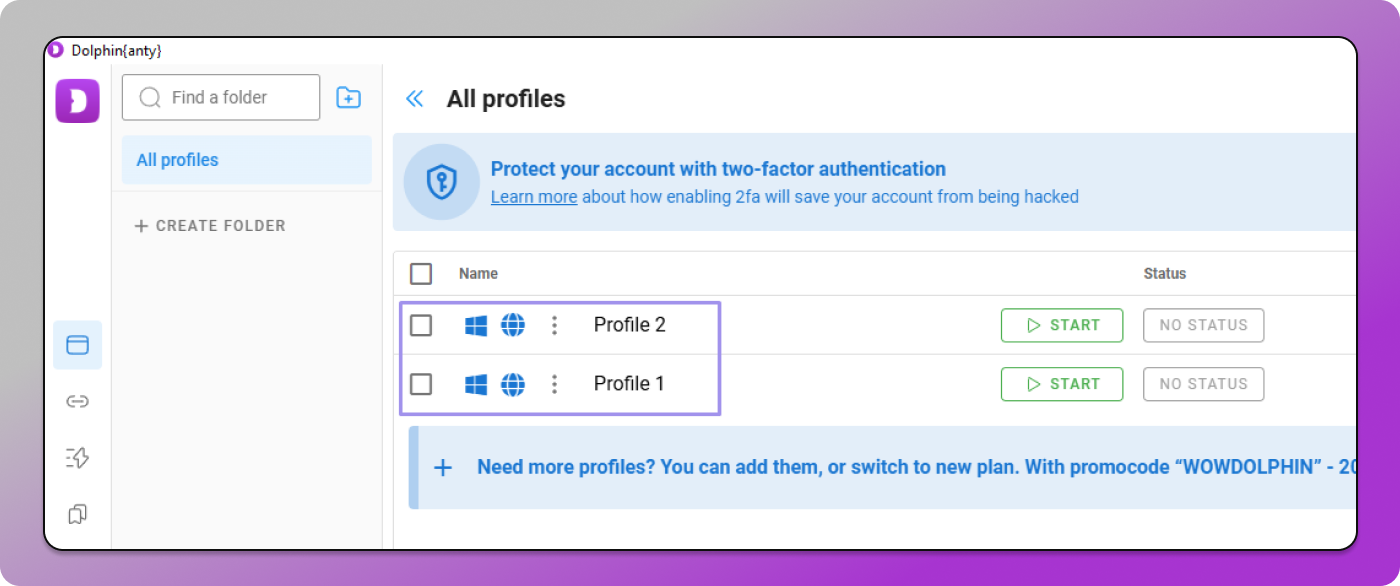
A clean profile starts with a fingerprint template.
Dolphin Anty works as a dolphin navigator and picks values for canvas output, WebGL behavior, audio patterns, fonts, hardware traits, and system details.
Once that profile opens, the window behaves like a separate machine.
The isolation works on more levels than the fingerprint alone. Each profile has the following ⬇️
- Separate cookies and cache
- Independent storage paths
- Its own proxy assignment
- Distinct timezone and language settings
- Unique device traits and rendering patterns
Best Practices for Undetected Automation Using Dolphin Browser
Automated activity gets safer the moment your profile starts behaving like a person instead of a script. When a fresh account logs in from a clean profile, the platform tries to line up the device traits, the location, and the recent behavior.
If everything feels natural, the session moves smoothly. If it doesn’t, problems start early. So to keep things stable, here are the habits that help each profile stay invisible in the best way possible.
- Keep Fingerprints Stable: Avoid changing canvas, WebGL, timezone, or GPU values. Real devices don’t switch hardware every session, so a steady fingerprint looks more believable.
- Match GEO Location With Fingerprint: A lot of flags come from mismatches. For example, the proxy shows France, but the timezone says India, and the language is set to Spanish. Therefore, your IP, timezone, and language should all point to the same location.
- Use Long Session Times: Short bursts of activity look like automation. Real users mostly scroll, read, pause, and wander around a page.
- Warm Up New Accounts Slowly: New accounts shouldn’t jump into heavy actions. Start with browsing, opening pages, checking menus, and letting the session breathe. Once the behavior looks realistic, you can move to important tasks.
- Avoid Fast Repetitive Actions: Platforms notice when every click lands at the same interval. Varying delays and mixing actions make the behavior feel more like a human, and less like a repeating pattern.
- Keep Cookies Separate: Cookies tell the story of how an account behaves. Mixing them between profiles links identities together. Each Dolphin Anty profile already keeps cookies isolated, so the moment you avoid sharing them manually, you cut out a major detection risk.
- Use Sticky Residential or ISP Proxies: Some platforms react strongly to IP changes. Residential proxies or ISP proxies keep the IP stable during long sessions. A provider like Ping Proxies helps here because longer-lived routes reduce random logouts and unnecessary challenge screens.
Conclusion
Staying undetected in ⭐ Dolphin Anty is about keeping things steady. A clean fingerprint, the right proxy, and consistent behavior turn every profile into a separate device. And with reliable, geo-accurate IPs from 🔗 Ping Proxies, profiles maintain stable identities, reduce verification issues, and support long-term multi-account workflows.